Conditional access policies are the if-then rules that decide who gets into your cloud apps, from where, and under what conditions, making them the enforcement layer of a Zero Trust security model. The immediate baseline every tenant needs: require multi-factor authentication for all users, block legacy authentication outright, and protect at least two break-glass accounts from any policy that could lock out administrators. What follows is a phased deployment checklist, the signals and controls worth knowing, and the operational pitfalls that trip up most rollouts.
TL;DR:
- Enforcing multi-factor authentication universally and blocking legacy protocols are crucial baseline policies that must be implemented before adding complex rules.
- only 240 conditional access policies are allowed per tenant, limiting overly granular or app-specific policies and emphasizing the importance of a stable, generalized baseline.
- Testing policies in report-only mode for at least 48 to 72 hours helps identify potential disruptions before full enforcement, reducing the risk of lockouts.
- Excluding break-glass and service accounts from policies from day one prevents unintentional access issues during deployment.
- Achieving a stable, well-documented, and regularly reviewed baseline is more effective for security than relying heavily on advanced, risk-based, or workload identity controls.
Every conditional access policy follows the same logic: if a set of conditions is true, then apply a specific control. Microsoft’s engine evaluates this in two passes. First it collects session details, including user identity, device state, location, and sign-in risk. Then it checks that data against every applicable policy and enforces the strictest combination of results. If two policies both apply to a sign-in, both must be satisfied, since policies combine with AND logic.
A policy has three core parts:
There’s a hard ceiling to plan around: Microsoft caps each tenant at 240 conditional access policies. That sounds generous until you start building one policy per app, per department, per exception. Most of the risk-based conditions (sign-in risk, user risk) require an Entra ID P2 licence; the baseline controls covered below work on P1. For deep configuration detail, Microsoft’s own conditional access concept documentation is worth bookmarking before you build your first policy.
Not every available condition deserves a policy. The signals worth building around are the ones that map to a real risk in your environment, not the ones that just happen to exist in the portal.
Named locations deserve special care. Office IPs and VPN ranges make excellent trusted zones, but travelling employees and corporate proxies routinely trigger false positives if you’re not accounting for them in your design patterns.
Pro Tip: Don’t build a location-based block until you’ve mapped every remote worker’s typical egress point. A single missed VPN range turns into a helpdesk flood on Monday morning.
Grant controls decide whether access is allowed at all. Session controls decide what happens after access is granted, which is where a lot of the practical trade-offs live.
Grant controls include:
Session controls include:
The trade-off usually comes down to BYOD. Blocking a personal device outright frustrates users who just want to check email; an app-enforced restriction that blocks downloads but permits browsing often solves the actual risk without the support tickets.
Skip the temptation to design twenty granular per-app policies on day one. A tenant-wide baseline is easier to audit, easier to troubleshoot, and it’s what Microsoft itself recommends before layering anything more specific.
Exclude break-glass accounts and known service accounts from every one of these from day one; you’ll handle those separately. Name policies consistently (something like CA001-BaselineMFA-AllUsers) so the audit trail makes sense six months later. Policies 1 and 2 work on P1 licensing; risk-based additions later require P2, covered in the section above.
A rushed rollout is how organizations lock themselves out of their own tenant. The fix is a phased approach that tests before it enforces.
Use the Conditional Access policy impact viewer in Entra ID alongside sign-in logs to build a test matrix: which accounts, which apps, which failure modes. Keep a rollback plan for every policy you enable. Document the helpdesk playbook (what a blocked sign-in ticket looks like, how to check exclusions) and send users a short heads-up before MFA enforcement goes live, with a link to self-service enrolment.
Pro Tip: Test every new policy against a small pilot group before rolling it tenant-wide. It takes an extra day and it catches the exceptions a report-only review alone can miss.
Most failures trace back to the same handful of mistakes, repeated across otherwise well-run tenants.
When something breaks, the troubleshooting workflow is straightforward: collect the user, device, OS, and timestamp; check the Conditional Access tab in the Entra sign-in logs to see exactly which policy applied and why; then reproduce the failure with a test account rather than guessing. Set up alerting on break-glass account usage, since any sign-in from those accounts should be rare enough to investigate every time.
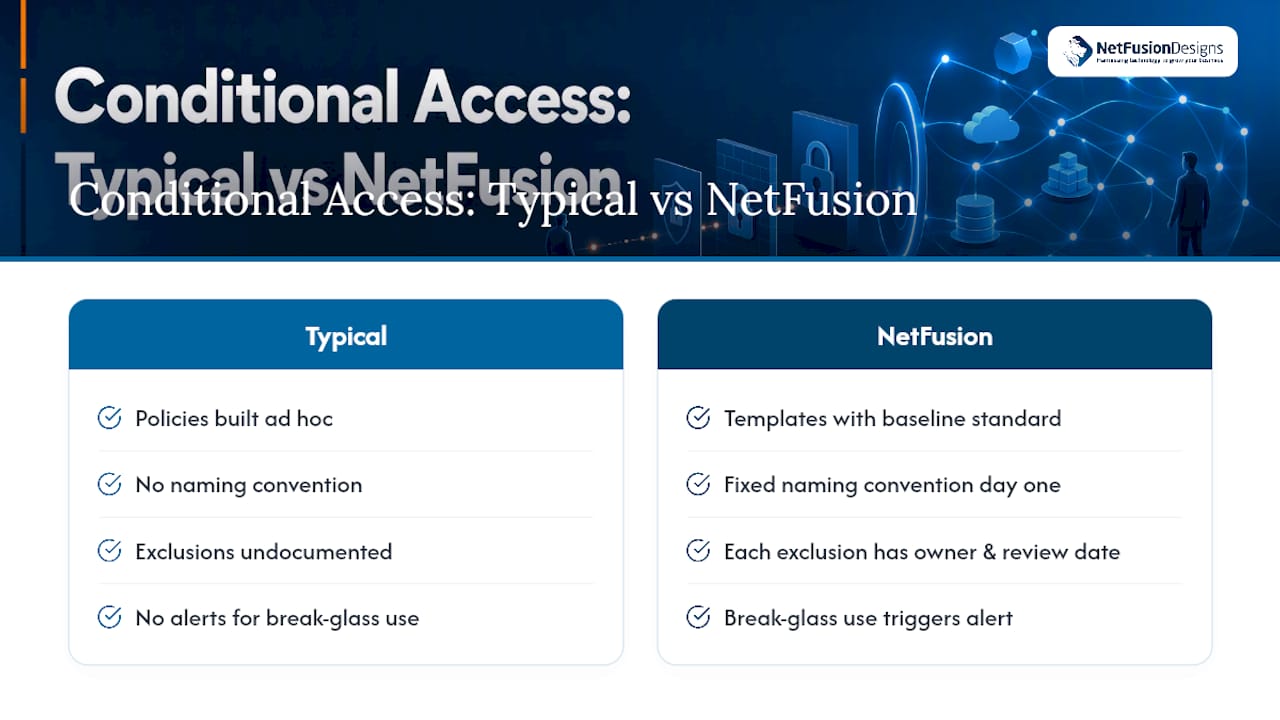
Across the mid-market tenants some managed service providers support, the failure pattern is consistent: policies get built individually by whoever’s available that week, with no naming convention and no documented exclusion rationale. Six months later, nobody can say why an account is excluded from MFA.
Operating with compliance certifications and dedicated monitoring changes how this gets built. Our templates start with the same baseline covered above, but every exclusion group gets a documented owner and review date, every break-glass account triggers an alert on use, and policy names follow a fixed convention from day one. On the Microsoft 365 side, our Intune device management work happens before device-compliance policies go live, not after, which is the sequencing gap that causes most Phase 3 failures.
The trigger point for bringing in a managed provider isn’t tenant size. It’s usually the moment a business has more than one admin building policies without a shared playbook, or lacks the monitoring to catch a break-glass account being misused.
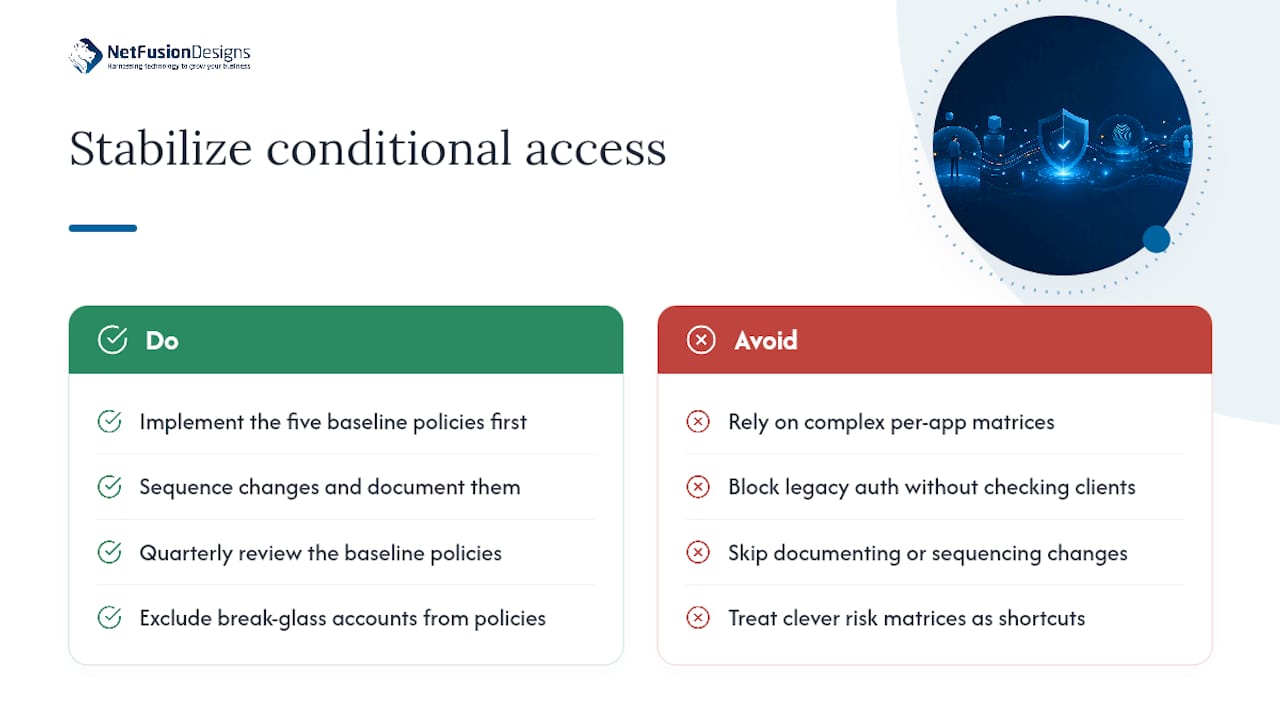
The industry’s advice on this topic tends to overweight the exotic controls, risk-based access, workload identity governance, authentication contexts, and underweight the boring part: sequencing and documentation. Most tenants that get locked out or hit by an incident didn’t fail because they lacked a sophisticated risk policy. They failed because block legacy auth went live before anyone checked for an old scanner still using SMTP, or because a break-glass account wasn’t actually excluded from a policy that later got tightened.
If I had to prioritize one thing for a reader starting from zero, it’s this: get the baseline five policies stable and boring before you touch anything advanced. A tenant-wide baseline that’s dull, well-documented, and quarterly-reviewed beats a clever per-app risk matrix that nobody fully understands eighteen months later. The five-policy pattern mid-market tenants keep converging on isn’t a shortcut. It’s what’s left after the complicated versions fail often enough that people stop building them.
— Geeshan
Building this baseline correctly the first time, with report-only testing, break-glass protection, and a documented exclusion process, takes real hours most internal IT teams don’t have spare. Some managed IT service providers offer assistance with phased deployment, Intune readiness, and monitoring to help avoid misconfigured policies locking out users.

We start with a short assessment of your current Entra ID setup, move to a report-only pilot, then a managed rollout backed by our NOC. If you support automation workflows alongside your identity stack, our partners at BabyLoveGrowth’s multi-LLM audit tool are worth a look for monitoring AI-driven processes tied into the same environment. For most readers, the practical next step is our free cybersecurity assessment, eight questions, an instant score, and a clear read on where your access controls stand before you build another policy. If you’re in the region, our managed IT services in Mississauga team can take the deployment off your plate entirely.
Common examples include requiring MFA for all users, blocking legacy authentication protocols, requiring a compliant device for admin roles, and restricting access by country or named location.
In the Microsoft Entra admin centre, under Protection, then Conditional Access, where you can create, edit, and review policies along with their report-only testing results.
Baseline policies like MFA enforcement and blocking legacy authentication require Entra ID P1, while risk-based controls using sign-in and user risk signals require Entra ID P2.
Start with a stable, tenant-wide baseline before building granular per-app rules, always test new policies in report-only mode first, exclude break-glass accounts from every policy, and review exclusions quarterly.
Small tenants with one experienced admin can often build the baseline five policies safely, but organizations without documented processes or continuous monitoring often benefit from a managed provider like NetFusion Designs Inc to handle deployment and ongoing review.
%20(1).avif)
%201.avif)