A secure dental network starts with an asset inventory, not a shopping list. Before buying a single switch, count every workstation, imaging device, and phone, then design around segmentation, phishing-resistant multi-factor authentication (MFA), endpoint protection, and tested offline backups. Anything beyond a small, single-site practice deserves a networking professional’s input, because a wrong choice here shows up months later as a ransomware incident or a chair-side crash.
TL;DR:
- A full inventory of all devices, including workstations, imaging equipment, and IoT devices, is essential before designing segmented VLANs for security and performance.
- Network cabling should rely on Cat6 or better for clinical and imaging stations, with managed switches and PoE ports to ensure reliability and ease of management.
- Segmentation with VLANs and strict firewall rules prevents infections and unauthorized access, especially between guest, clinical, administrative, and IoT networks.
- Remote access should use a middle tier or hosted desktop setup rather than direct VPN or database exposure, to improve responsiveness and security.
- Offline, encrypted backups tested quarterly ensure resilience against ransomware, with multi-factor authentication and endpoint protection as critical safeguards.
Every reliable dental office network setup begins the same way: count what you have and what you’re adding. Skipping this step is why so many practices end up with switches that choke during morning rush or Wi‑Fi that drops mid-scan.
Start with a full device inventory across every operatory:
Once you have the count, add headroom. Open Dental’s hardware guidance recommends provisioning 20 to 25% more concurrent connections than your workstation count to avoid rolling disconnects during busy hours. A practice with 12 workstations should plan for a load somewhat above the workstation count.
Finally, decide your topology. A single location with under 20 workstations fits Open Dental’s definition of a small practice that can often run on straightforward hardware. Multi-site practices, or any office needing frequent remote access for a dentist working from a second location, need a more deliberate design and almost always benefit from a networking professional’s input from day one.
Wired Gigabit connections, not Wi‑Fi, should carry every operatory and imaging device. Wireless is convenient, but it introduces latency and interference that shows up as slow image transfers and laggy chart loading, exactly when a hygienist doesn’t have time to wait.
Cat6 cabling (or better) run to every clinical station gives you consistent throughput. Reserve Wi‑Fi for what actually needs mobility: staff tablets, patient guest access, and visiting reps’ laptops.
Build the rest of the physical layer around these components:
Workstation and server specs matter more than most owners assume. Open Dental’s hardware requirements list typical minimums around 8 GB of RAM, 200 GB of storage, Windows 11 64‑bit, and 1000 Mbps network connectivity for practice-management workstations. Buying below these specs to save a few hundred dollars usually costs more in support calls within the first year.
Pro Tip: Ask any installer for the switch’s actual managed feature set in writing, not just the box label. Some budget “managed” switches offer VLAN tagging but strip out the logging and access control features you’ll need for segmentation later.
A single flat network is the single most common vulnerability in a dental office network setup. If one guest laptop gets infected, nothing stops that infection from reaching your imaging server or practice-management database.
Segmentation solves this with virtual LANs (VLANs), each isolated by purpose:
Firewall rules then enforce the boundaries. CISA’s guidance for the healthcare and public health sector recommends starting from asset inventory and segmentation, then allowing only the specific ports and protocols each VLAN genuinely needs between segments. A guest network, for instance, has no legitimate reason to reach the practice-management server.
Map out which devices actually need to talk to which services before writing firewall rules. This sounds tedious, but it prevents the common mistake of allowing broad “any to any” traffic just to get things working, then never tightening it later.
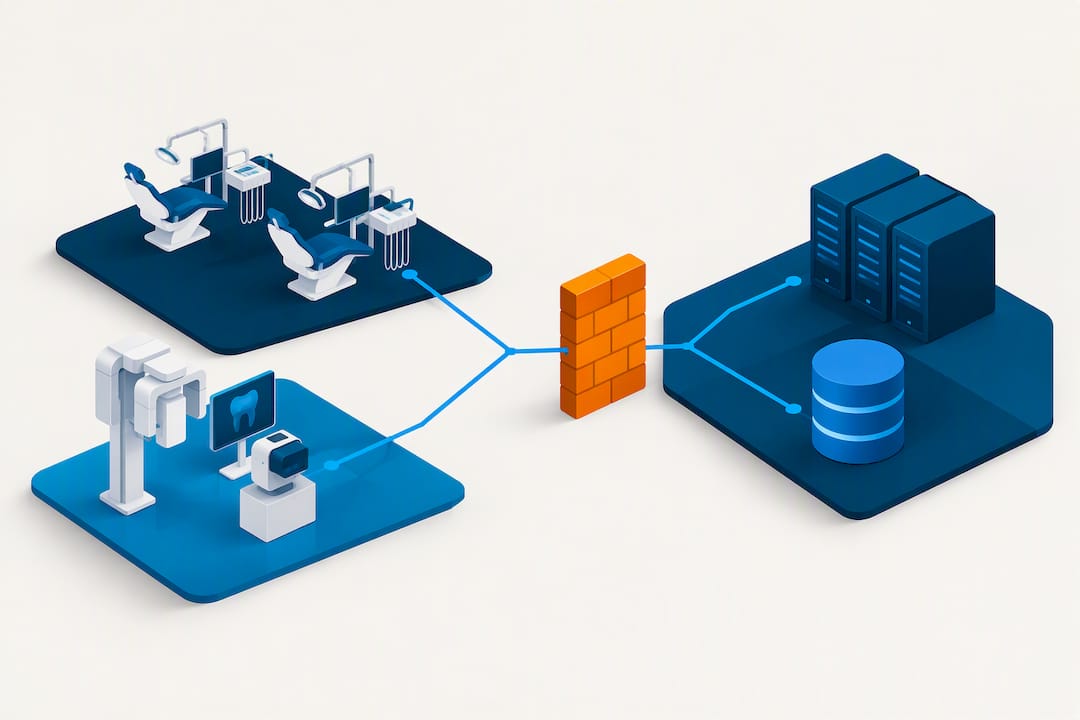
Document the finished design in a network diagram, including VLAN assignments and IP ranges. That diagram becomes essential during future audits, staff turnover, or when a new IT provider takes over support.
Direct LAN connections to your practice-management database are the fastest option, and they work well for a single site with everyone on the same physical network. Never expose that database directly to the internet, though. Open Dental explicitly warns against exposing MySQL to the internet and recommends isolating it or routing through a middle tier, blocking port 3306 from outside access whenever a middle tier is in use.
Remote users complicate the picture. A VPN connecting straight into the database can feel sluggish, because every query makes a round trip across the internet connection before returning data. Latency from that access pattern, not raw bandwidth, is often the real bottleneck for remote or multi-site staff.
A middle tier or hosted desktop setup changes the pattern. Instead of a remote workstation querying the database directly, it talks to a local application server that handles the database work and sends back only the results. This tends to improve responsiveness for remote sites and adds a security layer, since the database itself is never directly reachable from outside.
Some practices use RDP (Remote Desktop Protocol) or a virtual desktop infrastructure (VDI) setup instead. If you go this route:
Ransomware doesn’t need a sophisticated attacker to succeed. It usually needs one unpatched device, one weak password, or one missing backup test. The Canadian Centre for Cyber Security’s ransomware guidance lays out the baseline controls every healthcare organization, dental practices included, should have in place.
Start with identity and endpoint controls:
Then lock down the perimeter. A firewall paired with DNS filtering blocks a meaningful share of phishing and malware traffic before it ever reaches a workstation. Unnecessary ports should stay closed, and database ports like MySQL’s 3306 should never face the open internet.
Backups are where most recovery plans quietly fail. An offline, encrypted backup copy materially reduces risk compared with relying only on an always-connected online backup, because ransomware that reaches your network can also reach and encrypt a backup that’s constantly attached to it.
Why this matters: the Canadian Centre for Cyber Security’s own ransomware guidance treats a tested, offline backup copy as a core defence, not an optional extra, for organizations handling health records.
Pro Tip: Schedule a quarterly restore test, not just a backup check. A backup that “completes successfully” every night but has never actually been restored is an unverified assumption, not a recovery plan.
Storing patient records with a cloud vendor or a hosted practice-management provider doesn’t transfer your legal responsibility. The Ontario Information and Privacy Commissioner is clear that custodians remain accountable for personal health information wherever it lives, including inside third-party systems.
That accountability translates into concrete network decisions:
Signing off on a network project without proof it works is how practices end up calling their installer back within the first week. A complete handoff, aligned with the NIST small-business quick start guide, includes documentation, proof of function, and a plan for ongoing care.
Pro Tip: Insist on a signed list of any unresolved exceptions before final payment. A missing camera feed or an untested backup that gets waved off as “we’ll fix it later” almost never gets fixed later.
Most IT providers treat a dental office like any small office with a few extra printers. That misses the point entirely. Imaging transfer speed, practice-management licensing, and operatory uptime have direct clinical consequences a generic setup won’t account for. A dental-specific network assessment can surface risks a general-purpose IT visit misses entirely.
— Geeshan
A generic IT provider will hand you a standard business network and call it done. NetFusion Designs Inc treats dental practice IT as its own discipline, because imaging uptime, practice-management performance, and patient data safeguards carry weight a normal office network never has to consider.
Our SOC 2 Type II certified team handles the full picture: segmented network design, managed IT services with 24/7 monitoring, and cloud backup and disaster recovery built around encrypted, offline copies and tested restores. If your current setup has never had a proper security review, that gap is worth finding before an attacker finds it for you. Book a dental IT network assessment with NetFusion Designs Inc and get a clear, written picture of where your practice stands before your next hardware purchase.
Start with a full device inventory, including workstations, imaging equipment, and phones, then design VLANs to separate clinical, administrative, and guest traffic. Wire operatories with Cat6 or better, choose managed switches, and confirm your backup and MFA controls before go-live, ideally with a networking professional reviewing the plan for anything beyond a very small single-site office.
Most dental practices run dedicated practice-management software, such as Open Dental or similar platforms, alongside separate imaging software for X‑rays and scans. These systems need to communicate over the network, which is why network design should account for their specific bandwidth and latency needs rather than treating them like generic office applications.
A dental clinic network needs managed switches, Cat6 (or better) cabling to every operatory, a firewall, patch panels, a lockable comms rack, and a UPS for critical gear. Workstations and servers should meet vendor-specified minimums, and Open Dental’s hardware guidance recommends provisioning 20 to 25% more concurrent connections than your workstation count.
Pricing depends on practice size, workstation count, and the scope of services required, so NetFusion Designs Inc doesn’t publish a flat rate. Current pricing and service details for managed IT services are available directly through NetFusion Designs Inc.
Wired Gigabit connections should carry operatories, imaging devices, and the practice-management server, since wired links deliver more consistent throughput than Wi‑Fi. Wi‑Fi still has a place for staff tablets and patient guest access, but it should sit on its own isolated VLAN separate from clinical traffic.
%20(1).avif)
%201.avif)