Exchange Online retention policies control what happens to email over time: whether it is retained, deleted, or moved to an archive mailbox on a schedule you define. If you are starting fresh, open the Microsoft Purview compliance portal and build your policy there rather than in legacy tools. If you are managing an existing deployment built on older Messaging Records Management tags, start by inventorying what you have before you touch anything. Portal steps, PowerShell commands, and verification checks follow below.
TL;DR:
- Retention policies require appropriate permissions, typically involving Compliance Administrator or Organization Management roles, which must be verified before setup.
- Core features depend on your Exchange Online plan, with advanced capabilities like auto-apply labels needing Microsoft 365 E5 licensing.
- A default policy tag usually includes one archive and one delete action, with longer retention periods prevailing when multiple labels apply to content.
- Moving from legacy MRM tags to Purview labels should follow careful inventory, pilot testing, and staged migration to avoid overlaps and contradictions.
- Conflict resolution involves checking for overlapping holds, scope misconfigurations, and mailbox storage issues, with support escalation recommended for persistent problems.
Before creating or changing any policy, confirm who can make the change and what your licensing actually supports. Retention policy creation in Microsoft Purview or the Exchange admin centre typically requires Compliance Administrator, Organization Management, or a similarly scoped role assignment. Handing this to a general helpdesk account without the right role will simply produce a permissions error, which wastes a pilot cycle.
Licensing matters more than most admins expect. Core retention policy features are tied to your Exchange Online plan, while some Microsoft Purview capabilities such as advanced retention labels and auto-apply rules require Microsoft 365 E5 or add-on licensing. Our Microsoft 365 licensing guide covers which tiers unlock which features in more detail.
A few behavioural rules shape every decision you make from here:
Retention tags are the building blocks of a policy, and choosing the right type for the job matters more than the number of tags you create. A default policy tag (DPT) applies automatically to an entire mailbox when no other tag is present, and you typically want exactly two: one to move items to archive after a set period, and one to delete items after a set period. A retention policy tag (RPT) targets a default folder such as Inbox or Deleted Items. A personal tag lets users apply a classification themselves, and it should be used sparingly.
To build tags through the portal:
For admins who prefer scripting, PowerShell offers the same outcome with more control:
New-RetentionPolicyTag "DPT-Archive-2yr" -Type All -RetentionAction MoveToArchive -AgeLimitForRetention 730
Swap the type and action for delete or retain-only tags as needed, according to Microsoft’s retention tags and policies documentation.
Pro Tip: Limit personal tags to a small, published set and pilot them with one department before releasing them tenant-wide; unmanaged tag sprawl is one of the hardest things to unwind later.
A retention policy is simply a container that links tags together and gets assigned to mailboxes. Once your tags exist, the policy itself is quick to assemble, though the scope you choose determines how much testing you need before rollout.
In PowerShell, the same steps look like this:
New-RetentionPolicy "Finance-7yr-Retention" -RetentionPolicyTagLinks "DPT-Archive-2yr","DPT-Delete-7yr"
Set-Mailbox -Identity finance.user@contoso.com -RetentionPolicy "Finance-7yr-Retention"
Shared mailboxes accept retention policies the same way user mailboxes do, but confirm that an archive mailbox is enabled first if any tag moves items there. Without an active archive, move-to-archive actions simply fail silently until the archive is provisioned, which is an easy detail to miss during a rollout.
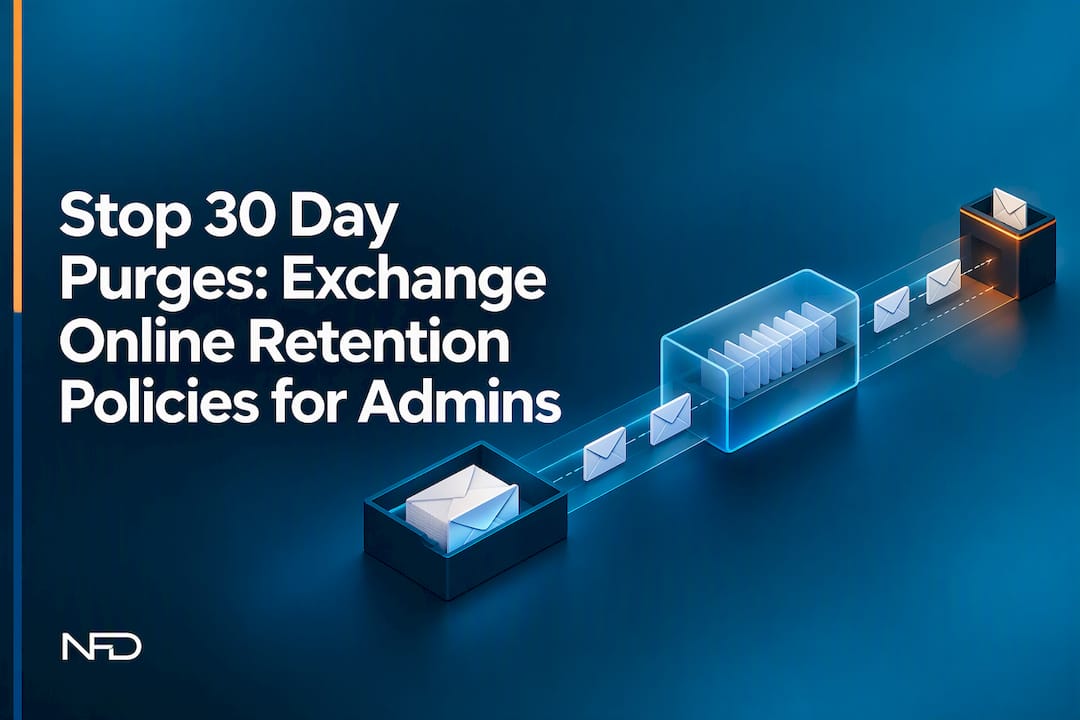
The lifecycle path an email takes depends entirely on which action its tag or label specifies, and the three common patterns produce noticeably different outcomes.
A common configuration pairs a two-year archive move with a multi-year delete, so mail ages out of the primary mailbox first and disappears entirely only once the longer window closes.
One detail worth knowing: the Recoverable Items folder’s default 30-day purge window is configurable and can be extended, which matters if your compliance team needs a longer recovery buffer than the default provides.
Users see expiry indicators in Outlook when a retention policy or label is close to acting, but those indicators are not always reliable for audit purposes. Relying on user-reported expiry dates instead of PowerShell verification is a common admin mistake, since the visible date reflects the policy currently applying, not necessarily the one that will ultimately win if a label with a longer period also applies.
Retention policies automate lifecycle actions on a schedule. Holds do something different: they simply stop items from being purged, regardless of what any tag or policy says. Understanding that distinction avoids a lot of confusion when an item survives a deletion schedule you were certain would remove it.
To confirm what is actually protecting a mailbox, check its hold status directly rather than assuming the policy assignment tells the full story. Microsoft’s guidance on how to identify a hold on a mailbox walks through the property values to look for.
Assigning a policy is not the same as confirming it took effect, and skipping verification is how gaps get discovered during an audit instead of during deployment.
Get-Mailbox -Identity user@contoso.com | Select RetentionPolicy to confirm the policy assignment on a specific mailbox.Get-RetentionPolicy to review the tags linked to a policy and catch any misconfiguration before it reaches users.Get-OrganizationConfig for tenant-level defaults that might override or interact with individual mailbox settings.Start-ManagedFolderAssistant -Identity user@contoso.com when you cannot wait for the normal processing cycle.InPlaceHolds values returned in mailbox properties use numeric action codes, where 1 typically indicates delete, 2 indicates hold, and 3 indicates hold followed by delete, so reading these correctly avoids misinterpreting what a mailbox is actually protected against. Build a pilot validation checklist covering a handful of sample mailboxes, confirm item-level behaviour matches expectations, and log the results for disposition review before rolling a policy tenant-wide.
Microsoft recommends centralizing retention governance in Purview rather than continuing to expand legacy MRM tags, and the reasoning is straightforward: Purview retention labels and policies apply consistently across Exchange, SharePoint, and Teams, while MRM only ever governed mailboxes. Scattered MRM tags across departments make audits slower and increase the chance of overlapping, contradictory rules.
That does not mean ripping everything out at once. MRM can continue moving messages to archive mailboxes while you build out Purview labels for anything requiring centralized, cross-workload governance.
Pro Tip: Map high-value personal tags to published retention labels during migration, so users keep a familiar classification option without your team managing dozens of admin-created tags long-term.
The most common pitfall is assuming folder-level retention behaves identically in both systems. It does not always, and testing on real folder structures before cutover avoids surprises after retirement.
Most retention problems trace back to one of a handful of causes, and a short checklist catches most of them before they become a support ticket.
If the Managed Folder Assistant appears stuck on a mailbox, the -HoldCleanup and -StopHoldCleanup switches on Start-ManagedFolderAssistant can resolve cleanup tasks that failed to complete on schedule. Beyond troubleshooting, sustainable operation comes down to consistent naming conventions, small pilot groups before wide rollout, clear documentation of why each policy exists, and a firm limit on personal tags. When a hold conflict or storage limit issue resists standard fixes, that is usually the point to escalate to Microsoft support or bring in a managed provider rather than continuing to guess.
Organizations running hybrid environments or heavier compliance obligations often bring in a partner specifically for the migration and audit phases, where the cost of getting a policy wrong is highest. A certified team manages Microsoft 365 environments and performs tested restores as part of ongoing backup operations, so retention work is verified rather than assumed correct. If your retention needs are simple, running this as an internal project with the steps above is entirely reasonable. If you are managing multiple locations, legal holds, or a legacy MRM cleanup, a structured second look tends to save more time than it costs.
Retention policy work rarely stops at configuration: it needs auditing, backup coordination, and someone accountable when a regulator or legal team asks questions later. Managed services include Microsoft 365 environment management, backup and tested restore programs, and support for compliance audits as part of ongoing work with small and mid-sized businesses.

If you want a starting point, a short security assessment or a pilot migration project is usually enough to see where your current policies stand and what needs to change. Our Managed IT Services page outlines how we structure ongoing support for teams that would rather hand this off than manage it internally.
The guidance above draws directly on Microsoft’s own documentation, and these pages are worth bookmarking for exact syntax and future updates:
Most of these tasks require Compliance Administrator access and are performed directly in the Microsoft Purview portal.
An Exchange Online retention policy is a set of linked retention tags that tell Exchange to retain, delete, or move mailbox content to an archive after a defined period. It applies automatically once assigned to a mailbox and works alongside Microsoft Purview retention labels for broader governance.
A seven year retention policy keeps content for seven years before a delete action applies, often used to meet regulatory record-keeping requirements. Admins commonly set this using a default policy tag with an age limit of 2,555 days, matching the same duration used for long litigation holds.
When a delete action’s retention period ends, the email moves to the Recoverable Items folder and purges permanently after the default 30-day window unless a hold is in place. If a hold applies, the item stays recoverable regardless of what the retention policy specifies.
Outlook shows an expiry indicator on affected items, but this reflects only the policy currently in effect, not necessarily the longest one that will ultimately apply. For a reliable answer, an administrator should run Get-Mailbox in PowerShell or use Policy Lookup in the Microsoft Purview portal rather than relying on the Outlook display.
— Geeshan
%20(1).avif)
%201.avif)