Start by assigning Teams Phone licenses that include the Phone System app, then pick a PSTN connectivity model that matches your user types and compliance needs. From there, acquire or port your numbers, voice-enable each user, configure emergency locations, and run test calls before you tell anyone the phone system is live.
TL;DR:
- Map user personas before choosing a PSTN model to ensure device, licensing, and connectivity needs align, especially for shared devices and auto attendants.
- Confirm emergency location settings and run test calls for every site before activating deployment, as misconfigurations can have serious safety and compliance consequences.
- Use PowerShell to automate enterprise voice enabling for larger user groups, reducing support tickets caused by license assignment errors.
- Consider a managed service provider for complex, multi-site deployments involving multiple PSTN options or compliance requirements, to ensure proper setup and ongoing support.
- Avoid treating licensing, device provisioning, and PSTN selection as separate steps; integrated planning based on user roles prevents delays and configuration errors.
Getting Teams Phone setup right starts with licensing, and this is where most deployments stall before they begin. Every user who needs calling capability requires a licence that includes the Microsoft 365 Phone System app. That means Teams Phone Standard on its own, Teams Phone bundled with a Calling Plan, or Microsoft 365 E5, which already includes Phone System.
Shared devices and resource accounts follow different rules than regular users. A common-area phone in a warehouse or lobby needs a Shared Device licence, not a full user licence, and resource accounts used for auto attendants or call queues need their own licensing path entirely.
Pro Tip: A licence assignment alone does not turn on calling. Admins routinely assign Phone System, confirm the licence in the admin centre, then wonder why the user still can’t dial out. Enterprise Voice has to be enabled separately, and that step gets missed constantly.
There are four PSTN models available for Teams Phone configuration: Calling Plans, Operator Connect, Direct Routing, and Teams Phone Mobile. Each solves a different problem, and most mid-size organizations end up mixing at least two.
Calling Plans are the simplest path. Microsoft handles the carrier relationship, but availability depends on your country, and a know-your-customer (KYC) verification process that can add days to provisioning. Operator Connect removes on-premise hardware while letting you keep your existing carrier, provided that carrier participates. As of mid-2025, 109 operators across 106 countries supported the program, so coverage is broad but not universal.
Direct Routing is the option you reach for when Operator Connect doesn’t cover your region, or when you need to integrate legacy PBX hardware, analog fax lines, or meet regulatory requirements that mandate a specific carrier relationship. It requires a certified session border controller and more networking work, but it gives you the most flexibility.
A mixed connectivity architecture is common practice, not a workaround. Knowledge workers on Operator Connect, a contact centre on Direct Routing, and remote sales staff on Teams Phone Mobile can all coexist in the same tenant.
Numbers get requested and assigned through the Teams admin centre, and KYC verification for Calling Plans can delay this step by several business days if you haven’t submitted documentation early. Resource accounts (used for auto attendants and queues) use a separate number pool from user accounts, with differing capacity limits.
Pro Tip: For any rollout past 20 users, skip the admin centre UI entirely and script the Enterprise Voice enablement with PowerShell. It’s faster and it eliminates the “licence assigned but not enabled” gap that causes most support tickets in week one.
Emergency calling responsibilities shift depending on your PSTN model. With Calling Plans, Microsoft manages the emergency routing infrastructure; with Operator Connect, your carrier does; with Direct Routing, you and your SBC provider share that responsibility directly.
Auto attendants and call queues both run through resource accounts, which need their own licence type separate from user accounts. Set these up before you promise a receptionist replacement to the business.
Test under light load before rolling queues out to a full department. A queue that works fine with three agents can behave differently once fifteen are logged in simultaneously.
Device provisioning splits into two sign-in modes: UserSignIn for a desk phone tied to one person, and CommonAreaPhoneSignIn for shared devices in boardrooms or shop floors. That choice determines whether you need a per-user Teams Phone licence or a Shared Device licence, and getting it backwards means re-provisioning later.
Pro Tip: If your remote workforce leans on VoIP over home internet, review how VoIP performance holds up for remote teams before you commit budget to hard phones that will underperform on inconsistent connections.
Run a pilot with five to ten users spanning different sites and device types before opening the system to everyone. Confirm inbound and outbound PSTN calls, emergency calling, and call quality all work for that group first.
In-house teams handle straightforward, single-site Teams Phone Standard deployments with Calling Plans reasonably well. Complexity climbs fast the moment Direct Routing, multiple PSTN models, or compliance logging enter the picture, and that’s where the calculation changes.
A SOC 2 Type II certification and a 24/7 NOC aren’t decoration. They matter here because voice systems fail at inconvenient hours, and compliance-constrained clients need documented emergency-location testing and access logs they can hand to an auditor without scrambling.
Some managed providers run Teams Phone and Microsoft 365 engagements through a consistent sequence: plan the licensing and PSTN model, procure or port numbers, integrate the SBC or operator connection, test under load, then hand off with monitoring already in place. That structure matters most for multi-site organizations juggling more than one PSTN model at once. A missed firewall port or an unlogged emergency location can become an audit finding six months later.
Most Teams Phone guidance treats licensing, PSTN selection, and device provisioning as three separate, sequential decisions. In practice, they’re one decision made three times, and treating them separately is where projects lose weeks.
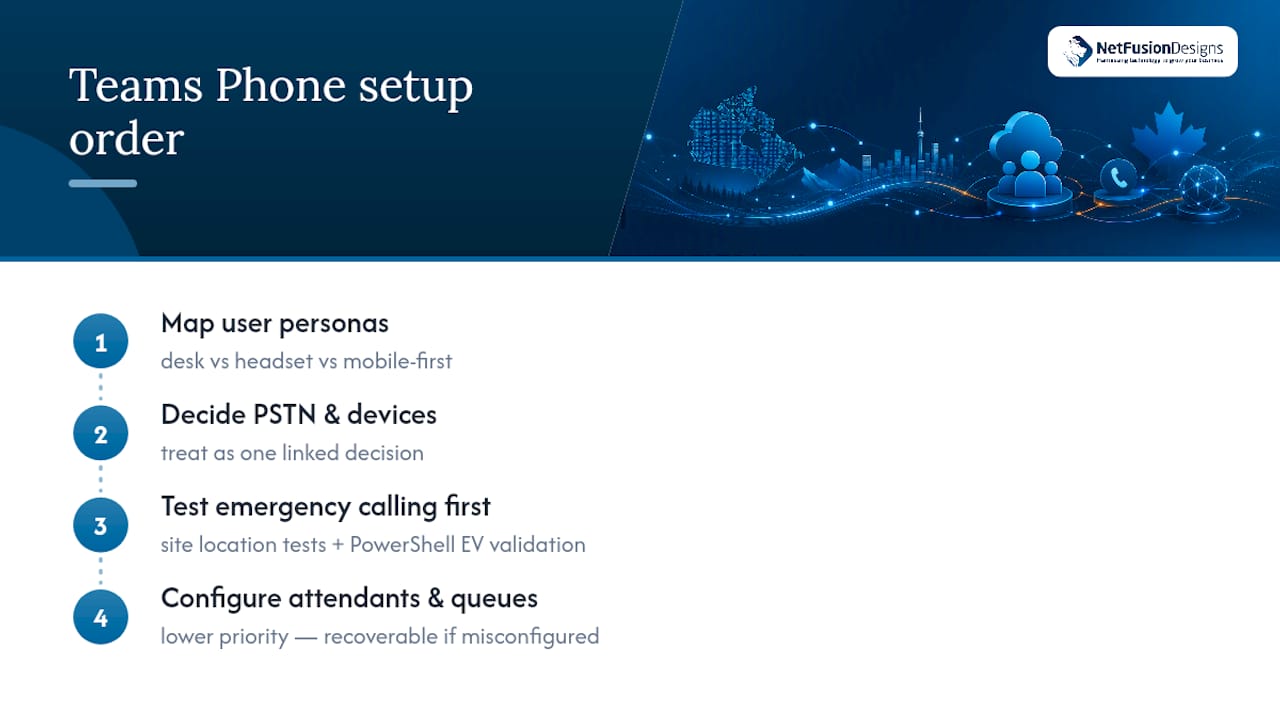
The conventional advice says “pick your PSTN model, then figure out devices.” I’d flip that. Map your user personas first: who needs a desk phone, who works from a laptop with a headset, who’s mobile-first. That mapping tells you more about which PSTN model fits than any feature comparison does. A contact centre with fifteen agents on shared queues has completely different Direct Routing and device needs than a sales team that’s never in the same building twice.
The other gap is emergency calling. It gets treated as a checkbox at the end of setup, when it should be the first thing tested per site, because it’s the one feature where a misconfiguration has consequences beyond a support ticket. If you take one thing from this, prioritize emergency location testing and PowerShell-driven Enterprise Voice validation before you touch auto attendants or call queues. Everything else is recoverable in an afternoon. A failed emergency call isn’t.
— Geeshan
Reading the Microsoft Learn steps is one thing. Running licensing, number porting, SBC integration, and emergency-location testing across three offices without a support gap is another. NetFusion Designs Inc built its Cloud VoIP service around exactly that gap, so an internal IT team doesn’t have to become PSTN and SBC specialists overnight just to launch calling.
A typical engagement runs discovery on your current licensing and PSTN needs, procures or ports your numbers, integrates the right connectivity model for each site, tests every call path, and hands off with 24/7 support already running behind it. If your organization spans multiple sites in Mississauga or beyond, or you’re juggling compliance requirements that make Direct Routing the safer path, book a free discovery call through our IT Services Mississauga page and get a straight answer on what your deployment actually needs.
Assign a Phone System licence, choose a PSTN connectivity model (Calling Plans, Operator Connect, Direct Routing, or Teams Phone Mobile), acquire or port numbers, enable Enterprise Voice for each user, configure emergency locations, then test inbound and outbound calls.
Yes. Once a user has a Phone System licence, PSTN connectivity, and an assigned number with Enterprise Voice enabled, Teams places and receives calls to any landline or mobile number, just like a traditional desk phone.
Yes, provided your tenant has PSTN connectivity configured through one of the four supported models. Without PSTN connectivity, Teams only supports calls between other Teams users, not the public phone network.
Pricing varies by region, plan type, and whether you already hold a Microsoft 365 E5 licence, so check current Teams Phone licensing details directly with Microsoft or a licensing partner before budgeting.
Operator Connect lets your existing carrier connect to Teams without on-premise hardware, while Direct Routing requires a certified SBC but supports legacy PBX integration and works in regions Operator Connect doesn’t cover.
%20(1).avif)
%201.avif)