Microsoft 365 Copilot earns its keep in four places: drafting documents, catching you up on meetings, clearing out email, and answering questions buried in spreadsheets. The sections below walk through app-by-app examples you can try this week, plus the licensing and network checklist admins need before rollout, following guidance from Microsoft Learn and NetFusion Designs’ own deployment experience.
TL;DR:
- Copilot’s most immediate benefits are in drafting, summarizing, and analyzing content within Word, Excel, PowerPoint, and Teams, with significant time savings in creating documents and meeting notes.
- Licensing is crucial; users need a paid Microsoft 365 Copilot license for advanced features like app-specific agents and audio recaps, while network configuration and tenant settings must enable recording, transcription, and WebSocket connectivity.
- Starting with a short, role-specific pilot and building a library of effective prompts helps validate value and avoid configuration gaps before scaling organization-wide.
- Integrating line-of-business data through connectors offers deeper, more accurate insights, but most organizations should prove core features first before investing in complex setups.
- Copilot has limitations in finalizing drafts and depends heavily on correct tenant setup, meaning careful validation, review, and configuration are essential for reliable, high-value use.
Copilot behaves differently in each app because it is grounded in that app’s content and your organization’s data, where permissions allow. Here is where it earns its keep fastest.
Audio-based intelligent recap has its own prerequisites, covered further down, so test the text-based features first if your tenant hasn’t been configured for recording and transcription yet.
Once the core app features feel routine, agents extend Copilot into repeatable workflows that run with less manual prompting each time. Microsoft distinguishes a few categories worth knowing before you build anything, as outlined in its agents FAQ:
Practical agent examples worth piloting: a document creation agent that drafts weekly status reports from a template, a help-desk triage agent that categorizes incoming tickets, a contract summarizer that flags unusual clauses for review, and a meeting follow-up agent that drafts recap emails after recurring calls. Word, Excel, and PowerPoint Agents are a specific premium capability here: they require a paid Microsoft 365 Copilot license and, when enabled, may rely on Anthropic models, according to Microsoft’s documentation.
Pro Tip: Start with a declarative agent in Copilot Studio before reaching for a custom build. Most workplace workflows do not need pro-code complexity.
Before any pilot, someone on your IT team should confirm licensing, tenant configuration, and network settings. Skipping this step is the most common reason a Copilot rollout stalls in week one.
A focused pilot beats a tenant-wide rollout every time, because it surfaces configuration gaps while the blast radius is still small. Microsoft’s own scenario library suggests running short, role-specific pilots rather than broad deployments.
Pro Tip: Keep a shared log of prompts that worked well. A short internal library saves new users weeks of trial and error.
A SOC 2 Type II certified managed IT provider is important here because tenant configuration and data handling are exactly where Copilot pilots go wrong. Our team handles Microsoft 365 optimization work daily: licensing checks, tenant settings, and the network allow-list changes covered above. Backed by a 24/7 NOC, we support clients through readiness checks, pilot configuration, and governance planning as adoption moves from a single team to the wider organization.
Copilot’s value compounds when it reaches beyond the Microsoft 365 apps themselves. Connectors bring line-of-business data, such as records from a CRM, a ticketing system, or a document repository, into Microsoft Graph so Copilot can reference it directly instead of working from Office files alone, per Microsoft’s agents documentation.
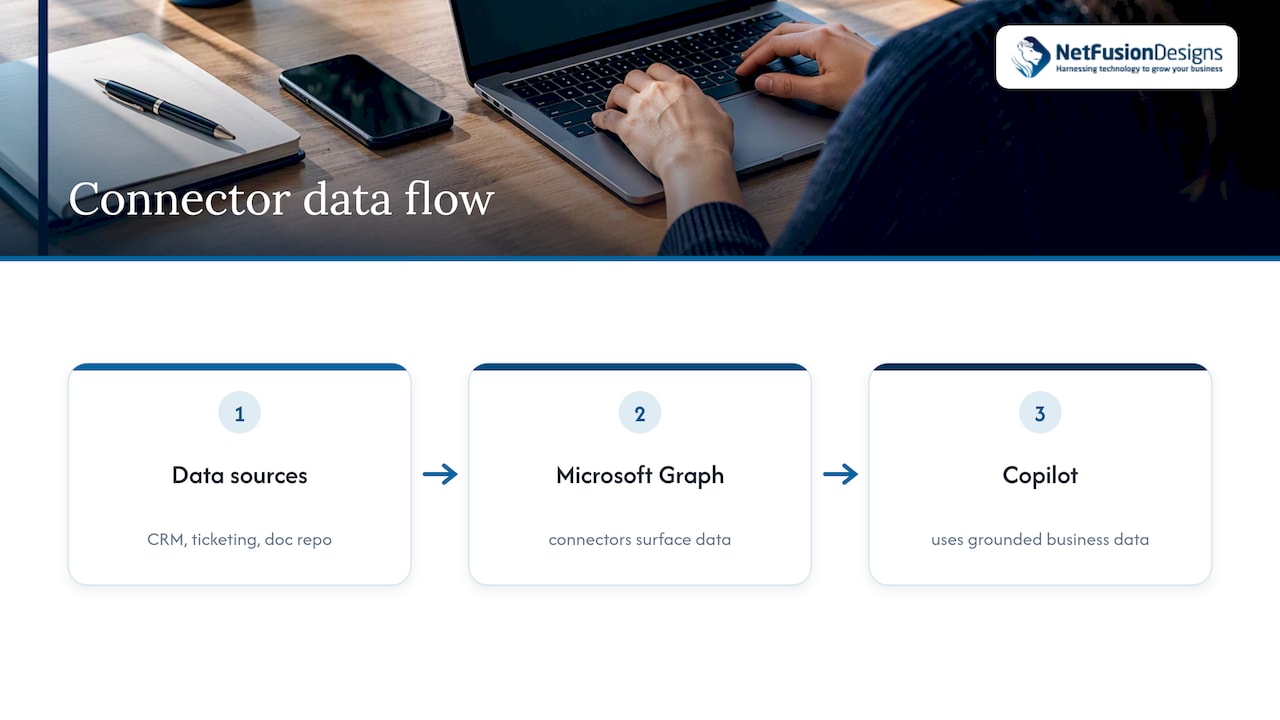
In practice, this means a sales team could ground Copilot in CRM opportunity data to draft account summaries, or a support team could connect a ticketing platform so a triage agent categorizes incoming requests using real historical patterns rather than generic assumptions. Third-party productivity tools are increasingly building their own Copilot-adjacent workflows too: a partner analysis on AI content workflows describes similar gains when AI is grounded in an organization’s own research and content rather than left to work from general knowledge alone.
The practical takeaway is that connectors are worth the setup effort once a team’s Copilot use moves past drafting and summarizing into decisions that depend on current business data. Building a connector is more involved than using the Copilot features already present in Word or Teams, so most organizations are better served starting with the no-connector use cases first, proving value, then bringing in a connector for the one or two workflows where ungrounded answers are not good enough. That sequencing avoids the common mistake of trying to integrate everything before anyone has confirmed the core features solve a real problem.
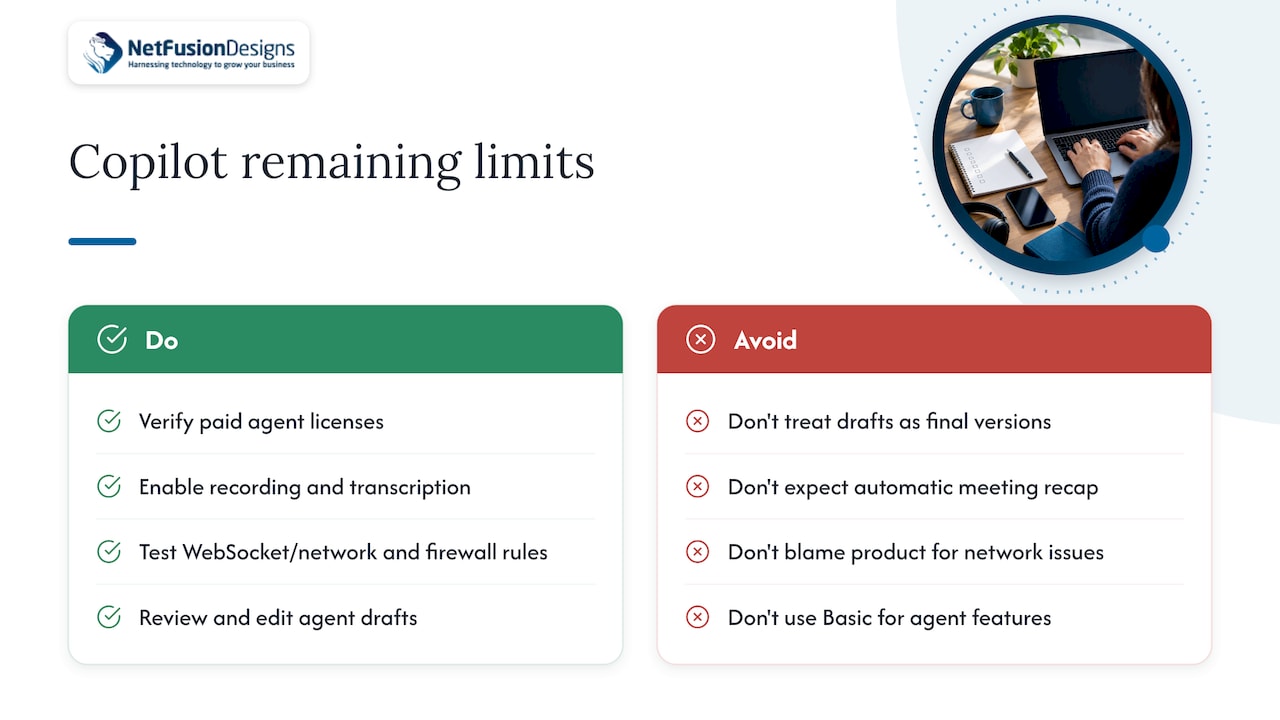
Copilot drafts well, but it does not replace judgment, and a few limitations show up consistently across pilots. Word, Excel, and PowerPoint Agents are premium capabilities that require a paid Copilot license, so teams on Copilot Chat (Basic) will not see them at all, a licensing gap that catches a lot of early pilots off guard, as Microsoft notes in its agents FAQ.
Meeting recap is not automatic either. If your tenant has recording or transcription disabled, intelligent recap and audio highlights will be degraded or unavailable entirely, regardless of licensing, according to Microsoft’s recording and transcription overview. Network issues are another frequent culprit: environments that mishandle WebSocket traffic often see intermittent Copilot failures that look like a product bug but are actually a firewall or secure-proxy configuration problem.
Beyond configuration, there is the output itself. Agent-generated drafts in Word, Excel, and PowerPoint still require you to open the core Office document to edit and finalize, since the agent’s output is a draft artefact, not an authoritative final version. That distinction matters most for legal and financial content, where an unreviewed Copilot draft should never be the version that goes out the door. Copilot Chat (Basic) also grounds its answers primarily in web data unless a user uploads content directly, so answers about internal company specifics can be thinner than expected on that tier, per Microsoft’s Copilot overview.
The biggest win I’ve seen across these use cases is time saved on drafting and meeting follow-ups: the first pass of a document or a set of action items shows up faster, even when a person still edits it afterward. Two things are worth watching closely. First, verify anything high-stakes, legal language, financial figures, client-facing commitments, before it leaves your organization. Second, confirm tenant and network settings before you promise a team recap features that your configuration doesn’t yet support. For measurement, keep it simple: track drafting hours saved per week and the number of meetings where a recap replaced a full re-watch.
— Geeshan
Most of the friction in a Copilot rollout isn’t the tool, it’s the tenant work underneath it: licensing, network allow-lists, and governance decisions that nobody owns until something breaks. NetFusion Designs handles that groundwork through Microsoft 365 optimization and, for teams that want help designing pilots and training staff on practical prompts, our Managed Intelligence Provider services.

If you’re planning a Copilot pilot and want a second set of eyes on licensing or network readiness before you start, book a conversation with our team and we’ll walk through what your tenant needs.
The highest-value use cases are drafting and rewriting documents in Word, summarizing long email threads in Outlook, generating meeting notes and recaps in Teams, and answering plain-language questions about data in Excel. PowerPoint deck generation from an existing brief or report is also a common early win for marketing and communications teams.
Microsoft 365 Copilot is primarily used to speed up drafting, summarizing, and analysis work inside the apps people already use, such as Word, Excel, Outlook, and Teams. It drafts first versions, catches people up on meetings they missed, and answers questions about data or documents without requiring a separate tool.
Give Copilot specific context, a clear task, and constraints on the deliverable, rather than a vague request. Start with a short pilot in one app or team for four to six weeks, confirm your tenant’s licensing and network settings first, and always have a person review anything legal or financial before it’s finalized.
Declarative agents built in Copilot Studio work well for repeatable tasks like drafting weekly status reports, triaging help-desk tickets, or summarizing contracts for review. Reserve custom engine agents for specialized or regulated workflows that need tighter control over logic and data handling, as described in Microsoft’s agent guidance.
No. Several features, including Word, Excel, and PowerPoint Agents and audio-based meeting recap, require a paid Microsoft 365 Copilot license and specific tenant settings such as recording and transcription being enabled. Network settings matter too: Microsoft recommends allowing copilot.cloud.microsoft and *.cloud.microsoft with working WebSocket connectivity for Copilot to function reliably, per its requirements documentation.
%20(1).avif)
%201.avif)