NetFusion Designs logo
Heart icon
Support
Email
info@nfd.ca
Phone
647-476-5259(Canada)
IT Services
Icon dropdown arrow

Infrastructure Implementation

Project PlanningHardware Voice over IP (VoIP)Application DevelopmentCloud DesktopSecurity Cameras

Managed IT Services

IT Support24/7 HelpDeskCyber Security & AntivirusData Backups & Disaster
Recovery
Co-Managed ITComplianceEmergency Ransomware
Recovery
Penetration & Vulnerability
Assessment

Optimization of Processes

Microsoft 365 OptimizationVirtual CIO ServicesPenetration TestingInventory Lifecycle
Management
Transforming SMEs with AI
Industries
Icon dropdown arrow
Dental Managed IT Services
Construction
Hotels & Hospitality
Franchises
Financial & Insurance Services
Government
Health Care & PharmaceuticalLegal & Professional Services
Local Small & Medium Businesses
Manufacturing
Non-profit
Real Estate
Retail
Transportation & Logistics
Enterprise & Consulting
Publicly Traded Companies
Our Story
Icon dropdown arrow
About UsTestimonials
Partners
Sponsorship
BlogContact Us
Open menuClose menu
Icon chevron up
Browse Blog:
Business
Insight
Advice
Advice

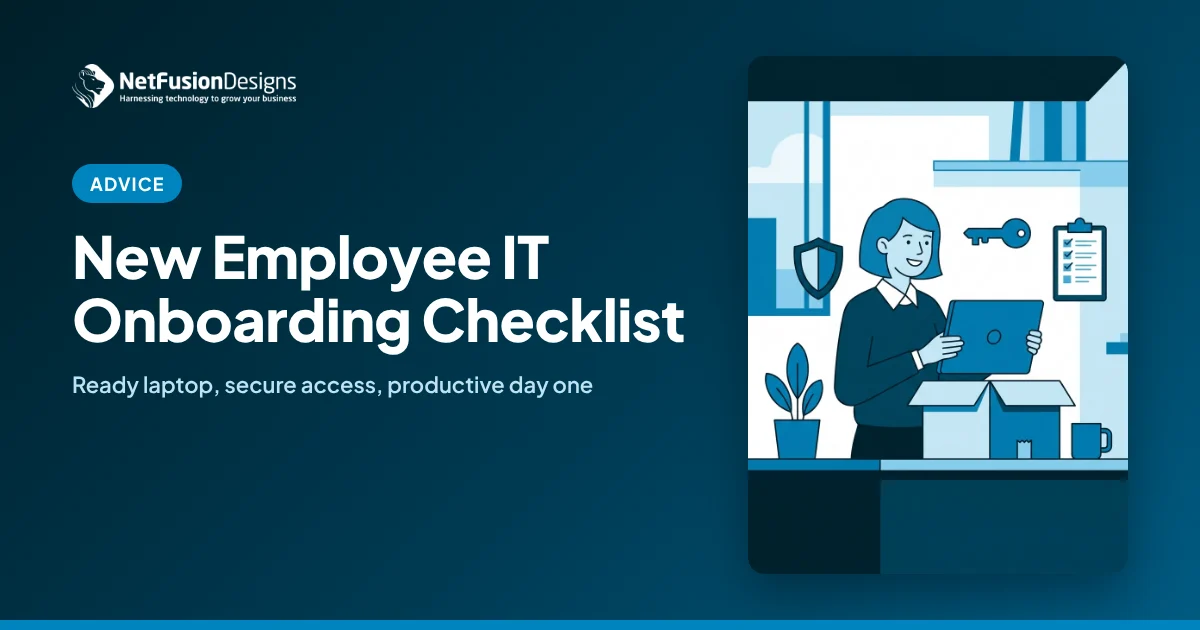
New Employee IT Onboarding Checklist for Small Businesses

A practical new employee IT onboarding checklist for small businesses: accounts, licences, devices, MFA and access, set up before day one.
7
New Employee IT Onboarding Checklist for Small Businesses

A new employee IT onboarding checklist is a short, repeatable list of everything a new hire needs on day one: a configured laptop, a Microsoft 365 account with MFA, access to only the apps and files their role requires, and a brief security orientation. Done the same way every time, it gets people productive quickly and keeps access under control.

Most small businesses handle onboarding from memory. Someone orders a laptop the week before, a manager emails IT the night before, and the new hire spends their first morning waiting for a password. The bigger problem is what happens quietly: new accounts get copied from a coworker's permissions, MFA gets skipped "for now", and nobody records which devices and licences were issued.

This guide gives you a practical checklist you can adapt for a business of 10 to 250 staff, along with the timing, ownership and security steps that make it work.

Why does a new employee IT onboarding checklist matter?

A checklist turns onboarding from a scramble into a routine that protects both productivity and security.

Without one, each new hire's setup depends on who happened to handle it. That leads to inconsistent results:

  • Lost first days. New staff sit idle while accounts, licences and software are sorted out.
  • Too much access. Cloning another user's account is fast, but it often hands over shared folders, mailboxes and admin rights the new person does not need.
  • Security gaps. Accounts created without multi-factor authentication or on unmanaged devices are an easy target.
  • No paper trail. If you can't say what was issued and approved, offboarding later becomes guesswork.

The Canadian Centre for Cyber Security lists access control, MFA and secure device configuration among its baseline cyber security controls for small and medium organizations. Onboarding is the moment those controls are either applied correctly or skipped.

What should you do before the new hire's first day?

Most of the work happens in the week before the start date, so the request needs to reach IT early.

Ask the hiring manager to submit a simple onboarding request at least five business days ahead. It should include:

  • Name, start date, job title, department and manager
  • Work location: office, hybrid or fully remote (this affects shipping and setup)
  • Required apps and line-of-business software, such as accounting, CRM, CAD or practice management tools
  • Which shared folders, Teams channels, shared mailboxes and distribution lists they need
  • Phone or extension requirements and any hardware extras (second monitor, headset, docking station)

Base access on the role, not on a coworker. If you have a standard "role template" for each position, IT can apply it consistently and the manager only has to approve exceptions.
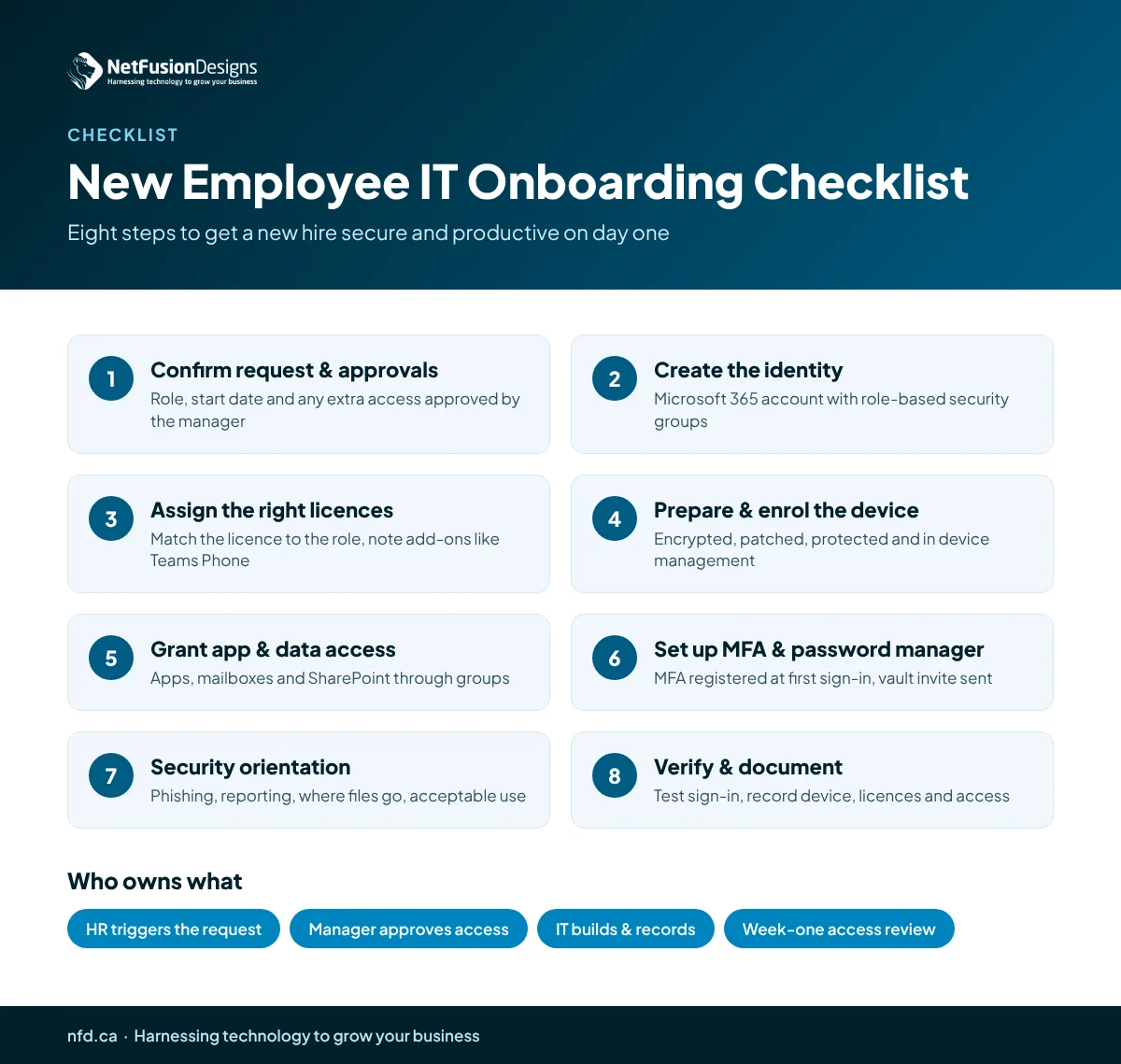
The 8-step new employee IT onboarding checklist

Infographic: 8-step new employee IT onboarding checklist for small businesses

Work through these steps in order, and record each one as it's completed.

  1. Confirm the request and approvals. Check that the manager has approved the role, start date and any access beyond the standard template.
  2. Create the identity. Set up the Microsoft 365 or Entra ID account using your naming convention, set the correct job title, department and manager, and add the user to role-based security groups rather than individual folders.
  3. Assign the right licences. Give the new hire the licence their role needs, not the most expensive one by default. Note any add-ons such as Teams Phone or Copilot.
  4. Prepare and enrol the device. Issue a laptop that is encrypted, fully patched, running endpoint protection and enrolled in device management. With Windows Autopilot, a device can be shipped directly to the user and configured when they sign in.
  5. Grant application and data access. Add access to line-of-business apps, shared mailboxes, Teams and SharePoint sites through groups, so it can be removed cleanly later.
  6. Set up MFA and a password manager. Require MFA registration at first sign-in, ideally with an authenticator app, and invite the user to your company password manager.
  7. Deliver a short security orientation. Cover how to spot phishing, how to report a suspicious email, where files belong, and your acceptable-use and AI policies.
  8. Verify and document. Have the new hire sign in, open their key apps and confirm access works. Record the device serial number, licences and access granted in your asset and ticketing records.

How do you set up a new user in Microsoft 365 securely?

Use groups, conditional access and a temporary password that must be changed at first sign-in.

A few habits make Microsoft 365 new user setup safer and faster:

  • Use a temporary access pass or one-time password delivered through a separate channel, never in the same email as the username.
  • Don't create the account too early. An active account sitting unused for weeks is an unnecessary risk. Create it a few days before the start date, or keep it blocked until day one.
  • Rely on conditional access so sign-ins require MFA and a compliant device, rather than trusting each account to be configured perfectly.
  • Avoid admin rights. New users should not be local administrators on their laptops. Grant elevated access only when there's a documented need.

If your tenant needs tidying before you can onboard people this way, our Microsoft 365 optimization work focuses on exactly these settings. For the rollout itself, see our guide to MFA for Microsoft 365.

What does a good first day look like for IT?

The new hire should be productive within the first hour, not the first afternoon.

On day one, aim for this sequence: the employee signs in to a ready laptop, registers MFA, opens Outlook, Teams and their main business app, and confirms they can reach the files they need. A quick 15-minute check-in with IT or a designated onboarding buddy catches anything missed. For remote staff, schedule a short video call at the start of the day so someone can walk them through sign-in and MFA if needed.

Follow up at the end of the first week. Ask the manager whether any access is missing or unnecessary, and adjust the role template so the next hire benefits.

Who should own employee onboarding in a small business?

HR or the hiring manager owns the request, and IT owns the setup and the record.

Splitting responsibilities clearly avoids the most common failure: IT hearing about a new hire on the morning they arrive. A practical division looks like this:

  • HR or office manager: triggers the request when an offer is accepted and confirms the start date.
  • Hiring manager: approves the role template and any extra access.
  • IT (internal or your managed provider): builds the account and device, applies security controls, and documents what was issued.

Onboarding and offboarding are two halves of the same process. The records you keep today are what make a clean exit possible later, so pair this list with our employee offboarding IT checklist.

How NFD helps with onboarding

NetFusion Designs (NFD), a SOC 2 Type II certified managed IT provider headquartered in Kitchener-Waterloo, handles onboarding as a standard, documented process for clients across Ontario, Quebec and Manitoba. As part of our small business IT support, our help desk can take an onboarding request, prepare the device and Microsoft 365 account, apply MFA and security policies, and keep a record of what was issued, so your new hires start ready to work.

Frequently asked questions

How far in advance should IT be told about a new hire?

Ideally at least five business days before the start date, and longer if a new laptop needs to be ordered or shipped to a remote employee. That gives enough time to prepare and enrol the device, assign licences, set up access to business applications and test everything. Last-minute requests usually mean shortcuts, such as cloning another user's permissions or skipping MFA setup.

Should we copy an existing employee's account for a new hire?

It's better not to. Copying a coworker's account often carries over access to folders, mailboxes and apps that the new person doesn't need, and those permissions tend to accumulate over time. A role-based template, built from security groups, gives each new hire the access their job requires and makes it easy to review or remove access later.

What should a new employee security orientation cover?

Keep it short and practical. Cover how to recognize and report phishing, why MFA matters and how to use the authenticator app, where company files should be saved, how to use the password manager, and the basics of your acceptable-use and AI policies. Fifteen to thirty minutes on day one is usually enough, followed by regular reminders.

Can remote employees be onboarded without visiting the office?

Yes. With a device management tool such as Microsoft Intune and Windows Autopilot, a laptop can be shipped directly to the employee and configured automatically when they first sign in. Pair it with a scheduled video call on the first morning so IT can help with MFA registration and confirm that email, Teams and business apps all work.

A good onboarding process is invisible to the new hire: they sign in, everything works, and their access matches their role. If you'd like help building a repeatable onboarding process for your team, get in touch with NFD and we'll walk through what it would look like for your business.

‍

Continue Reading

Operator Connect vs Direct Routing: Which Fits Your Business?
Patch Management for Mac: A Practical Guide for Canadian Businesses
Thin Client vs PC: Which Is Right for Your Business?
Tenant to Tenant Migration: Microsoft 365 Plan and Steps
NetFusion Designs logo
NetFusion Designs is a globally recognized IT service provider and services clients across North America.

We hold a SOC 2 Type 2 report, and maintain internal processes and procedures that keep our clients’ data secure and confidential.
NetFusion Designs IT support team

IT Services Near Me

BurlingtonOakvilleHamiltonMississaugaMiltonBramptonEtobicokeBrantfordGuelphKitchenerWaterlooCambridgeSt CatharinesTorontoMarkhamCaledonNewmarketNorth YorkPickering & DurhamLondonMontreal

Services

Project PlanningHardwareTelephony & VoIPApplication DevelopmentCloud DesktopSecurity CamerasHelpdesk & SupportCyber Security & Anti-VirusData Backups & Disaster RecoveryMicrosoft 365 OptimizationVirtual CIO ServicesPenetration TestingPricingSchedule a MeetingRemote Support
Pricing

Pages

Free Security ScanAbout UsOur Migration ApproachWork CultureOur Core ValuesCode of ConductTestimonialsContactBlogSchedule a MeetingRemote Support

TORONTO

Bank capital office building law
401 Bay St, 16th Floor, Toronto Ontario
Email
info@nfd.ca
Phone
647-476-5259 (Canada)

MARKHAM

Bank capital office building law
141 Main Street N, Markham, ON L3P 1Y2
Email
info@nfd.ca
Phone
647-476-5259 (Canada)

TRI-CITY AREA
(Kitchener / Waterloo / Cambridge)

Bank capital office building law
22 Frederick St, Suite 700, Kitchener Ontario
Email
info@nfd.ca
Phone
647-476-5259 (Canada)

PEEL REGION

Bank capital office building law
6700 Century Ave, 3rd floor, Mississauga, ON L5N 1V8
Email
info@nfd.ca
Phone
647-476-5259 (Canada)

DURHAM REGION

Bank capital office building law
1315 Pickering Parkway, Pickering, ON L1V 7G5
Email
info@nfd.ca

MONTREAL

Bank capital office building law
8815 Av du Parc #402, Montréal, QC H2N 1Y7
Email
info@nfd.ca
Phone
647-476-5259 (Canada)

Special Offers

Radio station signal antena tower
Pricing: $100–185 per user
Icon chevron right
Terms and ConditionsPrivacy PolicyCookie Policy
© 2026 NetFusion Designs Inc.
LinkedInFacebookAlignable logo