A Microsoft 365 tenant to tenant migration moves users, mailboxes, files and Teams content from one Microsoft 365 organization (a “tenant”) into another. It is more than a copy job. Identities, domains, permissions and shared data each need their own plan, and the order you do things in decides how much downtime your staff feel. At NetFusion Designs we run these moves as a Microsoft 365 optimization and migration project, so the business owner is not left coordinating it alone.
A tenant is your business’s own Microsoft 365 space: its users, domain names, mailboxes, SharePoint sites and Teams. Two companies that join together have two tenants. At some point, one has to be folded into the other, or a piece has to be carved out into a new one.
Microsoft lists four typical situations:
For an Ontario accounting practice that buys a smaller firm, or a manufacturer that merges two plants’ IT, the goal is the same. Staff should log in on Monday, see their email and files, and keep working.
This is where most surprises come from. Microsoft’s Migration Orchestrator supports four workloads in a migration batch: Exchange mailboxes, OneDrives, Teams chats and Teams meetings.
The same documentation draws several lines you should know before promising anyone a date:
For law firms and accounting practices, the hold rule matters most. If a mailbox is under a retention or legal hold, you need to settle that before migration day. Our guide to Exchange Online retention policies explains how those holds are set up.
After a cross-tenant mailbox move finishes, the old mailbox becomes a MailUser object pointing to the new tenant. That is what lets mail route between the two tenants while the move is still under way, according to Microsoft’s documentation.
These three terms come up in nearly every search on this topic, and they are often mixed up with tenant moves. They describe how you migrate email from an on-premises Exchange server into Exchange Online. Microsoft’s guide to choosing a migration path lists cutover, staged and Exchange hybrid as the options for that situation.
| Approach | What it does | Typical fit |
|---|---|---|
| Cutover | Moves all mailboxes in one go | Small organizations on on-premises Exchange |
| Staged | Moves mailboxes in waves | Older Exchange 2003 and 2007 environments |
| Hybrid | Keeps on-premises Exchange and Exchange Online side by side | Longer coexistence |
| Cross-tenant | Moves users between two Microsoft 365 tenants | Mergers, divestitures, reorganizations |
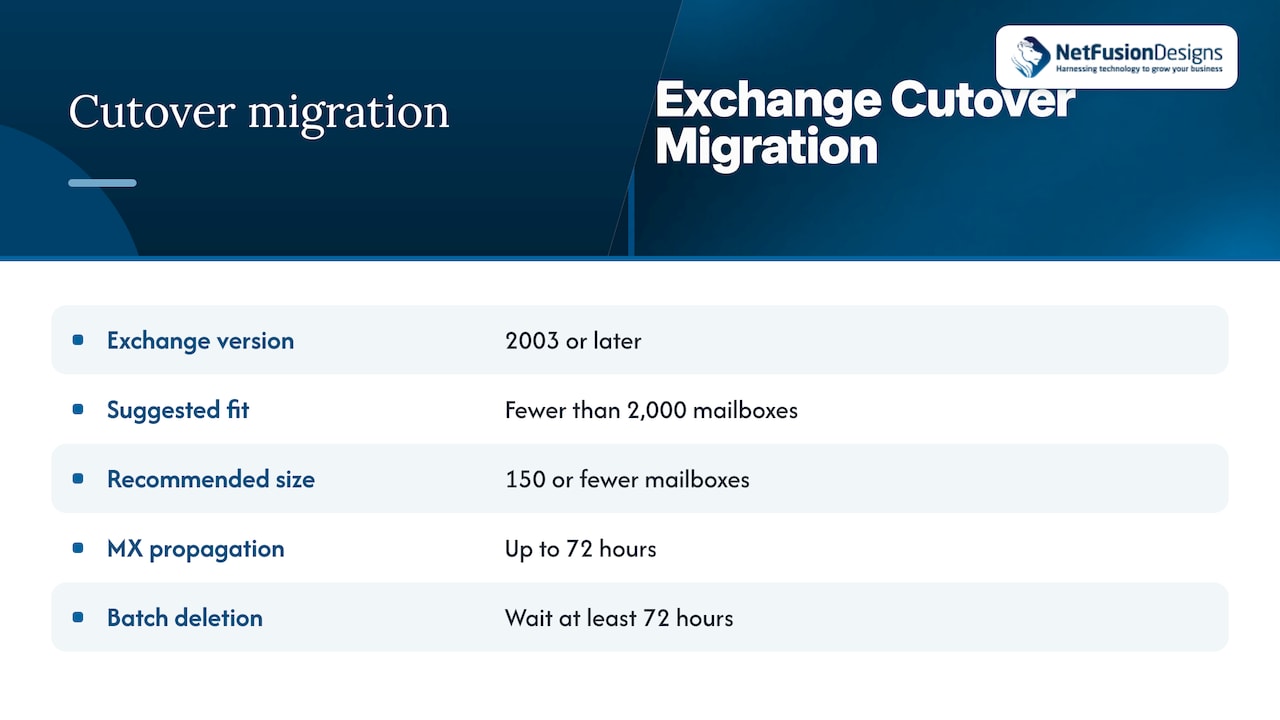
Microsoft describes a cutover migration as moving mailbox contents from the source email system to Microsoft 365 all at one time. It is suggested when your on-premises Exchange is version 2003 or later and has fewer than 2,000 mailboxes. Even so, Microsoft recommends 150 mailboxes or fewer, because of how long creating and migrating 2,000 users takes.
Two details trip people up. The primary domain of your on-premises organization must be accepted as a domain you own in Microsoft 365. And licences are not assigned automatically: after the move, you still have to license each migrated user. After the switch, external systems can take up to 72 hours to recognize the changed MX record (the DNS entry that tells the internet where to deliver your mail). Microsoft advises waiting at least that long before deleting the cutover batch.
If you have fewer than about 150 mailboxes and want to finish over a weekend, cutover is the simple answer. If you need to move users slowly, in groups, staged or hybrid are the candidates. Hybrid is the one to choose when part of your mail must stay on a local server for a long time.
If both your source and your destination are already Microsoft 365, none of these three is the tool. You use the cross-tenant route below.
Microsoft’s planning guidance starts with decisions, not tools. Settle these before you touch a mailbox.
Decide how each person in the source tenant corresponds to a person in the target tenant. Decide whether users keep their existing UPN (the sign-in name, usually the email address) or receive a new one. A missed or duplicated account is the most common cause of a failed batch.
A domain name can only be verified in one tenant at a time. If staff keep their current email addresses, the domain has to leave the source tenant and be added to the target. Plan that for a quiet window, and plan which address people use in the meantime.
Teams content depends on Exchange mailboxes, so migrate mailboxes before or alongside Teams. OneDrive and SharePoint share a permissions model, so consider moving them together. Microsoft notes that the orchestrator handles sequencing automatically for the workloads it supports.
If you move in phases, people will exist in both tenants for a while. Plan for mail routing between tenants, calendar free/busy sharing, and Teams federation so staff can still reach colleagues who have already moved.
Make sure the target tenant has enough licences before migration. Estimate the timeline from data volume, workload type and batch size.
Microsoft states that cross-tenant migrations require a per-user, one-time licence that can be assigned to the source or target user object. It also covers OneDrive migration. The add-on is available for Microsoft 365 Business Basic, Standard and Premium, Microsoft 365 F1/F3/E3/E5, Office 365 F3/E1/E3/E5, and several other plans.
Licences do not transfer between tenants. You buy what the target tenant needs. Budget for the migration licence per migrating user as well as the normal subscriptions. Prices are set by Microsoft and shown in your admin centre in Canadian dollars, so check there for your own figure. Our Microsoft 365 licensing guide helps you pick the right plan in the target tenant.
Microsoft’s newer Migration Orchestrator is run from the target tenant by a Microsoft 365 Migration Administrator or Global Administrator. It uses Graph APIs, through PowerShell 5 or 7 or Graph Explorer. The maximum batch is 100 users.
As a working sequence:
Microsoft has been changing the tooling in this area. An opt-in unified experience with new PowerShell Graph commands for mailboxes, OneDrive and Teams chats began rolling out in preview in December 2025, and nothing changes unless an organization enables it. Because features and requirements shift, confirm the current prerequisites on Microsoft Learn before you schedule.
The usual failures are predictable:
For a broader view of the steps around a move, our Microsoft 365 migration steps article walks through the project end to end.
NetFusion Designs is a SOC 2 Type II certified managed IT provider serving small and mid-sized businesses across Ontario and Canada, with teams in Kitchener-Waterloo, Toronto, Markham, Mississauga, Montréal and Winnipeg. We cover Microsoft 365 optimization and migration, cybersecurity, backup and disaster recovery, and 24/7 helpdesk under one roof, so your tenant move does not depend on several vendors lining up.
If a merger or divestiture is on your calendar, start with our Microsoft 365 optimization page, or speak with us about managed IT services that continue after the cutover.

We publish transparent, predictable monthly pricing for managed IT and communicate in plain language, so you know what each stage involves before it starts.
The technical part of a tenant migration is well documented. The hard part is the business around it: who owns the domain, which mailboxes are under hold, which staff cannot lose a day, and who answers the phone when someone cannot log in on Monday.
That is why we treat a migration as part of a managed IT relationship, not a one-off script. One team handles identity, security, backup and helpdesk, so nothing falls between vendors. For accounting and law firms, our SOC 2 Type II certified processes and independently audited controls matter at exactly this moment, when client data changes hands.
Our advice is to decide identities and domains first, protect the source with a backup, harden the target before users arrive, and keep a helpdesk ready for the first week. Done in that order, a migration is a planned change, not an emergency.
Geeshan
Plan identities and domains, create licensed users in the target tenant, set up the trust between tenants, pilot a small batch, then migrate in batches of up to 100 users. Shared data such as SharePoint sites and Teams channels needs its own process. Microsoft’s orchestrator documentation has the current commands.
No. You license users in the target tenant, and each migrating user also needs the one-time Cross-Tenant User Data Migration licence, assigned to the source or target user. Confirm the eligible plans in Microsoft’s licence requirements.
No. A cutover migration moves all mailboxes from an on-premises Exchange server to Microsoft 365 at once. A tenant to tenant migration moves users between two Microsoft 365 organizations, using the cross-tenant method.
No. Microsoft blocks the move for mailboxes under legal, compliance or litigation hold, so resolve those holds with your legal or compliance adviser before the batch is scheduled.