NetFusion Designs logo
Heart icon
Support
Email
info@nfd.ca
Phone
289 212-3930(Canada)
IT Services
Icon dropdown arrow

Infrastructure Implementation

Project PlanningHardware Voice over IP (VoIP)Application DevelopmentCloud DesktopSecurity Cameras

Managed IT Services

IT Support24/7 HelpDeskCyber Security & AntivirusData Backups & Disaster
Recovery
Co-Managed ITComplianceEmergency Ransomware
Recovery
Penetration & Vulnerability
Assessment

Optimization of Processes

Microsoft 365 OptimizationVirtual CIO ServicesPenetration TestingInventory Lifecycle
Management
Transforming SMEs with AI
Industries
Icon dropdown arrow
Dental Managed IT Services
Construction
Hotels & Hospitality
Franchises
Financial & Insurance Services
Government
Health Care & PharmaceuticalLegal & Professional Services
Local Small & Medium Businesses
Manufacturing
Non-profit
Real Estate
Retail
Transportation & Logistics
Enterprise & Consulting
Publicly Traded Companies
Our Story
Icon dropdown arrow
About UsTestimonials
Partners
Sponsorship
BlogContact Us
Open menuClose menu
Icon chevron up
Browse Blog:
Business
Insight
Advice
Insight

Enroll Everyone First, Then Harden: MFA Rollout for Microsoft 365 Admins

Enroll Everyone First, Then Harden: MFA Rollout for Microsoft 365 Admins

If you manage a Microsoft 365 tenant. Mandatory MFA enforcement already covers key admin portals, with more services joining on a phased timeline. Verify your tenant’s current settings today, confirm that admin and in-scope user accounts are registered, and set up break-glass emergency accounts before you touch anything else. Privileged roles should move to phishing-resistant methods first, and Conditional Access gives you the control to stage the rest of the rollout safely.


TL;DR:

  • Verify which MFA enforcement phases apply to your tenant, focusing on admin portals first, and confirm account registration status before making changes.
  • Use security defaults for small tenants or straightforward needs, but transition to Conditional Access to enable staged rollouts and role-based authentication policies.
  • Prioritize enrolling all users with a second factor before upgrading privileged accounts to phishing-resistant methods like FIDO2 keys or Windows Hello.
  • Prepare emergency access accounts, communicate clearly with users, and staff support teams during initial rollout waves to prevent account lockouts and support overloads.
  • Use mitigation procedures like enforcement postponement scripts temporarily if users get locked out, but only as a short-term fix while completing registration and setup.

NetFusion Designs Inc
Make Microsoft 365 More Secure
NetFusion Designs helps businesses manage Microsoft 365, security, monitoring, and helpdesk through fully managed IT services.
Explore managed IT services

Table of Contents

  • Scope and timeline of Microsoft’s mandatory MFA enforcement
  • How to verify your tenant’s MFA readiness
  • Choosing enrollment methods: security defaults, Conditional Access, and phishing resistance
  • Running a staged MFA rollout without surprise outages
  • Recovering access and postponing enforcement safely
  • Where practical experience closes the gap
  • Our take: enroll everyone first, then raise the bar
  • How NetFusion Designs supports your MFA rollout
  • FAQ
  • Sources

Scope and timeline of Microsoft’s mandatory MFA enforcement

Microsoft’s mandatory MFA enforcement rolled out in stages rather than all at once, and knowing which stage applies to your tenant tells you what to prioritize this week. The first phase covered core admin portals, including the Azure portal, Microsoft Entra admin centre, and Intune admin centre, starting in October 2024. The Microsoft 365 admin centre followed in February 2025, and enforcement for command-line tools and automation, including Azure CLI, PowerShell, and infrastructure-as-code clients, arrived in later phases.

This matters because the enforcement is service-side. Microsoft can require MFA for these sign-ins even if your tenant has no Conditional Access policy written yet. That is different from your own tenant-level MFA policy, which still needs to be built and maintained separately for durable, granular control.

A few things to confirm before you plan further work:

  • Which portals in your tenant are already enforced versus still pending, based on the phase your organization falls into.
  • Whether the accounts affected are strictly administrative sign-ins or extend to broader user populations for certain apps.
  • Whether your licence tier gives you security defaults only, or full Conditional Access for staged rollouts and exceptions.

Licence type changes what tools you have available, which is why the next step is confirming exactly where your tenant stands.

How to verify your tenant’s MFA readiness

Before changing any policy, confirm what is already active in your tenant and who still needs to register. This keeps you from duplicating controls or missing gaps that cause support tickets later.

  1. Sign in with a Global Reader role to check Entra ID > Overview and confirm your tenant’s licence type, since the verification path differs for Microsoft Entra ID Free, P1, and P2 tenants.
  2. Elevate to Security Administrator or Authentication Administrator when you need to actually change settings, since Global Reader alone only lets you view configuration.
  3. Pull Entra sign-in logs and MFA registration reports to identify which users and admins have registered a method and which have not.
  4. Check whether security defaults or legacy per-user MFA is currently enabled, since running both at once creates confusing, overlapping prompts for users.
  5. Review the Manage Migration status in the authentication methods policy to see whether your tenant is still mid-migration or has reached Migration Complete.

Licence tier has a real effect here. Our Microsoft 365 licensing guide walks through how P1 versus P2 features change what verification and automation options are available to your admins. Tenants still running legacy per-user MFA alongside security defaults are the most common source of registration confusion, so resolving that overlap early saves helpdesk time down the line.

Choosing enrollment methods: security defaults, Conditional Access, and phishing resistance

Security defaults give every tenant a free baseline: Microsoft Authenticator notifications become mandatory for registration, and tenants created after October 22, 2019 generally already have security defaults turned on, with a short grace period for new accounts to register. That baseline works well for small tenants with straightforward needs. Once you need staged rollouts, exclusions, or different authentication strength for different roles, Conditional Access is the better long-term mechanism.

For privileged accounts specifically, both Microsoft and CISA recommend phishing-resistant MFA wherever feasible. That means FIDO2 security keys, Windows Hello for Business, Entra certificate-based authentication, or device-bound passkeys. When none of those is deployable yet, CISA’s guidance is to enforce some form of MFA rather than leave the account unprotected.

Practical steps for most tenants:

  • Configure Microsoft Authenticator as the default registration method and push notifications to in-scope users.
  • Disable SMS, voice call, and email one-time-passcode methods for roles that policy requires to use stronger options.
  • Set the Manage Migration setting to Migration Complete only once registration coverage and method strength both meet your target.

Device management matters too. Requiring a managed device for MFA registration reduces the chance that an attacker registers their own authenticator on a compromised account, a point covered in our Intune device management setup guide.

Pro Tip: Treat security defaults and Conditional Access as a baseline-then-upgrade pair, not two competing systems: migrate off per-user MFA entirely before layering in Conditional Access rules.
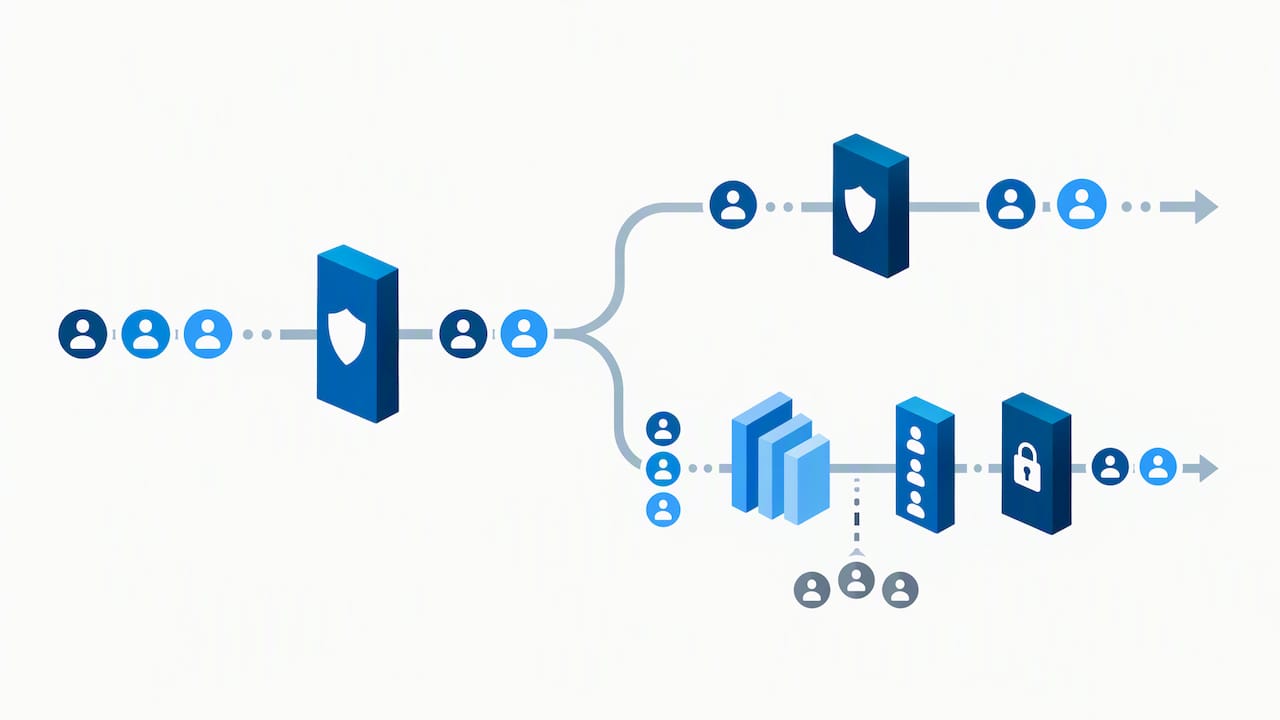
Security baseline branching into access policies

Running a staged MFA rollout without surprise outages

A rollout plan with clear checkpoints prevents the two failure modes that actually hurt tenants: a helpdesk surge from confused users and locked-out accounts with no recovery path.

  1. Start with a pilot group of 20 to 50 users across different roles and device types, and define success criteria upfront: registration percentage, successful MFA sign-in rate, and failed challenge counts.
  2. Build a communication plan with short, plain-language emails explaining what is changing, when, and what the user needs to do, sent at least a week before enforcement and again on the day.
  3. Staff the helpdesk for extended hours during the first 48 hours after each rollout wave, since that window generates the bulk of registration questions.
  4. Create at least two emergency access accounts excluded from MFA policies, store their credentials securely, and limit their use strictly to recovery scenarios.
  5. Document every policy exclusion with an owner and a review date, since undocumented exceptions are the first thing an auditor flags.
  6. Plan legacy authentication blocking separately from MFA enrollment, since legacy protocols cannot perform MFA at all and need their own testing window to catch dependent apps before you cut them off.

Mixing security defaults, legacy per-user MFA, and Conditional Access during this period is the most common planning mistake we see. Pick one mechanism as your end state and retire the others on a fixed date.

Recovering access and postponing enforcement safely

When a user gets locked out, requiring re-registration from Entra ID > Users > Authentication methods clears their stored phone numbers, Microsoft Authenticator app, and software OATH tokens, forcing a clean re-enrollment. You can also revoke active sessions from the same blade, and cross-reference sign-in logs to catch service accounts or automation that broke when MFA enforcement hit a non-interactive sign-in.

  • Microsoft publishes a script to postpone enforcement for tenants where users cannot sign in, but it requires elevated permissions to run.
  • After running it, verify the new enforcement date took effect and that affected users can sign in again before declaring the issue resolved.
  • Postponing buys time, but it does not fix the underlying registration gap, so use it only as a bridge while you finish enrollment.

Where practical experience closes the gap

Rollouts stall for predictable reasons: pilot groups that skip unmanaged devices, a helpdesk that was not staffed for the surge, or exclusions nobody documented. As a SOC 2 Type II certified provider running a 24/7 NOC, we help teams fix exactly these gaps, from Conditional Access template design to post-rollout monitoring through our Microsoft 365 optimization work.

Enrollment first, authentication strength second: that sequencing is what keeps a rollout from turning into a helpdesk incident.

Our take: enroll everyone first, then raise the bar

Treat this as two milestones, not one project. Milestone one is universal registration: every admin and in-scope user has a working second factor. Milestone two is strength: moving privileged roles to phishing-resistant methods and tightening Conditional Access rules. Trying to do both at once usually means slower enrollment and higher support costs, with device management dependencies adding friction neither phase actually needs yet.

— Geeshan

How NetFusion Designs supports your MFA rollout

We built our managed IT practice around exactly this kind of identity work: Microsoft 365 optimization, Conditional Access policy design, and SOC-backed monitoring that keeps watching after the rollout is done. Several of our clients came to us mid-rollout, after a pilot group stalled or a helpdesk got overwhelmed by registration tickets.

NetFusion Designs Inc

  • We design Conditional Access templates matched to your licence tier and role structure.
  • We set up and safeguard emergency access accounts as part of the initial engagement.
  • We keep monitoring authentication activity after enforcement is live.

If you want a second set of eyes on your rollout plan, our managed IT services team can scope an assessment and tell you exactly where your tenant stands.

FAQ

Is Microsoft forcing MFA for Office 365?

Yes, Microsoft enforces MFA for sign-ins to specific admin portals on a phased schedule, starting with the Azure portal and Entra admin centre in October 2024, followed by the Microsoft 365 admin centre and command-line tools in later phases. This enforcement applies at the service level, independent of whatever Conditional Access policy your tenant has configured.

How do I enable multi-factor authentication in Office 365?

You can turn on security defaults for a quick tenant-wide baseline, or build Conditional Access policies for more granular control over which users, apps, and risk levels require MFA. Most tenants start with security defaults and move to Conditional Access once they need staged rollouts or exceptions.

Why does Office 365 keep asking me for MFA credentials?

Repeated MFA prompts usually mean your device or browser session isn’t being recognized as trusted, or your organization’s Conditional Access policy requires re-authentication more frequently for certain apps or risk conditions. Clearing cached credentials, confirming the device is registered, or checking with your administrator about session lifetime settings usually resolves it.

Which MFA methods are supported in Microsoft 365?

Supported methods include Microsoft Authenticator push notifications, SMS and voice codes, software OATH tokens, and phishing-resistant options like FIDO2 security keys, Windows Hello for Business, and certificate-based authentication. CISA and Microsoft both recommend prioritizing the phishing-resistant options for privileged accounts whenever your environment supports them.

Sources

The guidance above draws on Microsoft’s own procedural documentation and CISA’s published security baselines, both of which get updated as enforcement phases progress. Bookmark these for the exact PowerShell commands, verification steps, and policy language you’ll need when you run the rollout yourself.

  • Plan for mandatory Microsoft Entra multifactor authentication (MFA) - Microsoft Entra ID | Microsoft Learn
  • CISA SCuBA Microsoft Azure Active Directory Secure Configuration Baseline - CISA

Recommended

  • Autopilot Deployment Steps
  • Microsoft 365 Optimization
  • Defender for Business Setup
  • Conditional Access Policies

Continue Reading

6 Microsoft 365 Copilot Workflows Teams Should Test in 4–6 Week Pilots
90 Day PHIPA Compliance Roadmap for Ontario Clinics
Deploy These 5 Email Security Controls First for IT Teams: MFA, DMARC
Enable M365 Security Baselines Without Breaking Legacy Apps for Admins
NetFusion Designs logo
NetFusion Designs is a globally recognized IT service provider and services clients across North America.

We hold a SOC 2 Type 2 report, and maintain internal processes and procedures that keep our clients’ data secure and confidential.
NetFusion Designs IT support team
IT Services Near Me
BurlingtonOakvilleHamiltonMississaugaMiltonBramptonEtobicokeBrantfordGuelphKitchenerWaterlooCambridgeSt CatharinesTorontoMarkhamCaledonNewmarketNorth YorkPickering & DurhamLondonMontreal
Services
Project PlanningHardwareTelephony & VoIPApplication DevelopmentCloud DesktopSecurity CamerasHelpdesk & SupportCyber Security & Anti-VirusData Backups & Disaster RecoveryMicrosoft 365 OptimizationVirtual CIO ServicesPenetration TestingPricingSchedule a MeetingRemote Support
Pricing
Pages
Free Security ScanAbout UsOur Migration ApproachWork CultureOur Core ValuesCode of ConductTestimonialsContactBlogSchedule a MeetingRemote Support
TORONTO
Bank capital office building law
401 Bay St, 16th Floor, Toronto Ontario
Email
info@nfd.ca
Phone
647-476-5259 (Canada)
MARKHAM
Bank capital office building law
141 Main Street N, Markham, ON L3P 1Y2
Email
info@nfd.ca
Phone
647-476-5259 (Canada)
TRI-CITY AREA
(Kitchener / Waterloo / Cambridge)
Bank capital office building law
22 Frederick St, Suite 700, Kitchener Ontario
Email
info@nfd.ca
Phone
647-476-5259 (Canada)
PEEL REGION
Bank capital office building law
6700 Century Ave, 3rd floor, Mississauga, ON L5N 1V8
Email
info@nfd.ca
Phone
647-476-5259 (Canada)
DURHAM REGION
Bank capital office building law
1315 Pickering Parkway, Pickering, ON L1V 7G5
Email
info@nfd.ca
MONTREAL
Bank capital office building law
8815 Av du Parc #402, Montréal, QC H2N 1Y7
Email
info@nfd.ca
Phone
647-476-5259 (Canada)
Special Offers
Pie chart piechart stats analytics
IT-Optimization Session
Icon chevron right
Money safe safebox
800% ROI Consultancy Offer (Video)
Icon chevron right
Radio station signal antena tower
Pricing: $100–185 per user
Icon chevron right
Terms and ConditionsPrivacy PolicyCookie Policy
© 2026 NetFusion Designs Inc.
LinkedInFacebookAlignable logo