A remote desktop lets a lawyer sit at home, in a courthouse hallway or in a client’s boardroom and work on a desktop that lives somewhere else. Your files, practice management software and email stay in one controlled place. Only the screen travels. For a law firm, that is a strong model, provided the connection is locked down, the data sits where you can account for it, and your service agreement says who is responsible for what.
This guide explains the main ways to deliver a remote desktop, what the Law Society of Ontario expects of you, and the controls to insist on before anyone signs.
People use the phrase for three quite different things. The differences matter for cost, risk and how much work lands on your team.
| Model | How it works | Best for | Main risk |
|---|---|---|---|
| Remote access to an office PC | You connect from home to your desk computer at the office | Solo practitioners and very small firms | Office PCs left on and reachable from the internet; weak personal devices |
| Hosted or virtual desktop | Your desktop runs in a data centre or cloud, and you sign in from any approved device | Firms of 3 to 100 lawyers and staff who want one controlled environment | Choosing a host without clear data residency and exit terms |
| Cloud apps only (Microsoft 365, practice management software) | No desktop at all; each application runs in the browser or locally | Firms already fully on cloud tools | Files synced to many personal devices |
The first model is the cheapest and, honestly, the riskiest. Remote access to an office computer is common among solo practitioners who find a server or a cloud platform intimidating. It can work, but only if the connection goes through a secured gateway and not a port opened on your router.
The second model is where most growing firms land. A hosted desktop gives every lawyer the same applications, the same document folders and the same security settings, whatever laptop or tablet they sign in from. When someone loses a device, no client file goes with it. Our own hosted desktops and apps in Canada explainer covers how that looks in practice.
The third model suits firms that have already moved everything to cloud services. You may still want a virtual desktop for the few tools that need it, such as legacy accounting or e-filing software. For a wider look at the cloud side, see our cloud solutions guide for law and accounting firms.
Many firms assume they need Law Society approval before using a cloud or hosted vendor. They do not, because the Law Society of Ontario does not regulate or certify cloud providers. Lawyers stay accountable under the Rules of Professional Conduct for protecting client confidentiality, wherever the data is stored or accessed.
That puts the weight on your due diligence. Before you commit, check that the service agreement covers:
The LSO’s Technology Guideline is the document to read alongside this. It sets out when technology use is mandatory and when it is recommended.
The same LSO guidance suggests telling clients how their information is stored and protected, ideally in the retainer agreement. A short paragraph on your remote work and cloud practices costs nothing and keeps clients informed about their confidential information.
The Canadian Bar Association’s paper Legal Ethics in a Digital Context points out that cloud tools shift trust to third parties. The concern is that storage in another jurisdiction could expose files to foreign access laws and put solicitor-client privilege at risk. Hosting in Canada does not remove every question, but it makes the answers simpler. Our note on why Canadian data sovereignty matters for hosting goes further.
A related caution: encryption at rest does not mean the provider cannot read your files, because providers often hold the keys. For especially sensitive matters, the LSO material describes encrypting files locally before they are uploaded, so the provider never sees the readable version.
A remote desktop is a door into your firm. These are the controls that keep it shut to the wrong people.
The Canadian Centre for Cyber Security explains that MFA requires two or more different factors to sign in, which blunts password theft and phishing. Apply it to the remote desktop sign-in, to email, to your practice management system and to any administrator account. Lawyers are attractive targets because a single stolen password can open years of privileged files.
The Cyber Centre’s ransomware playbook lists exposed services such as RDP among the ways threat actors get in, using tactics like password spraying and known vulnerabilities. If your current setup forwards a port from the router to a desktop, fix that first.
Modern virtual desktop platforms avoid the problem by design. Microsoft’s guidance for Azure Virtual Desktop security and governance describes reverse connect transport and private endpoints, so session hosts are not directly reachable from the public internet. That shrinks your attack surface compared with older VPN-and-RDP designs.
The Cyber Centre also warns that remote work raises exposure to social engineering and ransomware, and advises against managing infrastructure from personal or non-hardened devices. In practice:
The Cyber Centre’s security tips for organizations with remote workers are a useful checklist for the human side. Pair them with regular phishing training: our employee phishing training program page explains what that involves.
A remote desktop with no one watching it is a risk. Someone should review sign-in activity, flag impossible travel or repeated failures, and respond out of hours. Backups matter just as much: a ransomware event is survivable when you can restore a clean copy. Our law firm cybersecurity checklist walks through these items in order.
Start from how your lawyers actually work, not from the product list. A litigator who moves between court and home needs fast sign-in and reliable document access. A real estate practice with heavy scanning needs good printer and scanner handling. A firm with one partner and one assistant may need only a secure way to reach the office.
Use these criteria when you compare options:
It also helps to see the remote desktop in the context of your wider software choices. A roundup of software for law firms can help you think about which systems need to sit alongside it, though the right answer depends on your own practice areas.
Most of the law firms we speak with are not worried about the technology. They are worried about being the person who signed off on it if something goes wrong. That is a fair concern, because the Law Society puts the responsibility on the lawyer and not on the vendor.
So we start with the questions behind the product. Where does the data live? Who can see it? What happens at 2 a.m. if an account is compromised? We run support 24/7 from a SOC 2 Type II certified team, and we manage the infrastructure ourselves, so there is no chain of outside vendors for you to chase. We can also talk about provincial data residency when a matter calls for it, and we put the answers in plain language you can pass on to a client or an insurer.
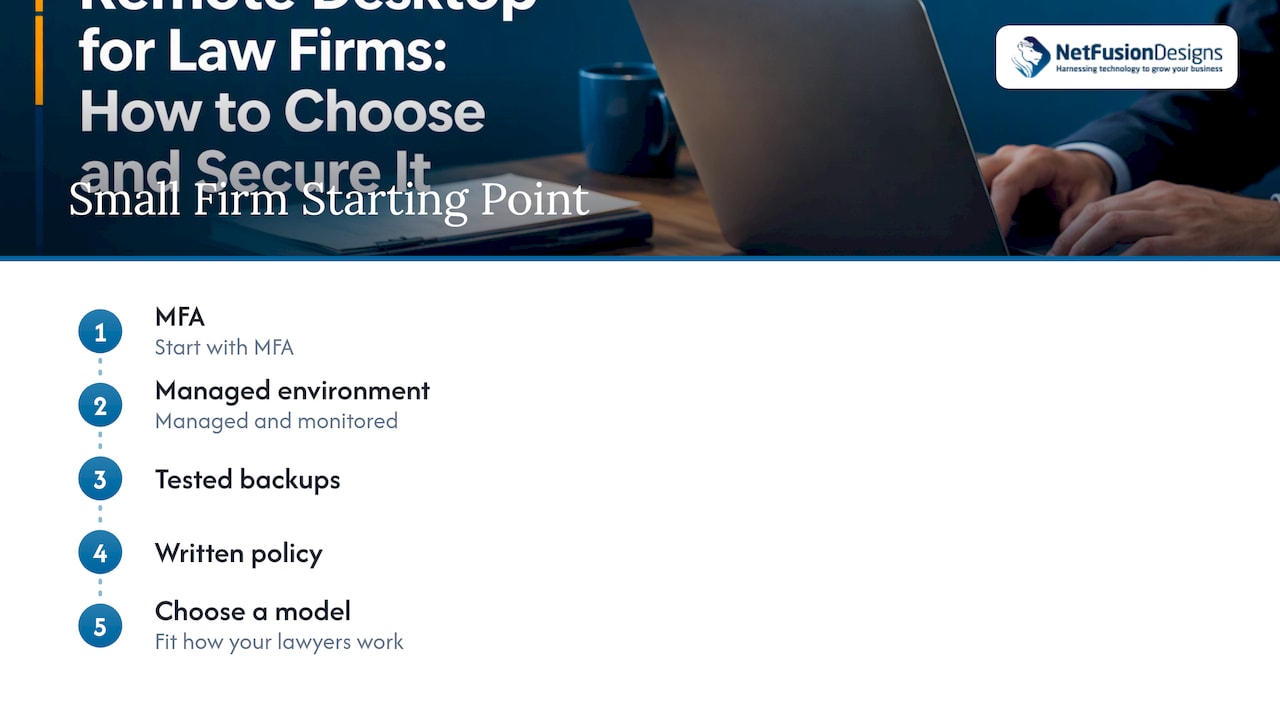
Our honest advice for a small firm: do not start with the fanciest platform. Start with MFA, a managed and monitored environment, tested backups and a written policy. Then choose the remote desktop model that fits how your lawyers work.
— Geeshan
Moving a firm to a remote desktop does not need a long outage. A sensible sequence looks like this:
Timelines vary with firm size and how tidy the existing data is, so treat these weeks as a planning frame and not a promise.
We provide managed IT services for Ontario law firms, including hosted desktops, Microsoft 365, helpdesk, backup and disaster recovery, and 24/7 security monitoring. If you want a second opinion on your current remote access, or you are comparing options, talk to our team and we will walk through your setup in plain terms. We do not publish prices for these services, so we scope each one to your firm.
No. The Law Society of Ontario does not approve or certify providers. You remain responsible for client confidentiality, so you need to review the service agreement for data ownership, export rights and recovery terms.
It can be, if it is configured properly. That means MFA on every sign-in, no direct RDP exposed to the internet, hardened devices and active monitoring. A poorly configured setup, such as an open port to an office PC, is one of the riskiest options.
A VPN connects your device to the office network, so files can still be copied to that device. A virtual desktop keeps the work on a managed system and sends only the screen. For firms worried about lost laptops, the second model leaves less client data on endpoints.
The LSO guidance suggests being open with clients about how their data is stored and protected, and it points to the retainer agreement as a good place. A short, clear paragraph is usually enough.
%20(1).avif)
%201.avif)