SharePoint information architecture is the plan for where your content lives, how it is labelled, how people move through it and who can see it. Get it right and staff find the current version of a document in seconds. Get it wrong and SharePoint turns into a second shared drive that nobody trusts. For a small or mid-sized business, the sound approach is a flat set of purpose-built sites, a few hubs, consistent metadata and permissions decided before content is moved in. It is also work that goes faster with a Microsoft 365 team beside you: our Microsoft 365 Optimization service covers this ground.
This guide explains the building blocks in plain language, then gives you an order of work you can follow.
Think of a filing room. The cabinets, the labels on the drawers, the sign on the door and the keys each person holds are all part of how well the room works. In SharePoint Online, those are sites, libraries, metadata, navigation, search and permissions.
Microsoft’s guidance defines information architecture as how you organize and label content and how visitors interact with it, including navigation, search, site hierarchy, taxonomy (a shared set of labels and categories) and security. In modern SharePoint it also means making sure the right content reaches the right people while following content compliance regulations. Microsoft’s overview adds that a well-planned structure improves adoption and productivity and reduces information overload, IT cost and compliance and security risk.
For an Ontario law firm, accounting practice, clinic or manufacturer, that last point is the one that matters most. Client files, patient records and engineering drawings need a clear owner, a clear home and a clear audience. A structure that grew by accident cannot give you that.
You only need to know a handful of terms to plan well.
Microsoft’s content planning guidance says to decide which lists, libraries and pages you need and whether to create content types, which let site owners pre-configure details so content stays consistent across sites. ShareGate’s overview of the building blocks adds that a content type can define how an item is treated, including its required metadata and retention schedule.
Most confusion starts when every site is created the same way. Microsoft’s hub planning guide separates three purposes:
| Site type | Purpose | Typical use |
|---|---|---|
| Team site | Collaboration for a defined group. Connected by default to a Microsoft 365 group, with Teams and Planner available. | A project, a department, a client matter |
| Communication site | Broadcasting content to many readers | HR policies, company news, onboarding, product documentation |
| Hub site | Connecting related sites with shared navigation and content roll-up | A department family, a region, a service line |
A practical rule: if people work together on files, use a team site. If a few people publish and most people read, use a communication site. If you have several sites that belong together, put them under a hub.
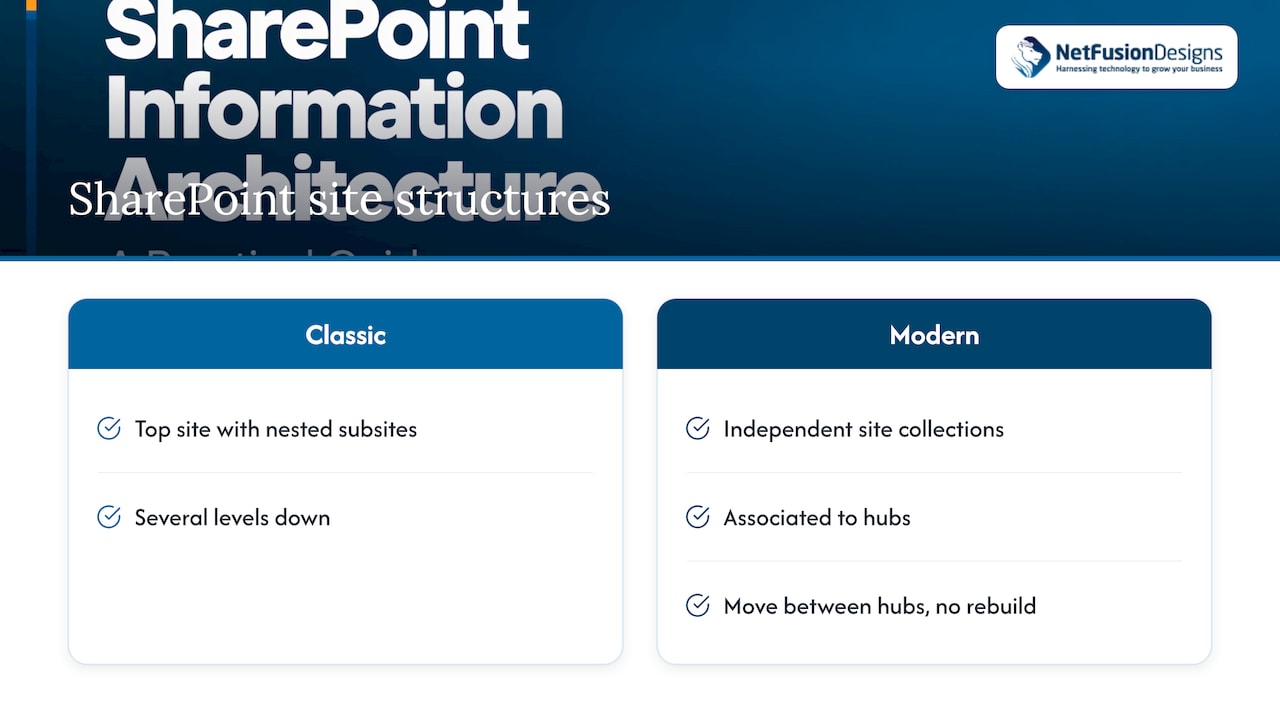
If you remember SharePoint from a decade ago, you may expect a tree: a top site with subsites several levels down. Modern SharePoint does not work that way. According to Microsoft’s guide to the modern experience, every site is a site collection associated to hubs in a flat structure, which replaces the classic subsite hierarchy.
This changes how you plan. You no longer draw one big tree and slot everything into it. Instead you create sites for real business units or purposes, and then group them with hubs. A site can be moved between hubs later without rebuilding it, so the structure can change as the business does.
Microsoft’s portal guidance also warns about common failures: too many top-level site collections, content buried too deep, and poor master data management leading to poor taxonomy. Its portal information architecture guidance says planning should start from business objectives, organizational structure, content type (collaborative or published), classification and confidentiality, content life cycle and retention, and how people actually behave and what tasks they perform.
A reasonable starting point might look like this:
That is around a dozen sites for 60 people, not hundreds. The aim is that someone new can guess where something lives.
Microsoft’s navigation planning guide frames navigation around organizing (grouping similar intents), labelling (clear names), usability and findability. It also recommends progressive disclosure, so a visitor can always answer three questions: where am I, what can I do here, and where can I go next?
In practice:
If you are planning navigation across a global, hub and local level, general site architecture best practices cover the same logic of keeping hierarchy shallow and paths short.
Folders feel natural because they mirror a file share. They fail because a document can only sit in one folder, and every extra level makes the path harder to remember. Microsoft warns that folder structures with more than one or two levels of nesting create a significant discoverability burden, and recommends topic-specific libraries with site columns instead.
The same page names columns and content types as the two most important metadata elements. Metadata lets users filter and sort inside a library and improves search. Using columns in the Site Pages library also lets highlighted content web parts connect related pages based on shared metadata.
An accounting practice stores year-end files by client. The old share has paths like Clients / Smith Corp / 2025 / Tax / Working Papers / Drafts. In SharePoint, you would build one library with these columns:
Now a partner can filter to all final returns for 2025 across clients, or open a saved view for one client. A single flat library with four columns does more than six folder levels, and it does not break when a client is renamed.
Before you build, agree on the column list and who maintains it. Site columns defined once and reused across libraries keep labels identical everywhere. Two libraries that call the same thing “Client” and “Customer” will undo the benefit.
Structure and security are linked, so plan them together.
Permissions. Microsoft states that associating a site with a hub does not change its permissions. Content rolled up on a hub is security-trimmed, meaning people only see items they already have access to. Associating a site with a hub is therefore safe from a visibility point of view, but it does not grant access either. Give each site an owner who decides who gets in, and keep the number of unique permission exceptions low, because every exception is something someone must remember later. For client records, health information or anything under confidentiality obligations, set access by group, not by individual.
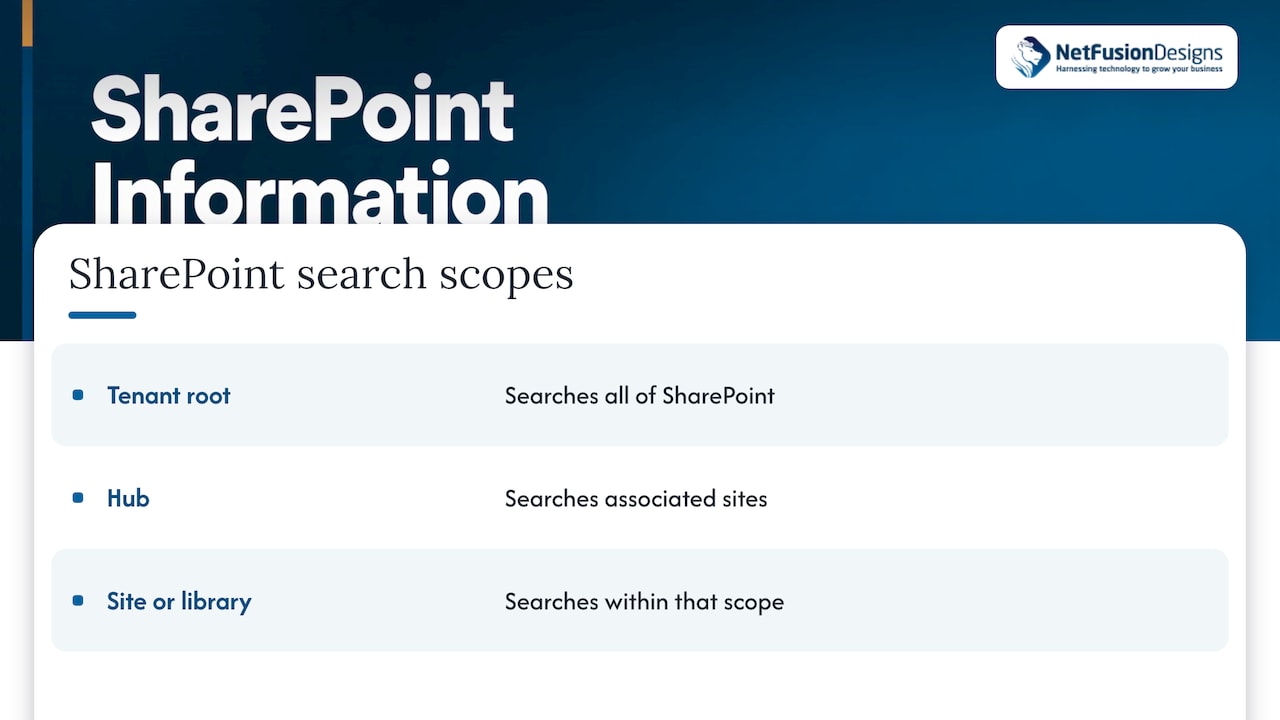
Search. In modern SharePoint, search is personal and contextual. Per Microsoft’s modern experience guide, searching from the tenant root covers all of SharePoint, searching from a hub covers its associated sites, and searching from a site or library is scoped to that site or library. This is a strong reason for hubs: a hub gives a department its own search scope without extra work.
Governance. Governance is the set of rules that stops the design decaying. Microsoft’s intranet governance guidance says it should cover navigation architecture (how sites and hubs are associated), page architecture guidelines for consistent home pages, metadata architecture (columns and content types) and search experiences, including discovery attributes such as acronyms, bookmarks and Q&A. Put another way, someone should own the answers to four questions: who can create a site, who approves a new hub association, who changes the shared columns, and who reviews what appears in search.
If your team also builds apps on top of SharePoint data, our note on Power Apps governance covers how to keep those under control too.
Many businesses design SharePoint and then find that half their files are somewhere else. The reason is that Teams does not store files itself. Files shared in a standard Teams channel sit in the SharePoint site behind that team, while files shared in a one-to-one or group chat sit in the sender’s OneDrive. That means your SharePoint plan has to include Teams: each team you create also creates a SharePoint site, so the rules for who may create teams are really rules for who may create sites.
A workable division:
Tell staff the rule in one sentence: when a file is final, it lives in the library, not in a chat. Our guide to file sharing for multi-location teams explains how this plays out when offices in different cities share the same documents. For professional services, SharePoint for law firms goes deeper on matter-based structures.
Canadian guidance aimed at organizations under 500 employees, published by Internee, suggests starting with well-structured communication sites as the authoritative home for HR policies, product documentation, org charts and onboarding, linking Teams channels to the relevant libraries and configuring Microsoft Search from the start, with editorial bookmarks and acronym definitions added in the Microsoft Search admin center. It also observes that small organizations rarely lack information. Their problem is that it is scattered across places with no agreed home.
That points to this sequence:
Licensing affects some of these choices, for example which compliance and retention features are available to which users, so check your plan early with our Microsoft 365 licensing guide.
NetFusion Designs is a Managed IT and AI enablement provider for small and mid-sized businesses across Ontario and Canada, with teams in Kitchener-Waterloo, Toronto, Markham, Mississauga, Montréal and Winnipeg. Microsoft 365 is part of our fully managed IT, alongside security, monitoring and helpdesk, so the structure you design in SharePoint sits inside an environment we already look after, with a SOC 2 Type II certified team behind it.
If you want a SharePoint structure planned and then kept in order, see our Microsoft 365 Optimization service. For ongoing management of your whole environment, start with Managed IT Services.

We plan the work in plain language, so owners and partners know what is changing and why. If your internal IT person is stretched, our co-managed IT option lets us take the Microsoft 365 work while your team keeps the rest.
Most SharePoint problems we are asked about are not technical. The platform does what it was designed to do. What goes wrong is that nobody decided what belongs where, who owns it and how long it should live.
We think of information architecture as part of running IT, not a one-time project. It touches security, because permissions and retention are structure decisions. It touches compliance, because regulated firms need to show where records are and who can see them. And it touches adoption, because people stop using a system they cannot navigate.
That is why we prefer to have one provider responsible for Microsoft 365, security and support together. When the same team manages your tenant, your helpdesk and your protection, a new site gets the right owner and the right access from day one, and nobody has to coordinate between vendors. Our approach is plain-language communication, predictable monthly pricing and a clear record of what was set up.
Start small, pick a few sites, name owners, and review. A calm, well-labelled SharePoint is within reach of any business with 10 people or 500.
Geeshan
Microsoft 365 is the whole subscription: email, Teams, OneDrive, Office apps and security tools. SharePoint is one service inside it, used for sites, document libraries and intranet pages. Teams channel files are stored in SharePoint, so the two are closely linked.
Use metadata as your main method and keep folders to one or two levels at most. Microsoft notes that deeper folder nesting makes content harder to find. Columns let one document be filtered by client, year, type or status without being copied.
You need one when several sites belong together and should share navigation and search, such as all your practice groups or all your plants. Hubs do not change permissions, so they are a safe way to connect sites. A very small company with a few sites can begin with a single communication site as its home page.
Treat it as ongoing. Microsoft describes information architecture as iterative, because organizations, people and projects change. A review each quarter of sites without owners, unused libraries and failed searches is a sensible routine for most small businesses.