NetFusion Designs logo
Heart icon
Support
Email
info@nfd.ca
Phone
647-476-5259(Canada)
IT Services
Icon dropdown arrow

Infrastructure Implementation

Project PlanningHardware Voice over IP (VoIP)Application DevelopmentCloud DesktopSecurity Cameras

Managed IT Services

IT Support24/7 HelpDeskCyber Security & AntivirusData Backups & Disaster
Recovery
Co-Managed ITComplianceEmergency Ransomware
Recovery
Penetration & Vulnerability
Assessment

Optimization of Processes

Microsoft 365 OptimizationVirtual CIO ServicesPenetration TestingInventory Lifecycle
Management
Transforming SMEs with AI
Industries
Icon dropdown arrow
Dental Managed IT Services
Construction
Hotels & Hospitality
Franchises
Financial & Insurance Services
Government
Health Care & PharmaceuticalLegal & Professional Services
Local Small & Medium Businesses
Manufacturing
Non-profit
Real Estate
Retail
Transportation & Logistics
Enterprise & Consulting
Publicly Traded Companies
Our Story
Icon dropdown arrow
About UsTestimonials
Partners
Sponsorship
BlogContact Us
Open menuClose menu
Icon chevron up
Browse Blog:
Business
Insight
Advice
Advice

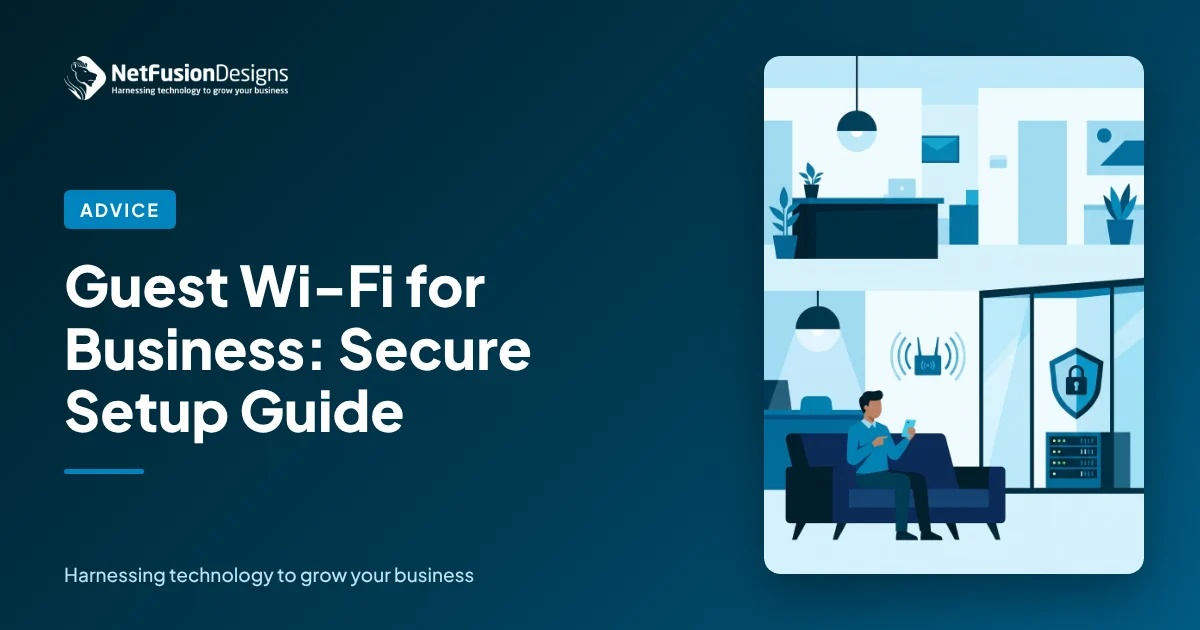
Guest Wi-Fi for Business: How to Set It Up Securely

How to set up guest Wi-Fi for business securely: a separate VLAN, client isolation, firewall rules, bandwidth limits and the mistakes to avoid.
6
Guest Wi-Fi for Business: How to Set It Up Securely

Guest Wi-Fi for business should be a completely separate network that gives visitors internet access and nothing else. Put it on its own VLAN or SSID with client isolation, block access to your internal network, use WPA3 or WPA2 with a password you rotate, add bandwidth limits and content filtering, and show a short acceptable-use page.

Clients, patients and contractors expect Wi-Fi when they walk into your office. The risk is not offering it; the risk is offering it on the same network as your file server, printers, phones and point-of-sale systems. One infected laptop in the waiting room should never be able to see your business systems.

This guide explains how to set up guest Wi-Fi securely, what settings matter most, and the mistakes we see most often in small offices, clinics and professional firms. It is written for owners and office managers, not network engineers, so you can use it to check your current setup or brief whoever manages it.

Why does a business need a separate guest Wi-Fi network?

A separate guest network keeps devices you do not control away from the systems and data you are responsible for.

Visitors' phones and laptops are outside your security controls. You do not know whether they are patched, whether they carry malware, or who else uses them. If they join your main network, they can potentially reach shared drives, printers, cameras, phone systems and any server that is not locked down.

The Canadian Centre for Cyber Security's baseline cyber security controls for small and medium organizations is direct on this point: organizations that offer public Wi-Fi to visitors should never connect it to internal networks or resources such as printers or audiovisual systems. A separate guest network is also easier to explain to cyber insurers and auditors, who increasingly ask how visitor access is handled.

How do you set up guest Wi-Fi for business securely?

Infographic: 8-step checklist for setting up guest Wi-Fi for business securely

Follow these eight steps in order; together they keep guests online and away from everything else.

  1. Create a dedicated guest SSID. Give it a clear, neutral name and never share your staff network password with visitors.
  2. Put guests on their own VLAN. Assign the guest SSID to a separate VLAN and subnet so guest traffic is kept apart from business traffic at the switch and firewall.
  3. Block access to internal networks. Add firewall rules that allow guest traffic out to the internet only, and deny everything to your internal ranges, management interfaces and other VLANs.
  4. Turn on client isolation. Stop guest devices from seeing or connecting to each other, so one compromised device cannot attack the next.
  5. Use WPA3 or WPA2 with a rotating password. Avoid fully open networks where you can, and change the guest password on a schedule, such as monthly or quarterly.
  6. Limit bandwidth and sessions. Cap per-device speed and total guest bandwidth so streaming in the lobby cannot slow down your phones, video calls or cloud apps.
  7. Add DNS or content filtering. Block known malicious and inappropriate sites to protect guests and reduce the chance your internet connection is linked to abuse.
  8. Show a splash page and keep logs. Use a simple acceptable-use page, and keep basic connection logs for a reasonable period in case you ever need to investigate misuse.

What are the most common guest Wi-Fi mistakes?

The most common mistake is a guest network that looks separate but is not actually isolated.

Many consumer-grade routers create a second network name but leave both on the same subnet, or allow guests to reach the router's admin page. Other frequent problems include:

  • Sharing the staff Wi-Fi password with visitors "just this once" and never changing it.
  • Letting staff use the guest network for work devices to avoid a login, which bypasses your security controls.
  • Connecting smart TVs, cameras or other building devices to the guest network, where guests can find them.
  • Printing the same guest password on a sign for years.
  • No bandwidth limits, so one visitor's large download affects everyone.

The fix is usually configuration rather than new hardware, but it should be tested. From a laptop on the guest network, try to reach a staff printer, a shared drive and the firewall's admin page. All three should fail.

Should staff personal phones use guest Wi-Fi?

Yes, in most offices staff personal devices belong on the guest network or on a separate "personal devices" network, not on the business network.

This keeps personal phones and tablets apart from company systems while still giving staff internet access. Work devices that are managed by your IT team should use the staff network, ideally with WPA2-Enterprise or WPA3-Enterprise so each person signs in with their own credentials and access can be removed when someone leaves. If staff need business apps such as email or Teams on personal phones, protect those apps with mobile app policies and MFA rather than putting the phones on the internal network.

How does guest Wi-Fi fit with the rest of your network?

Guest Wi-Fi is one part of a segmented network, where each type of device gets only the access it needs.

A typical small office might have separate networks for staff computers, voice phones, cameras and building systems, servers, and guests. Cameras are a good example: our guide to setting up a camera network VLAN shows how the same idea protects video systems. For firms with more than one location, a multi-site network design keeps guest access consistent at every office. Manufacturers with large spaces have different coverage needs, which we cover in shop floor Wi-Fi design.

How NFD helps with secure guest Wi-Fi

NetFusion Designs (NFD), a SOC 2 Type II certified managed IT provider headquartered in Kitchener-Waterloo, designs, configures and monitors business networks for clinics, professional firms, manufacturers and non-profits across Ontario, Quebec and Manitoba.

For many smaller organizations, guest Wi-Fi is set up once and then forgotten. Our small business IT support includes reviewing how your network is segmented, testing that guest isolation really works, and keeping firmware, passwords and firewall rules current as part of ongoing management.

FAQ

Is it safe to offer free Wi-Fi to customers?

Offering free Wi-Fi to customers is safe when the guest network is fully separated from your business network. Guests should only reach the internet, with firewall rules blocking your internal systems, client isolation turned on, bandwidth limits in place and basic content filtering. The risk comes from guest networks that share the same subnet or password as the network your staff and systems use.

Should guest Wi-Fi have a password?

In most offices, yes. A WPA3 or WPA2 password encrypts traffic between each device and the access point and stops passers-by from using your connection. Share it at reception or on a sign in the waiting area, and change it on a regular schedule. If you run an open network for convenience, rely on strong isolation, a splash page and filtering instead.

What is client isolation on guest Wi-Fi?

Client isolation is a wireless setting that stops devices on the same network from communicating with each other. On a guest network, it means one visitor's laptop cannot scan or connect to another visitor's phone, even though both are online at the same time. It is a simple setting on most business-grade access points and should be enabled on every guest SSID.

Can I use my internet provider's router for guest Wi-Fi?

You can, but many provider-supplied and consumer routers offer only basic guest features, with limited control over VLANs, firewall rules, bandwidth limits and logging. For a small office with a few visitors it may be enough if isolation is tested. Businesses handling sensitive client data usually benefit from business-grade firewalls and access points that can be centrally managed and monitored.

A well-built guest network takes little effort to maintain once it is set up properly. If you would like someone to review or rebuild yours, contact the NFD team and we will walk through your current setup with you.

‍

Continue Reading

Lost or Stolen Work Laptop: What to Do in the First 24 Hours
SharePoint Information Architecture: A Practical Guide
Microsoft Teams as a Call Centre: Queues and Setup
AI Change Management: A Practical Guide for Canadian SMBs
NetFusion Designs logo
NetFusion Designs is a globally recognized IT service provider and services clients across North America.

We hold a SOC 2 Type 2 report, and maintain internal processes and procedures that keep our clients’ data secure and confidential.
NetFusion Designs IT support team

IT Services Near Me

BurlingtonOakvilleHamiltonMississaugaMiltonBramptonEtobicokeBrantfordGuelphKitchenerWaterlooCambridgeSt CatharinesTorontoMarkhamCaledonNewmarketNorth YorkPickering & DurhamLondonMontreal

Services

Project PlanningHardwareTelephony & VoIPApplication DevelopmentCloud DesktopSecurity CamerasHelpdesk & SupportCyber Security & Anti-VirusData Backups & Disaster RecoveryMicrosoft 365 OptimizationVirtual CIO ServicesPenetration TestingPricingSchedule a MeetingRemote Support
Pricing

Pages

Free Security ScanAbout UsOur Migration ApproachWork CultureOur Core ValuesCode of ConductTestimonialsContactBlogSchedule a MeetingRemote Support

TORONTO

Bank capital office building law
401 Bay St, 16th Floor, Toronto Ontario
Email
info@nfd.ca
Phone
647-476-5259 (Canada)

MARKHAM

Bank capital office building law
141 Main Street N, Markham, ON L3P 1Y2
Email
info@nfd.ca
Phone
647-476-5259 (Canada)

TRI-CITY AREA
(Kitchener / Waterloo / Cambridge)

Bank capital office building law
22 Frederick St, Suite 700, Kitchener Ontario
Email
info@nfd.ca
Phone
647-476-5259 (Canada)

PEEL REGION

Bank capital office building law
6700 Century Ave, 3rd floor, Mississauga, ON L5N 1V8
Email
info@nfd.ca
Phone
647-476-5259 (Canada)

DURHAM REGION

Bank capital office building law
1315 Pickering Parkway, Pickering, ON L1V 7G5
Email
info@nfd.ca

MONTREAL

Bank capital office building law
8815 Av du Parc #402, Montréal, QC H2N 1Y7
Email
info@nfd.ca
Phone
647-476-5259 (Canada)

Special Offers

Radio station signal antena tower
Pricing: $100–185 per user
Icon chevron right
Terms and ConditionsPrivacy PolicyCookie Policy
© 2026 NetFusion Designs Inc.
LinkedInFacebookAlignable logo