To set up a camera network VLAN, create a dedicated VLAN and subnet for your cameras and recorder, assign the camera switch ports to it as untagged access ports, carry it to your router or firewall on a tagged uplink, and then write firewall rules that let staff reach the recorder while the cameras can reach nothing else. The steps are simple. The part people skip is the last one: testing that the isolation actually holds.
This guide walks through the whole job in the order you would do it, with an example address plan, the firewall logic and a test checklist. It is written for business owners and IT managers who either do the work in-house or need to hand a clear request to whoever does.
IP cameras are small computers that run embedded software, often for years without anyone logging in to them. If they share a network with your file server, accounting system and staff laptops, a compromised camera becomes a way in. A VLAN (virtual local area network) splits one physical switch into separate logical networks, so camera traffic stays in its own lane even though it runs over the same cabling.
Separation also helps with ordinary operations. Video streams are constant and heavy. Keeping them off the office network means a busy recorder does not slow down your staff, and a problem on the office side does not interrupt recording.
A VLAN alone does not isolate anything. It only creates the separate network. Isolation comes from the rules on the device that routes between networks. If that device allows everything, your cameras are still reachable from the office. That is why this guide spends as much time on firewall rules and testing as on switch configuration.
For how many cameras and where, see our guide to business security camera placement. For how much disk the recorder needs, see security camera storage requirements.

Creating an isolated camera VLAN requires two pieces of network equipment: a managed switch that supports IEEE 802.1Q tagging and a VLAN-capable router or firewall to handle routing between VLANs and apply security policy. An unmanaged switch cannot do this, however many ports it has.
Before touching any configuration, gather:
Power over Ethernet (PoE) lets one cable carry both data and power to each camera. Every switch has a total power budget that is lower than the sum of its ports at full draw. Add up the maximum draw of each camera from its datasheet, add some headroom, and compare the total with the switch’s stated PoE budget. PTZ cameras and cameras with heaters or infrared illuminators need the most. If the numbers are close, buy the bigger switch now rather than running cameras at the edge of its capacity.
Write the plan on paper or in a spreadsheet before you configure anything. A documented plan means the work can be checked, repeated and handed over. Ask whoever manages the network to allocate a private range that does not conflict with existing site or remote-access networks, because an overlap with a VPN range is a classic cause of cameras that work on site and vanish for remote users.
A tidy scheme makes troubleshooting faster. Tying the third octet to the VLAN ID, for example 192.168.30.0/24 for VLAN 30, lets an administrator tell at a glance where traffic is coming from or going to. Here is an example plan for a small office:
| Item | Example value | Notes |
|---|---|---|
| Office VLAN | VLAN 10, 192.168.10.0/24 | Staff devices and servers |
| Camera VLAN | VLAN 30, 192.168.30.0/24 | Cameras and recorder only |
| Gateway for VLAN 30 | 192.168.30.1 | On the router or firewall |
| NVR | 192.168.30.10 | Fixed address |
| Cameras | 192.168.30.21 to .60 | Fixed or reserved, one per camera |
| DHCP pool | 192.168.30.100 to .200 | Kept away from fixed addresses |
These values are only an example. Use ranges that fit your own site.
Cameras need stable addresses, because the recorder finds them by address. Both methods work. TP-Link’s support guidance says static IPs and DHCP reservations can both give a device a stable address: manually assigned static addresses should sit outside the DHCP pool, and reservations suit devices that should always get the same address from DHCP.
Our preference for business sites is DHCP reservations on the router, because the address list lives in one place and a replaced camera is easy to slot in. Whichever you choose, record it in the plan and never let a fixed address fall inside the dynamic pool, since that causes duplicate-address faults that look like random dropouts.
The port configuration is the same on most managed switches, even though menus differ:
IPVM, the video surveillance research group, recommends untagged access ports for end devices even though modern cameras can handle 802.1Q tagging, because tagged configurations can lock you out of a camera after a firmware reset or a mistake. We agree: keep the tagging on the trunk and keep the camera end simple.
On the router or firewall, create a VLAN 30 interface with the gateway address from your plan, then enable DHCP for the camera range if you use reservations. If a Layer 3 switch does the inter-VLAN routing instead, remember that it can route between VLANs by default. In that case the filtering rules must be on the switch, or routing must be handed to the firewall, otherwise the VLAN is separate in name only.
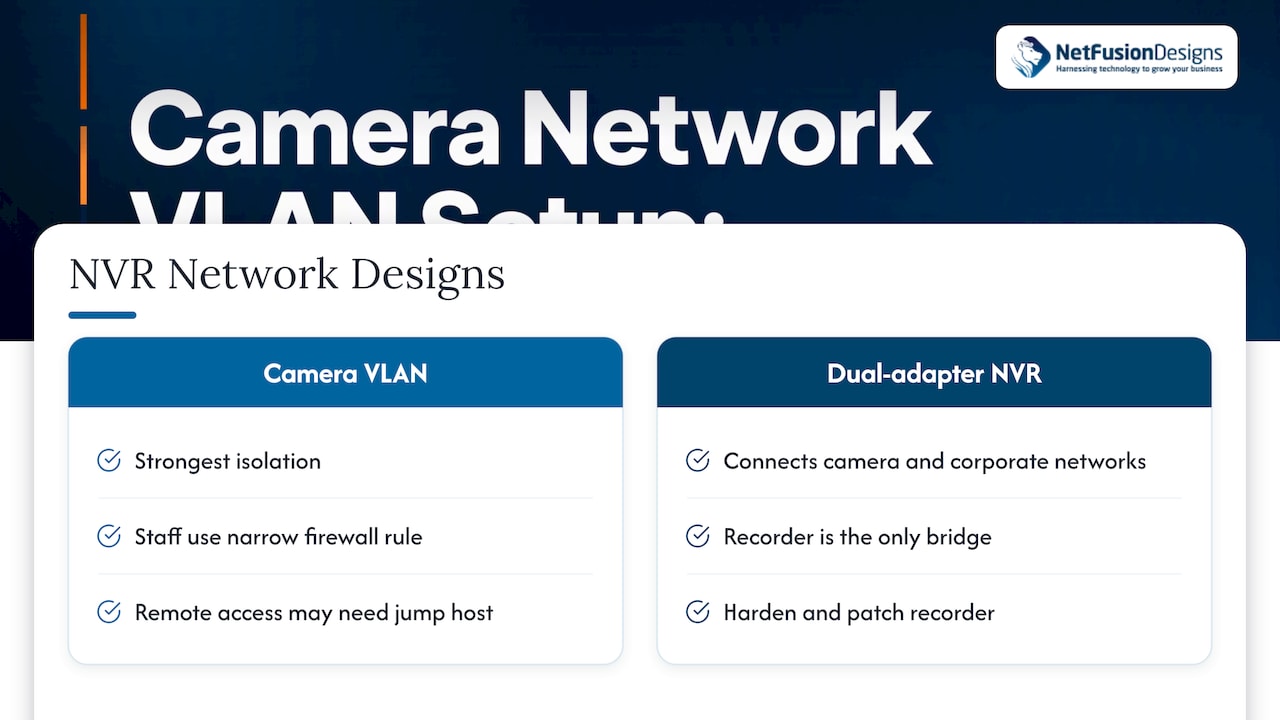
There are two common designs, and the right one depends on how people watch video.
Option 1: NVR on the camera VLAN. This gives the strongest isolation. Staff reach the NVR through a narrow firewall rule. The cost is that remote access becomes harder, because it may need firewall rules or a secure jump host.
Option 2: NVR with two network adapters. Axis describes an NVR with dual network adapters: one connected to the isolated camera network for recording, and another connected to the corporate network for management and viewing. Cameras never touch the office network, and the recorder is the only bridge. That makes the recorder itself the item to harden and patch.
If your recorder has built-in PoE ports, check how they behave. Cameras plugged directly into those ports usually sit on the recorder’s own internal segment, not on your VLAN. They are already isolated, but they will not appear on your VLAN and your firewall rules will not apply to them. Check the manufacturer’s documentation for your model so you know which cameras sit where.
This is the step that turns a separate VLAN into a protected one. The principle is default deny: the camera network may send only what it needs to, and everything else is dropped. Rules are applied in order, so put the specific allows above the final deny.
A typical rule set for the example plan:
| Order | From | To | Action | Why |
|---|---|---|---|---|
| 1 | Named staff devices on VLAN 10 | NVR on VLAN 30, management and stream ports only | Allow | Viewing and administration |
| 2 | VLAN 30 | Time server (NTP) | Allow | Accurate timestamps on footage |
| 3 | VLAN 30 | DHCP and DNS, only if needed | Allow | Address assignment and name lookup |
| 4 | VLAN 30 | VLAN 10 | Deny | Protects the office network |
| 5 | VLAN 30 | Internet | Deny | Stops cameras calling out |
A few notes on each:
A warning worth repeating: a VLAN without the required restrictions can leave camera interfaces reachable from the business network, so check the complete path, including any routing done by a Layer 3 switch.
For firms with formal security controls, network zoning is not just good practice. The Government of Canada’s ITSG-38 guidance on network security zoning covers where services should sit within network zones, and federal contracting requirements ask suppliers to monitor and control communications at key internal system boundaries with firewalls and intrusion detection or prevention. A camera VLAN with default-deny rules is a small, concrete example of the same idea.
Owners want to check cameras from a phone. Do not solve this by forwarding camera ports from the internet. Two safer approaches:
Whichever you choose, protect the account with a strong unique password and multi-factor authentication (MFA) where the service supports it. MFA means a second proof of identity, such as a code on a phone, so a stolen password alone is not enough.
The wider point is the same one made in why cybersecurity matters for online businesses: protecting each access point is cheaper than recovering from a breach that came through a forgotten one.
Treat testing as part of the job. Run these checks from both inside the camera VLAN and the office network:
If your network uses quality of service (QoS) rules to manage congestion, make sure surveillance traffic is not dropped. Cisco’s design guidance notes that QoS manages congestion by prioritizing applications, and surveillance traffic must not be dropped by enterprise policies.
Save the results with the port map and IP plan. When someone replaces a switch in two years, those three documents are what keep the setup intact.
A VLAN reduces exposure. It does not replace basic hygiene. Axis’s guidance recommends strong passwords, disabling unused services, keeping software updated, using HTTPS or encrypted streaming and 802.1X where supported. In practice:
If your office has Wi-Fi cameras, use WPA2 or WPA3. Canadian government security requirements state that WEP and WPA1 are not secure enough for sensitive information. Wired PoE cameras on a VLAN remain the better choice for anything you rely on.
For a broader view of layered protection, see our guides to a layered cybersecurity strategy for SMBs and industrial network security for IT managers. Manufacturers with cameras on plant networks should also read our manufacturing cybersecurity best practices.
Most camera networks we are asked to review were not set up carelessly. They were set up by an installer who is good at cameras and left the network as an afterthought, or by an IT team that was never told cameras were coming. The result is the same: a VLAN exists, but nobody owns the firewall rules, nobody has tested the boundary, and nobody knows who patches the recorder.
Our advice is to settle ownership before the first cable is pulled. One party writes the IP plan, one party applies the rules, and the approved port map is stored where the next person can find it. That is also why we prefer to be one provider for the network, the security tooling and the cameras: there is no handoff in which the isolation gets lost. Under a managed agreement, the camera VLAN is monitored alongside everything else, and our 24/7 security operations team sees unusual traffic from a camera segment in the same place it sees the rest.
The second thing we stress is plain-language documentation. A short page that says which VLAN is which, what is allowed, and how to test it is worth more than a perfect configuration nobody can read.
— Geeshan
A small site with a handful of cameras and a managed switch is a reasonable in-house project if someone on your team is comfortable with VLANs and firewall rules. Bring in help when:
NetFusion Designs designs and supports business IP security camera systems and runs the network behind them as part of our managed IT services, including security monitoring from a SOC 2 Type II certified team. If you want a camera network reviewed or built to a clear plan, contact us through our site and we will start with your existing switches, firewall and address ranges.
Yes. VLANs need a switch that supports 802.1Q tagging and lets you set port membership, and an unmanaged switch cannot do that. You also need a router or firewall that can route between VLANs and apply rules.
Often yes, because it gives the strongest isolation, and staff reach it through a narrow firewall rule. The alternative is an NVR with two network adapters, one on the camera network and one on the office network. Choose based on how staff view footage and who manages remote access.
Usually not. Cameras on a recorder’s built-in PoE ports typically use the recorder’s own internal segment, so they are separate from your VLAN and your firewall rules do not apply to them. Check your recorder’s documentation for the exact behaviour of your model.
No. A VLAN only separates the network, and the firewall rules do the isolating. You also need strong unique passwords, current firmware, disabled unused services and regular testing of the boundary.
Both give a camera a stable address. Keep static addresses outside the DHCP pool, and use reservations if you prefer to manage addresses in one place on the router. Either way, record every address in your IP plan.
%20(1).avif)
%201.avif)