NetFusion Designs logo
Heart icon
Support
Email
info@nfd.ca
Phone
647-476-5259(Canada)
IT Services
Icon dropdown arrow

Infrastructure Implementation

Project PlanningHardware Voice over IP (VoIP)Application DevelopmentCloud DesktopSecurity Cameras

Managed IT Services

IT Support24/7 HelpDeskCyber Security & AntivirusData Backups & Disaster
Recovery
Co-Managed ITComplianceEmergency Ransomware
Recovery
Penetration & Vulnerability
Assessment

Optimization of Processes

Microsoft 365 OptimizationVirtual CIO ServicesPenetration TestingInventory Lifecycle
Management
Transforming SMEs with AI
Industries
Icon dropdown arrow
Dental Managed IT Services
Construction
Hotels & Hospitality
Franchises
Financial & Insurance Services
Government
Health Care & PharmaceuticalLegal & Professional Services
Local Small & Medium Businesses
Manufacturing
Non-profit
Real Estate
Retail
Transportation & Logistics
Enterprise & Consulting
Publicly Traded Companies
Our Story
Icon dropdown arrow
About UsTestimonials
Partners
Sponsorship
BlogContact Us
Open menuClose menu
Icon chevron up
Browse Blog:
Business
Insight
Advice
Advice

Shared Mailbox vs Distribution List: Which Should You Use?

Shared mailbox or distribution list? How each works in Microsoft 365, what it costs, common mistakes and a simple way to choose for every address.
8
Shared Mailbox vs Distribution List: Which Should You Use?

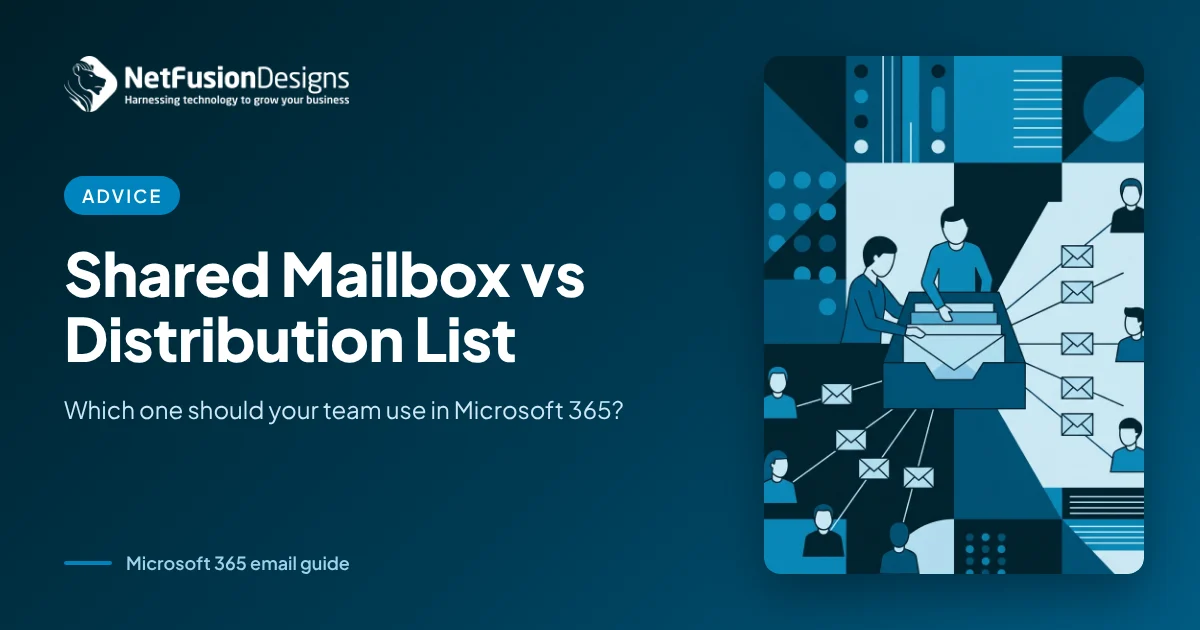
Choosing between a shared mailbox vs distribution list comes down to one question: does your team need to work from the same inbox, or just receive the same message? A shared mailbox gives several people one inbox, one Sent folder and one calendar. A distribution list simply copies each email into every member's own inbox.

Both are free to set up in Microsoft 365, and both can sit behind a friendly address like info@ or accounts@. The difference shows up later, when a customer email gets answered twice, or not at all, or when someone leaves and nobody can find what they sent. There is also a third option, the Microsoft 365 group, which mixes a shared inbox with files, a calendar and Teams.

This guide explains how each one works, what it costs, where each one goes wrong, and a simple way to decide for every address your business uses.

Shared mailbox vs distribution list: what is the difference?

A shared mailbox is a place people work from; a distribution list is a way to send one email to many people.

With a shared mailbox, messages land once in a central inbox. Everyone with access sees the same items, can tell which ones have been read, moved or answered, and can reply so the message comes from the shared address rather than from their personal one. Replies are stored in the shared mailbox's Sent Items, so the whole conversation stays in one place.

With a distribution list (Microsoft calls it a distribution group), there is no inbox at all. The list is just an address that fans out a copy to each member. Each person reads, files and deletes their own copy, and when they reply it comes from their own address. Nobody else can see who answered or what they said.

A Microsoft 365 group sits in between. It has its own group inbox, plus a shared calendar, a SharePoint document library, a Planner board and, if you want, a connected Team. Members can follow conversations in their own inbox or read them in the group. Microsoft's own comparison of group types is a helpful reference if you want the technical detail.

When should you use a shared mailbox?

Use a shared mailbox when several people answer the same incoming email and the business needs one record of what was said.

Typical examples:

  • info@ or hello@ addresses that the front desk and sales team both monitor.
  • accounts@ or billing@, where invoices and payment questions need a clear audit trail.
  • reception@ at a clinic or dental office, where patients expect one consistent reply.
  • support@ or service@ for customer requests that get handed between staff.
  • careers@, where applications should stay in one place rather than in a manager's personal inbox.

Shared mailboxes also make staff changes easier. When someone leaves, the history stays in the shared mailbox instead of disappearing with their account, which is one reason we include them in our employee offboarding IT checklist.

When is a distribution list the better choice?

Use a distribution list when people need to be informed, not when they need to respond together.

  • All-staff announcements, such as office closures or policy updates.
  • Department lists like managers@ or warehouse@ for internal notices.
  • Alert addresses where a few people should each get a copy of a system notification.
  • External notices you want several partners or board members to receive, if your administrator allows external senders.

Microsoft 365 also offers dynamic distribution groups, which build membership automatically from attributes such as department or office location. They are useful for larger teams because new hires are included without anyone remembering to add them.

The trap is using a distribution list for something people need to answer. Three staff see the same customer question, each assumes someone else replied, and it sits for a week. Or two people reply with different answers. If that sounds familiar, the address probably belongs in a shared mailbox.

How much does a shared mailbox cost in Microsoft 365?

A shared mailbox does not need its own licence for most small businesses, but there are limits worth knowing.

According to Microsoft's guidance on shared mailboxes, a shared mailbox can store up to 50 GB without a licence. Beyond that, or if you want an expanded archive, it needs an Exchange Online Plan 2 licence, or Plan 1 with the Exchange Online Archiving add-on. Some compliance features, such as litigation hold, also need extra licensing.

Two other points matter:

  • Everyone who opens the shared mailbox needs their own licensed account. The shared mailbox is free; the people using it are not.
  • Nobody should sign in to the shared mailbox directly. It has a system account behind it, but Microsoft advises against using it to sign in. Access should come through each person's own account, protected by multi-factor authentication.

Distribution lists and Microsoft 365 groups do not need licences of their own. If you are reviewing plans more broadly, our Microsoft 365 licensing guide explains how the business plans differ.

What are the common mistakes with shared mailboxes and distribution lists?

Most problems come from a shortcut taken years ago that nobody has revisited.

  1. Sharing a password instead of a shared mailbox. Some offices still run info@ as a normal user account with a password taped to a monitor. That costs a licence, bypasses multi-factor authentication and makes it impossible to tell who did what. Convert it to a shared mailbox.
  2. Granting Full Access to everyone. Give access only to the people who answer that address, and review the list when roles change.
  3. Confusing "Send As" and "Send on Behalf". Send As makes the email appear to come from the shared address alone. Send on Behalf shows "Jane on behalf of Accounts". Pick one deliberately.
  4. Letting a shared mailbox fill up. When it reaches its limit it stops sending, and eventually stops receiving. Set up an archive or retention plan before that happens.
  5. Forgetting encryption limits. Microsoft notes that email sent from a shared mailbox cannot be encrypted with its own key, because the mailbox has no security context of its own. Clinics and law firms handling sensitive information should plan for this.
  6. Leaving old lists in place. Distribution lists that still include former staff or outside contacts are an easy way for information to go where it should not.

Many of these settings also belong in a wider review of your tenant. Our Microsoft 365 security baseline covers the related controls.

How do you decide for each address?

List every shared address your business uses and ask three questions about each one.

  1. Will people reply from this address? If yes, use a shared mailbox (or a Microsoft 365 group if the team also needs shared files and a calendar).
  2. Does the business need one record of the conversation? If yes, a shared mailbox is the safer choice.
  3. Is it only for announcements or alerts? If yes, a distribution list is simpler, and a dynamic list saves upkeep.

Once each address has the right type, document who owns it, who has access and how often access is reviewed. That small piece of housekeeping prevents most of the confusion described above.

How NFD helps you get Microsoft 365 email right

NetFusion Designs (NFD), a SOC 2 Type II certified managed IT provider headquartered in Kitchener-Waterloo, helps small and mid-sized organizations across Ontario, Quebec and Manitoba set up and clean up Microsoft 365. That includes converting password-shared accounts into proper shared mailboxes, tidying distribution lists, setting permissions and retention, and fitting it all into a secure tenant. You can learn more about our Microsoft 365 optimization services.

Frequently asked questions

Can a distribution list have its own inbox?

No. A distribution list has no mailbox, so there is nowhere to store messages centrally. Each member receives a separate copy in their own inbox and replies from their own address. If you want a central inbox that several people can see and answer from, you need a shared mailbox or a Microsoft 365 group instead.

Do I need a licence for a shared mailbox in Microsoft 365?

Usually not. Microsoft allows a shared mailbox to hold up to 50 GB without its own licence. You do need a licence if the mailbox grows beyond that, if you want an expanded archive, or for some compliance features such as litigation hold. Every person who opens the shared mailbox still needs their own licensed Microsoft 365 account.

Should we use a shared mailbox or a Microsoft 365 group?

Choose a shared mailbox when the main job is answering email from one address with a clear record of replies. Choose a Microsoft 365 group when the team also needs shared files, a group calendar, a task board or a connected Team. Many businesses use shared mailboxes for customer-facing addresses and groups for internal project teams.

Can I convert a regular user mailbox to a shared mailbox?

Yes. In the Exchange admin centre, an administrator can convert a user mailbox to a shared mailbox, which keeps its existing email. This is common when an employee leaves or when an address like info@ was set up as a normal account. Check the mailbox size first, because a shared mailbox over 50 GB still needs a licence.

Not sure whether your shared addresses are set up the right way? Talk to the NFD team and we'll help you review your Microsoft 365 email setup and tidy up anything that's putting your business at risk.

‍

Continue Reading

Microsoft 365 Tenant Hardening: A Practical Guide for Canadian SMBs
Network for a Multi-Site Business: Design Guide for Canada
Secure IP Cameras for Business: A Practical Guide
How Often Should a Business Replace Computers?
NetFusion Designs logo
NetFusion Designs is a globally recognized IT service provider and services clients across North America.

We hold a SOC 2 Type 2 report, and maintain internal processes and procedures that keep our clients’ data secure and confidential.
NetFusion Designs IT support team

IT Services Near Me

BurlingtonOakvilleHamiltonMississaugaMiltonBramptonEtobicokeBrantfordGuelphKitchenerWaterlooCambridgeSt CatharinesTorontoMarkhamCaledonNewmarketNorth YorkPickering & DurhamLondonMontreal

Services

Project PlanningHardwareTelephony & VoIPApplication DevelopmentCloud DesktopSecurity CamerasHelpdesk & SupportCyber Security & Anti-VirusData Backups & Disaster RecoveryMicrosoft 365 OptimizationVirtual CIO ServicesPenetration TestingPricingSchedule a MeetingRemote Support
Pricing

Pages

Free Security ScanAbout UsOur Migration ApproachWork CultureOur Core ValuesCode of ConductTestimonialsContactBlogSchedule a MeetingRemote Support

TORONTO

Bank capital office building law
401 Bay St, 16th Floor, Toronto Ontario
Email
info@nfd.ca
Phone
647-476-5259 (Canada)

MARKHAM

Bank capital office building law
141 Main Street N, Markham, ON L3P 1Y2
Email
info@nfd.ca
Phone
647-476-5259 (Canada)

TRI-CITY AREA
(Kitchener / Waterloo / Cambridge)

Bank capital office building law
22 Frederick St, Suite 700, Kitchener Ontario
Email
info@nfd.ca
Phone
647-476-5259 (Canada)

PEEL REGION

Bank capital office building law
6700 Century Ave, 3rd floor, Mississauga, ON L5N 1V8
Email
info@nfd.ca
Phone
647-476-5259 (Canada)

DURHAM REGION

Bank capital office building law
1315 Pickering Parkway, Pickering, ON L1V 7G5
Email
info@nfd.ca

MONTREAL

Bank capital office building law
8815 Av du Parc #402, Montréal, QC H2N 1Y7
Email
info@nfd.ca
Phone
647-476-5259 (Canada)

Special Offers

Radio station signal antena tower
Pricing: $100–185 per user
Icon chevron right
Terms and ConditionsPrivacy PolicyCookie Policy
© 2026 NetFusion Designs Inc.
LinkedInFacebookAlignable logo