Hardening your Microsoft 365 tenant means changing its default settings so that stolen passwords, careless sharing and rogue apps do far less damage. The order matters more than the volume: secure sign-ins and administrator accounts first, then apps and devices, then email and collaboration, then data, and finally logging so you can see what is happening. This guide walks through that order for small and mid-sized Canadian businesses, notes which controls depend on your licence, and flags where Canadian privacy expectations come in.
A tenant is your organization’s Microsoft 365 environment: its users, mailboxes, SharePoint sites, Teams, devices and connected apps. Out of the box it works, but it is configured for convenience. Hardening is the work of tightening that configuration without breaking how your staff do their jobs.
Microsoft’s own guidance for smaller organizations is written for businesses with up to 300 users on Business Basic, Standard or Premium. That covers most of the companies we work with in Ontario: accounting practices, law firms, clinics, manufacturers and growing professional services firms.
The work falls into six areas:
The most common hardening mistake is switching on settings in a hurry and locking out the finance team on month-end. A short assessment avoids that.
Microsoft recommends using its Zero Trust Assessment to look at identity, devices, data and network, then prioritizing the gaps by risk, user impact and implementation cost. The same guidance makes a point worth remembering: reasonable coverage across all four areas is more valuable than perfecting one while the others sit unmanaged. A tenant with flawless MFA and no device management still has a large hole.
A practical assessment for a small business answers these questions:
If your business runs across several locations, or handles regulated client information, it also helps to think about the operating model around the tenant, not just its settings. A secure operating model for regulated industries shows how coverage across technology domains can be organized and prioritized.
Our own Microsoft 365 security baseline article covers how to apply a baseline without breaking line-of-business apps, and our Zero Trust plan for Canadian SMBs lays the work out over 30, 60 and 90 days.
Most tenant compromises begin with a stolen or guessed password. MFA is the single control that most reduces that risk, so it comes first.
You have two ways to enforce it:
The guidance is straightforward. New or small tenants should keep Security Defaults. Tenants with Entra ID P1 or P2 should disable them and deploy Microsoft-managed Conditional Access templates instead. Do not run both at once, and do not turn Security Defaults off until your replacement policies are live.
Microsoft’s sign-in guidance says to require MFA for administrators first and then all users. For tenants on Microsoft 365 E3, the same page recommends using Conditional Access to require MFA and block legacy authentication. Legacy authentication (older protocols that cannot prompt for a second factor) is the back door attackers look for once MFA is on, so close it.
A rollout that works in practice:
We have written a longer walkthrough on rolling out MFA for Microsoft 365 and on Conditional Access policies if you want the policy-by-policy detail.
An administrator account is worth far more to an attacker than an ordinary one. Microsoft Entra guidance recommends separate dedicated privileged accounts, least-privilege roles, and at least two cloud-only emergency-access Global Administrator accounts for break-glass use. The sign-in guidance adds that Global Administrator should be limited to emergency scenarios.
In a small business this translates to:
Licensing matters here. Microsoft’s Entra guidance identifies Entra ID P1 as the minimum licence for tightly limiting administrative privileges and phishing-resistant administrator authentication, and P2 for just-in-time role activation and Privileged Identity Management. For a ten-person office, P1 controls are usually the realistic target. P2 earns its place when you have many administrators or strict audit requirements.
The second quiet route into a tenant is a connected app. A user clicks “Accept” on a consent prompt from a convincing but malicious app, and it now has standing access to mail or files, with no password involved.
Microsoft’s current Entra guidance recommends restricting user consent, enabling the admin-consent workflow, eliminating app and service-principal secrets where possible, and rotating certificates, avoiding certificates that expire more than 180 days out. Practically:
A hardened tenant is still exposed if the laptop signing in is unmanaged. Microsoft recommends Intune security baselines for Windows, Edge, Defender for Endpoint and Windows 365, and notes that Intune enrolment makes it possible to write Conditional Access rules that require a compliant, managed device.
Start simple: enrol company laptops, require disk encryption and a screen lock, and allow access to company data only from compliant devices. Personal phones can be handled with app-level protection rather than full device control. Our guide to Intune device management setup walks through this, and our piece on remote workforce security covers home and travel scenarios.
Phishing remains the way most attacks begin, so email deserves its own pass.
Microsoft says to use the built-in anti-spam, anti-malware and anti-phishing protection. Business Premium adds Defender for Office 365 Plan 1, with impersonation protection, Safe Links across email, Office apps and Teams, and Safe Attachments for email and for files in SharePoint, OneDrive and Teams. It also includes the Tenant Allow/Block List for Teams.
If you are on Basic or Standard, those extras are not included. That is often the clearest argument for a Premium upgrade: it brings safer links and attachments, plus the device and data controls below, under one licence.
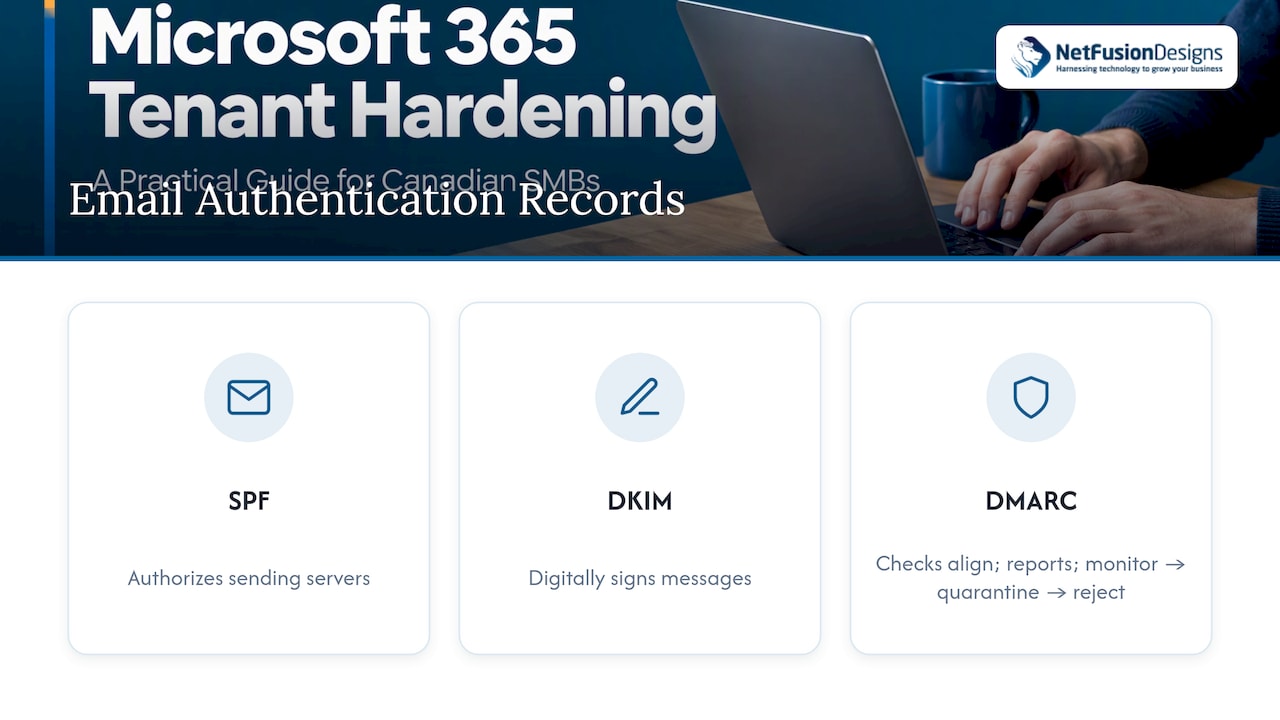
These three records stop other people from sending mail that pretends to be from your domain. Microsoft explains that SPF identifies authorized sending servers, DKIM digitally signs parts of each message, and DMARC says what to do when checks fail and where to send reports. The same page makes the reason for using all three clear: SPF alone does not align the envelope sender with the visible From address, and DKIM alone does not require the signer to match. DMARC supplies that alignment, plus enforcement and reporting.
A safe path is to publish DMARC in monitoring mode, read the reports for a few weeks to find legitimate senders you forgot (the invoicing platform, the newsletter tool), fix them, and then move to quarantine and reject. Law firms and accounting practices, whose clients routinely receive wire or payment instructions by email, benefit most. Our cybersecurity checklist for law firms puts this in context.
Decide who can share externally and with whom. Set guest access to expire, restrict anonymous links for sensitive libraries, and keep the sharing defaults narrower for finance, HR and client-file sites.
Controls here depend heavily on licence. Microsoft’s SMB plan comparison places Intune Plan 1, Defender for Business, Safe Links and Safe Attachments for Teams and SharePoint, sensitivity labels, Purview data loss prevention (DLP) and message encryption in Business Premium rather than in Basic or Standard.
Microsoft Purview’s assessment recommends audit logging, sensitivity labels with encryption, default and mandatory labelling where appropriate, DLP, email retention policies and protections for SharePoint and OneDrive. It also warns that some capabilities carry licensing requirements, and a few need pay-as-you-go billing.
For a small firm, a workable starting set is:
Retention is not backup. Microsoft 365 retention policies keep data for compliance, but they are not a restore plan for a deleted site or a ransomware event. Our article on whether you need Microsoft 365 backup explains how to decide, and our cloud backup and disaster recovery service covers it for Canadian businesses.
Hardening you cannot see is hardening you cannot trust. Logging has three jobs: tell you something is wrong, help you work out what happened, and prove it afterwards.
Start by confirming that audit logging is on. Microsoft’s Purview service description says Audit Standard is available with Business Basic, Standard and Premium, while Audit Premium provides up to one year of retention for appropriately licensed users, and ten-year retention needs an add-on licence. If a regulated client could ask you what happened to a file two years ago, plan for that now, not after an incident.
A short list worth setting up, with a named recipient who will actually see it:
An alert that lands in an unread shared mailbox is not monitoring. This is where a managed 24/7 security operations function earns its keep for a small team with no in-house analyst.
Microsoft Secure Score is a measurement of your organization’s security posture, where a higher number means more recommended actions taken. It lives in the Microsoft Defender portal and covers identities, apps and devices, with recommended actions you can work through.
Use it as a to-do list and a trend line, not a grade. Some recommendations will not suit your business, and you can record that decision rather than forcing every point. A steady climb over a quarter, with each change tested, tells you more than a high score reached in a weekend that triggered a flood of helpdesk calls.
Secure configuration helps with privacy obligations but does not discharge them. Shared Services Canada’s privacy assessment of Microsoft 365 says organizations should review data collection and tracking, residency and sovereignty, third-party integrations, Microsoft’s access to customer data, Teams recording and privacy settings, permissions, encryption and DLP. Its broader point is that configuration alone is not enough: transparency, user training, privacy reviews and recurring audits of permissions and integrations are also needed.
For a business handling personal information, the federal government’s business guidance points to PIPEDA resources and names CASL as Canada’s anti-spam legislation for business communications. Healthcare providers, law societies and accounting regulators may layer on their own expectations, so ask your regulator or counsel what applies to you.
Two practical habits follow from this:
Our Canadian cybersecurity threats guide shows what these controls are defending against.
We see the same pattern in tenants we are asked to review. The settings that matter most are rarely exotic. They are MFA that was never enforced for everyone, administrator roles nobody revisited, a legacy protocol left open for a scanner, and alerts that go to someone who left.
Hardening also fails when it is treated as a project with an end date. Licences change, staff join and leave, and new apps get connected. We prefer a baseline, then a quarterly review, because that is what keeps a tenant defensible. Hardening also has to be explained in plain language. If staff understand why a prompt appears, they stop working around it.
That is why we handle Microsoft 365 as part of the whole environment: identity, devices, backup, monitoring and helpdesk under one provider, with no third-party vendor management for you to coordinate. Our team is SOC 2 Type II certified, and we can support provincial data residency when a client requires it.
— Geeshan
If you want a simple sequence, this is the one we would follow for a small tenant.
| Period | Focus | Typical actions |
|---|---|---|
| Days 1 to 30 | Identity and admin | Assessment, MFA for admins then all users, emergency accounts, role clean-up, audit logging on |
| Days 31 to 60 | Apps, devices, email | Consent restrictions, Intune enrolment, SPF, DKIM and DMARC in monitoring mode, Safe Links and Safe Attachments where licensed |
| Days 61 to 90 | Data and monitoring | Labels, DLP, retention, alert rules, Secure Score review, DMARC enforcement |
Each phase should end with a short check: what changed, what broke, and what users reported. Then move on.
If your team does not have the time or in-house expertise to do this safely, we run Microsoft 365 hardening as part of our Microsoft 365 Optimization work and our wider managed IT services. That includes baseline configuration, monitoring through our 24/7 operations centre, and help for your staff when a new control changes how they sign in. Businesses that want to keep an internal IT person can use our co-managed option through our IT support services.

For tenants that need continuous detection, our 24/7 SOC and managed detection and response service watches the alerts described above so they are not left to chance.
Not to start. Security Defaults, MFA, admin role clean-up, SPF, DKIM and DMARC, and audit logging are available on lower tiers. Business Premium adds Conditional Access, Safe Links, Safe Attachments, sensitivity labels, DLP and Intune, so it is the natural choice once you handle client or patient data.
Security Defaults suit new and small tenants and are a good baseline. If you have Entra ID P1 or P2 (included with Business Premium), Microsoft’s guidance is to move to Conditional Access templates so you can set finer rules. Switch over deliberately and never leave a gap in MFA enforcement.
For a small tenant, the core identity and administrator work often takes a few weeks, and a full pass through apps, devices, email and data takes about a quarter. The pace depends on how many line-of-business apps and older devices you need to test. Rushing it is how staff get locked out.
No. It is a useful measure of recommended actions taken, and a good way to track progress, but it does not check your backups, your staff training or your privacy obligations. Treat it as one input alongside regular reviews.
No. It supports compliance, but PIPEDA and sector rules also cover consent, retention, breach handling and how you manage third parties. Ask your counsel or regulator what applies, and use the tenant settings to enforce the decisions you make.
%20(1).avif)
%201.avif)