NetFusion Designs logo
Heart icon
Support
Email
info@nfd.ca
Phone
647-476-5259(Canada)
IT Services
Icon dropdown arrow

Infrastructure Implementation

Project PlanningHardware Voice over IP (VoIP)Application DevelopmentCloud DesktopSecurity Cameras

Managed IT Services

IT Support24/7 HelpDeskCyber Security & AntivirusData Backups & Disaster
Recovery
Co-Managed ITComplianceEmergency Ransomware
Recovery
Penetration & Vulnerability
Assessment

Optimization of Processes

Microsoft 365 OptimizationVirtual CIO ServicesPenetration TestingInventory Lifecycle
Management
Transforming SMEs with AI
Industries
Icon dropdown arrow
Dental Managed IT Services
Construction
Hotels & Hospitality
Franchises
Financial & Insurance Services
Government
Health Care & PharmaceuticalLegal & Professional Services
Local Small & Medium Businesses
Manufacturing
Non-profit
Real Estate
Retail
Transportation & Logistics
Enterprise & Consulting
Publicly Traded Companies
Our Story
Icon dropdown arrow
About UsTestimonials
Partners
Sponsorship
BlogContact Us
Open menuClose menu
Icon chevron up
Browse Blog:
Business
Insight
Advice
Advice

Year-End IT Checklist for Small Businesses

Ten December tasks to secure your systems over the holidays and plan next year's IT budget, from backup restore tests to licence reviews.
7
Year-End IT Checklist for Small Businesses

A year-end IT checklist is a short list of jobs to finish in December so your business starts January secure and on budget: test a backup restore, clean up user accounts, check licence and warranty renewals, patch everything before the holidays, confirm who covers support during the closure, and set next year's IT budget and priorities.

None of these tasks is difficult on its own. The problem is that they belong to nobody in particular, so they slide from one year to the next. December is a natural checkpoint: projects slow down, budgets are being drawn up, and the office may be closed for a week or more, which is exactly when an unnoticed problem has time to grow.

This guide walks through ten tasks owners and office managers can work through in a few sessions, with or without an IT provider, plus how to turn what you find into a plan for the year ahead.

Why does a year-end IT review matter for small businesses?

A year-end review catches the slow drift that daily support never looks at. Over twelve months, staff join and leave, software gets added on a credit card, warranties lapse and settings change. Each change is small, but together they create gaps in security and spending that are easy to miss.

The timing also matters. Many renewals, from Microsoft 365 subscriptions to cyber insurance, line up with the calendar or fiscal year. Reviewing them before they renew gives you room to right-size or cancel instead of paying for another year by default. And because many offices close or run lean over the holidays, it is the one time of year when systems may sit unwatched for several days in a row.
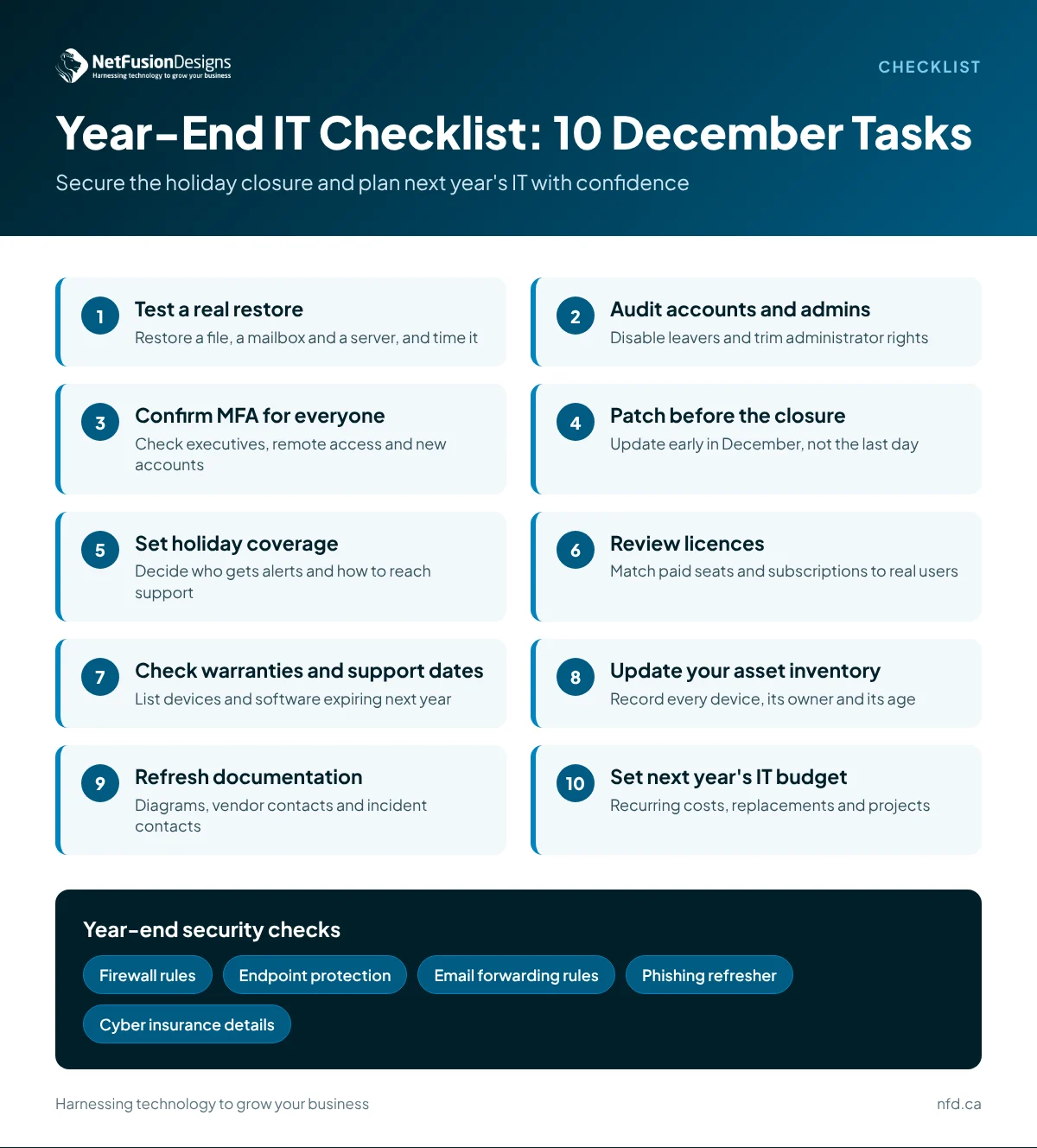
The year-end IT checklist: 10 tasks to finish in December

Infographic: year-end IT checklist with 10 December tasks for small businesses

Work through these in order. The first five protect you over the holidays; the last five set up the year ahead.

  1. Test a real restore from backup. Don't just confirm that backup jobs say "successful." Restore a file, a mailbox and, if you can, a whole server or virtual machine, and time how long it takes. Our disaster recovery test checklist covers what a proper test should include.
  2. Audit user accounts and admin access. Disable accounts for anyone who left this year, remove shared logins you no longer need, and check who holds administrator rights in Microsoft 365, your firewall and line-of-business apps. If departures were handled inconsistently, use an employee offboarding IT checklist going forward.
  3. Confirm MFA is on for everyone. Check that multi-factor authentication covers every user, including executives, service accounts that can support it, and remote access tools. Accounts added mid-year are the ones most often missed.
  4. Patch and update before the closure. Apply operating system, browser and firmware updates in the first half of December, not the last working day, so you have time to fix anything an update breaks.
  5. Set holiday coverage and alerts. Decide who receives security and backup alerts while the office is closed, write down how to reach your IT provider after hours, and make sure staff know who to call if they click something suspicious from home.
  6. Review licences and subscriptions. Compare paid seats in Microsoft 365 and other software against the people actually using them. Look for duplicate tools that do the same job and subscriptions nobody owns.
  7. Check warranties and end-of-support dates. List devices whose warranties expire next year and any software reaching end of support. Microsoft publishes support dates on its product lifecycle pages, which makes this quick to check.
  8. Update your hardware and asset inventory. Record every laptop, desktop, server, firewall and phone, who has it and how old it is. You cannot plan replacements or spot missing equipment without it.
  9. Refresh your documentation and contacts. Update network diagrams, vendor contacts, account numbers for internet and phone providers, and your incident contact list. Store a copy somewhere you can reach if your main systems are down.
  10. Set next year's IT budget and priorities. Turn what you found into a short list of projects and a budget, separating fixed monthly costs from one-time purchases.

How do you prepare your IT for the holiday office closure?

Holiday preparation is about making sure someone is watching and that nothing important depends on a person who is away. Start by confirming that monitoring, endpoint protection and backups keep running without anyone in the office, and that alerts go to a person or service that will actually respond.

  • Shut down or log off equipment that doesn't need to run, but leave servers, firewalls and backup devices powered and protected by a working UPS.
  • Remind staff that phishing often rises around holiday shopping, gift cards and shipping notices, and that urgent payment requests should be confirmed by phone.
  • Set clear out-of-office messages that don't reveal more than necessary, such as personal mobile numbers or exact travel dates.
  • Confirm that anyone working remotely can connect securely and knows how to get help.

How should you plan your IT budget for next year?

A useful IT budget starts from the checklist findings, not from last year's number plus inflation. Group costs into three buckets: recurring services (support, licences, internet, phones), planned replacements (devices reaching end of warranty or support), and projects (new systems, security improvements, migrations).

For a benchmark on overall spending, see our guide to IT budget as a percentage of revenue. Then rank projects by risk reduced and time saved, and schedule larger ones for quieter months in your business. Spreading hardware replacement across the year, rather than replacing everything at once, keeps cash flow predictable.

Which security checks should be on your year-end list?

The most valuable year-end security checks confirm that your basic controls are still working as intended. Small businesses don't need a long framework to start; the Canadian Centre for Cyber Security's baseline cyber security controls for small and medium organizations is a practical reference written for organizations your size.

  • Review firewall rules and remove any temporary access opened during the year.
  • Check that endpoint protection is installed and reporting on every device.
  • Confirm email security settings and review any forwarding rules on mailboxes.
  • Run or schedule a phishing awareness refresher for staff in January.
  • Check that your incident response contacts and cyber insurance details are current.

Who should own the year-end IT checklist?

One named person should own the checklist, even if several people do the work. In a smaller business that is often the owner, office manager or controller, working with an IT provider who handles the technical tasks and reports back.

If nobody on your team has time to turn these findings into a plan, that is the role a virtual CIO fills. NetFusion Designs (NFD), a SOC 2 Type II certified managed IT provider headquartered in Kitchener-Waterloo, offers virtual CIO services that turn reviews like this into a written roadmap and budget for the year, so decisions are made on purpose rather than when something breaks. NFD's IT asset and lifecycle management can also keep your inventory and warranty dates current all year.

Frequently asked questions

When should a small business do a year-end IT review?

Start in late November or early December. That leaves time to patch systems and fix problems before the holiday closure, and to review licences and subscriptions before many of them renew. Budget decisions are also easier when the review is done before next year's spending plan is finalized, rather than after January projects have already started.

How long does a year-end IT checklist take?

For a business with 10 to 50 staff, most of the checklist can be completed in two or three working sessions if your inventory and account lists are reasonably up to date. The backup restore test and the account audit usually take the longest. If records are out of date, expect the first year to take longer and later years to go much faster.

What is the most important item on a year-end IT checklist?

Testing a real restore from backup is the most important item, because it is the one that decides whether you can recover from ransomware, hardware failure or accidental deletion. A backup job that reports success is not proof that data can be restored in a reasonable time. Close behind it is confirming that every account uses multi-factor authentication.

Do we need an IT provider to complete a year-end IT review?

No. An owner or office manager can complete much of the checklist, including licence reviews, warranty checks and budget planning. Technical tasks such as restore testing, firewall reviews and patching are faster and safer with an IT provider or internal IT person, who can also explain which findings carry the most risk.

A year-end review doesn't have to be a big project. Work through the checklist, write down what you find, and pick the three or four changes that matter most for next year. If you'd like help reviewing your systems or building next year's IT plan, talk to the NFD team.

‍

Continue Reading

Guest Wi-Fi for Business: How to Set It Up Securely
Lost or Stolen Work Laptop: What to Do in the First 24 Hours
SharePoint Information Architecture: A Practical Guide
Microsoft Teams as a Call Centre: Queues and Setup
NetFusion Designs logo
NetFusion Designs is a globally recognized IT service provider and services clients across North America.

We hold a SOC 2 Type 2 report, and maintain internal processes and procedures that keep our clients’ data secure and confidential.
NetFusion Designs IT support team

IT Services Near Me

BurlingtonOakvilleHamiltonMississaugaMiltonBramptonEtobicokeBrantfordGuelphKitchenerWaterlooCambridgeSt CatharinesTorontoMarkhamCaledonNewmarketNorth YorkPickering & DurhamLondonMontreal

Services

Project PlanningHardwareTelephony & VoIPApplication DevelopmentCloud DesktopSecurity CamerasHelpdesk & SupportCyber Security & Anti-VirusData Backups & Disaster RecoveryMicrosoft 365 OptimizationVirtual CIO ServicesPenetration TestingPricingSchedule a MeetingRemote Support
Pricing

Pages

Free Security ScanAbout UsOur Migration ApproachWork CultureOur Core ValuesCode of ConductTestimonialsContactBlogSchedule a MeetingRemote Support

TORONTO

Bank capital office building law
401 Bay St, 16th Floor, Toronto Ontario
Email
info@nfd.ca
Phone
647-476-5259 (Canada)

MARKHAM

Bank capital office building law
141 Main Street N, Markham, ON L3P 1Y2
Email
info@nfd.ca
Phone
647-476-5259 (Canada)

TRI-CITY AREA
(Kitchener / Waterloo / Cambridge)

Bank capital office building law
22 Frederick St, Suite 700, Kitchener Ontario
Email
info@nfd.ca
Phone
647-476-5259 (Canada)

PEEL REGION

Bank capital office building law
6700 Century Ave, 3rd floor, Mississauga, ON L5N 1V8
Email
info@nfd.ca
Phone
647-476-5259 (Canada)

DURHAM REGION

Bank capital office building law
1315 Pickering Parkway, Pickering, ON L1V 7G5
Email
info@nfd.ca

MONTREAL

Bank capital office building law
8815 Av du Parc #402, Montréal, QC H2N 1Y7
Email
info@nfd.ca
Phone
647-476-5259 (Canada)

Special Offers

Radio station signal antena tower
Pricing: $100–185 per user
Icon chevron right
Terms and ConditionsPrivacy PolicyCookie Policy
© 2026 NetFusion Designs Inc.
LinkedInFacebookAlignable logo