NetFusion Designs logo
Heart icon
Support
Email
info@nfd.ca
Phone
647-476-5259(Canada)
IT Services
Icon dropdown arrow

Infrastructure Implementation

Project PlanningHardware Voice over IP (VoIP)Application DevelopmentCloud DesktopSecurity Cameras

Managed IT Services

IT Support24/7 HelpDeskCyber Security & AntivirusData Backups & Disaster
Recovery
Co-Managed ITComplianceEmergency Ransomware
Recovery
Penetration & Vulnerability
Assessment

Optimization of Processes

Microsoft 365 OptimizationVirtual CIO ServicesPenetration TestingInventory Lifecycle
Management
Transforming SMEs with AI
Industries
Icon dropdown arrow
Dental Managed IT Services
Construction
Hotels & Hospitality
Franchises
Financial & Insurance Services
Government
Health Care & PharmaceuticalLegal & Professional Services
Local Small & Medium Businesses
Manufacturing
Non-profit
Real Estate
Retail
Transportation & Logistics
Enterprise & Consulting
Publicly Traded Companies
Our Story
Icon dropdown arrow
About UsTestimonials
Partners
Sponsorship
BlogContact Us
Open menuClose menu
Icon chevron up
Browse Blog:
Business
Insight
Advice
Insight

Microsoft Copilot Security Controls: What to Set Before Rollout

Microsoft Copilot Security Controls: What to Set Before Rollout

Microsoft 365 Copilot does not bypass your security. It works inside it. Copilot only surfaces data the signed-in user can already access, so your real Copilot security controls are the ones you already have: permissions, sensitivity labels, data loss prevention (DLP), and how you govern connectors and custom agents. This guide shows which controls to configure, in what order, and where the gaps are.

NetFusion Designs Inc
Prepare Microsoft 365 for Copilot
NFD provides managed IT and Microsoft 365 services to help businesses strengthen security controls before adopting AI tools.
Explore NFD services

TL;DR

  • Copilot inherits user permissions. If a file is overshared in SharePoint or OneDrive, Copilot can surface it. Fix oversharing first.
  • Sensitivity labels and Microsoft Purview DLP are the main enforcement layers. Both have limits you should know before you build policies.
  • External connectors and custom agents need their own governance, because labels and encryption may not carry over.
  • “Copilot” can mean the Microsoft 365 assistant or Security Copilot, a separate analyst tool. The controls differ.
  • Microsoft has said local inferencing for Canada is planned for 2027, so check residency needs against your own obligations.

Table of Contents

  • First, which Copilot are you securing?
  • The principle that drives everything: Copilot inherits access
  • Control 1: Fix permissions before you license anyone
  • Control 2: Sensitivity labels and encryption
  • Control 3: Purview DLP for Copilot
  • Control 4: Connectors, plugins and external data
  • Control 5: Governing agents and Copilot Studio
  • Control 6: Auditing and retention
  • Prompt-level protections Microsoft provides
  • Security Copilot: a different set of settings
  • A 30-day Copilot security plan
  • Our perspective
  • How NFD can help
  • FAQ
  • Sources

First, which Copilot are you securing?

Two products share the name, and search results mix them up.

  • Microsoft 365 Copilot (and Copilot Chat) works inside Word, Outlook, Teams, SharePoint and the rest. It answers questions using your organization’s content. This is what most Ontario small and mid-sized businesses are asking about.
  • Microsoft Security Copilot is a tool for security analysts. It helps investigate incidents. It has its own owner settings, data sharing options and retention rules.

This article focuses on the first, with a section on the second near the end. If you are weighing where Copilot fits in your workflows first, our Copilot use cases for 365 piece covers six pilots.

The principle that drives everything: Copilot inherits access

Microsoft’s architecture documentation is clear that Copilot never has access to data the user cannot access. That is reassuring, and it is also the source of the main risk.

Most small businesses have years of accumulated sharing. A folder opened to “everyone in the company” for one project in 2019. A SharePoint site created by a former employee. A finance spreadsheet saved to a shared library. None of that was a problem when nobody went looking. Copilot makes it easy to find, because a user can simply ask a question in plain language.

Microsoft’s own guidance frames the primary risk as oversharing of data that already exists in SharePoint and OneDrive, not the AI model itself. So the first control is not a Copilot setting. It is a clean-up.

The principle that drives everything: Copilot inherits access — overview diagram

Control 1: Fix permissions before you license anyone

Before you assign Copilot licences broadly, do this in order:

  1. Inventory your sites. List SharePoint sites, Teams-connected sites and OneDrive sharing. Flag anything open to “Everyone except external users” or to large groups.
  2. Run data access governance reports. Microsoft recommends routinely running these reports to find overshared sites and fix them before enabling Copilot more widely.
  3. Find ownerless and inactive sites. These are where old, forgotten sensitive files tend to live.
  4. Tighten the high-risk areas first. HR, finance, legal files, client records and anything covered by privacy law.
  5. Pilot with a small group. Roll out to a handful of users in a department you have already cleaned up, and review what they can surface.

For a law firm or accounting practice, this step often takes the longest, because client matters live in many places. Our guide on SharePoint for law firms shows how structured libraries make this easier.

Control 2: Sensitivity labels and encryption

Sensitivity labels from Microsoft Purview let you classify content and attach protection, such as encryption and usage rights. Copilot respects them in specific ways.

  • If a user lacks the EXTRACT or VIEW usage right on an encrypted file, Copilot is blocked from summarizing or interacting with it.
  • When a user has VIEW but not EXTRACT, Copilot won’t summarize the content, but it can reference it with a link so the user can open it.
  • Items protected with Double Key Encryption are out of reach for Copilot and its agents. That option exists for your most sensitive material.

Three label limits to plan around

These come from Microsoft’s own considerations page, and they catch people out.

  1. Labels on containers are not inherited for Copilot purposes. A label on a Team, SharePoint site or Loop workspace does not pass down to the items inside. A summary of a chat in a “Confidential” Team will not carry that label’s context. Label individual files, or use restrictive access controls as well.
  2. Label enforcement depends on the file state. Microsoft’s documentation describes label handling for files open in an app, and says that for unopened files at rest, protected content is off limits unless the user has EXTRACT rights. If library or file-level access is too open, Copilot may still pull data from files that are not properly restricted.
  3. Labelling is only as good as its coverage. An unlabelled file has no label-based protection. Auto-labelling for common patterns (such as SINs or payment card numbers) helps close the gap.

The practical lesson: labels are a strong second layer, not a replacement for correct permissions. For a baseline that does not break your line-of-business apps, see our Microsoft 365 security baseline.

Control 3: Purview DLP for Copilot

Data loss prevention is where you can stop sensitive data at the moment of interaction. As of October 2026, Purview DLP can block Microsoft 365 Copilot from processing prompts that contain sensitive information types, such as credit card or SIN numbers, and can stop it from using files or emails that carry specific sensitivity labels.

Supported sensitive information types include Microsoft’s built-in types and custom types you define. Endpoint DLP can also block users from pasting sensitive content from Microsoft 365 into browser-based third-party AI sites, which matters if staff are tempted to use unapproved tools.
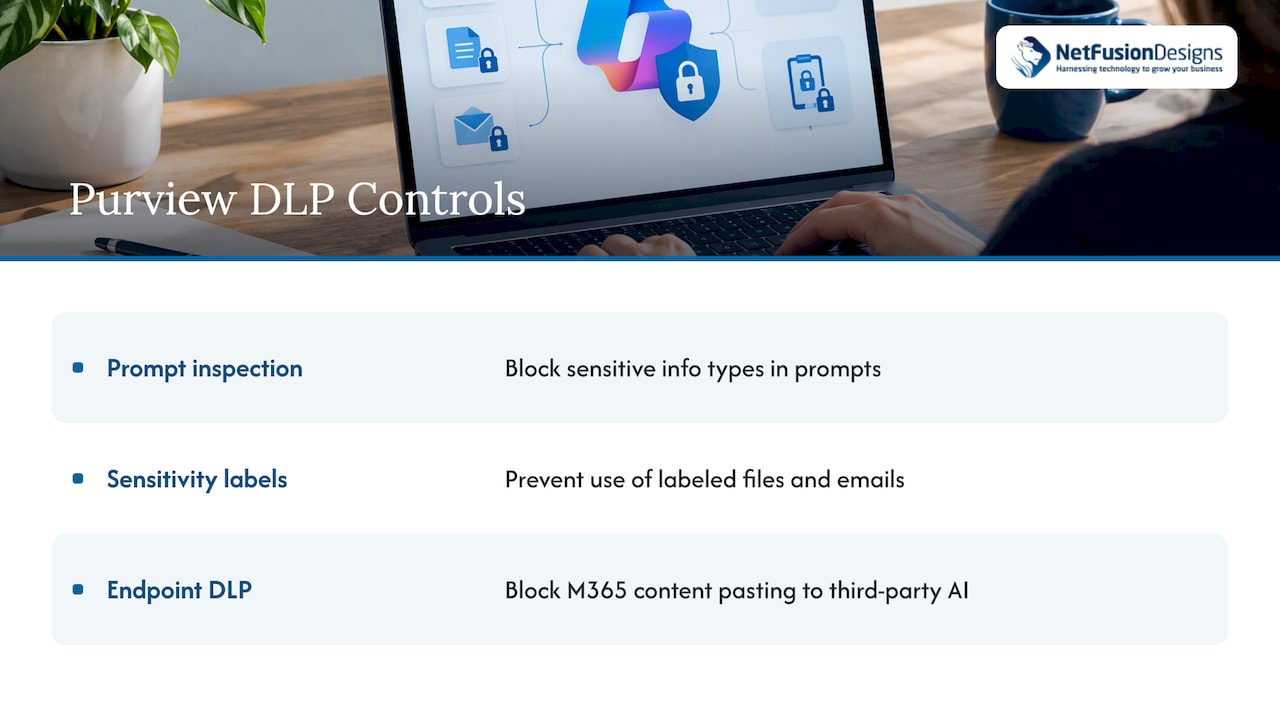
Three data loss prevention controls for Copilot

The limitation that affects policy design

You cannot combine a “content contains sensitive info types” condition and a “content contains sensitivity labels” condition in the same Copilot DLP rule. You need separate rules for each. For a business with several departments, that means more rules to maintain. Keep the structure simple:

Rule purpose Condition Suggested scope
Keep SINs and card numbers out of prompts Sensitive info types All Copilot users
Keep labelled files out of responses Sensitivity labels Departments handling client or patient data
Stop pasting into outside AI sites Endpoint DLP All managed devices

Start in test mode, review the matches, then enforce. Name rules clearly so the person who inherits them can understand them.

Control 4: Connectors, plugins and external data

Copilot is tenant-aware, but not necessarily context-aware for external content. When you bring outside data in through plugins or Microsoft Graph connectors, that data may not support the same sensitivity labels and encryption as native Microsoft 365 documents.

What to do:

  • List every connector and plugin currently enabled.
  • Disconnect anything unused or high-risk.
  • Require an approval step before anyone adds a new third-party data source.
  • Treat connected data as unlabelled, and decide whether it belongs in Copilot at all.

Control 5: Governing agents and Copilot Studio

If your team builds custom agents, governance needs layers. Microsoft’s Copilot Studio guidance describes geographic data residency, DLP, and environment routing among its controls.

A workable pattern for a mid-sized business:

  1. Separate environments for development, testing and production.
  2. Run security scans and risk assessments on an agent before it is published, so makers can spot potential data exfiltration paths.
  3. Limit who can build and publish. Maker-level and tenant-level access controls exist for this.
  4. Apply data policies that restrict which connectors an agent may use.

This is the same discipline you would apply to low-code apps. Our piece on Power Apps governance covers the overlap.

Control 6: Auditing and retention

You cannot govern what you cannot see. Copilot interactions are covered by Microsoft Purview capabilities, and Microsoft publishes a capability table by product showing which Purview features support Copilot and Copilot Chat. Check it against your licence tier before you promise your board or regulator a given control.

Also decide how long prompts and responses are kept. Retention rules for mail and chat apply to your wider compliance picture, and our Exchange Online retention policies guide covers setup. Licensing affects what is available, so review the Microsoft 365 licensing guide before you design controls you may not be entitled to use.

Prompt-level protections Microsoft provides

Microsoft states that Copilot applies layered protections at several stages of prompt processing, aimed at reducing security, privacy and compliance risk before a prompt reaches the language model. These run without your configuration. They do not replace your own controls, but they are part of the picture when someone asks how the service defends against manipulation.

Security Copilot: a different set of settings

If your IT team or provider uses Microsoft Security Copilot for investigations, these points apply:

  • Customer data, including prompts and session data, is stored and processed under your subscription. Data sharing is on by default, and administrators can change it.
  • If sharing is turned off, Microsoft deletes previously shared customer data within 30 days.
  • Data at rest is encrypted with AES-256.
  • Session data is deleted after 180 days of inactivity.
  • Owner settings, including plugin and data management, require the Security Copilot owner role.

Review the data sharing default deliberately, especially if client confidentiality is a concern.

A 30-day Copilot security plan

Week Focus Output
1 Permissions review List of overshared and ownerless sites
2 Remediation and labelling Cleaned high-risk sites, labels on key files
3 DLP and connector review Test-mode DLP rules, trimmed connector list
4 Pilot group and audit review Small rollout, findings, go/no-go for wider use

This is a starting frame. A firm with decades of file shares will need longer, and that is normal.

Our perspective

We see the same pattern with Ontario clients: the AI conversation starts with the licence and should start with the data. Copilot is not the risk. It is a very good search tool pointed at whatever your tenant already lets people see.

So we ask three questions before any rollout. Who can see what today? Which files would hurt if surfaced by the wrong person? Who owns the policies once we are done? Plain answers to those matter more than any single toggle.

We also suggest teams keep the rollout small and reversible. A pilot group, test-mode DLP and a named owner for connectors will teach you more in a month than a long planning document. As a SOC 2 Type II certified provider, we run our own processes the same way: documented, audited and repeatable.

— Geeshan

How NFD can help

If you would rather not carry this work alongside your day job, our Microsoft 365 Optimization service covers tenant clean-up and configuration, and our managed IT services team can keep permissions, labels and policies maintained after launch. For monitoring and response around your Microsoft environment, see our 24/7 SOC and MDR options. For secure AI adoption more broadly, our AI adoption guide for small businesses is a good next read.

FAQ

Does Microsoft Copilot use my data to train its models?

Microsoft’s documentation describes Copilot as operating on your data within your tenant’s boundaries and permissions. Training and data-handling terms differ by product and agreement, so confirm the current terms for your licence in Microsoft’s documentation and your contract. For Security Copilot, the data sharing setting is on by default and administrators can change it.

Can Copilot see files I have restricted?

Not if the user cannot access them. Copilot works from the user’s existing rights. The gap is in files that are accessible but should not be, which is why a permissions review comes first. Label individual files, not only containers.

Can I stop Copilot from handling SINs or card numbers?

Yes. Purview DLP can block Copilot from processing prompts that contain specified sensitive information types, and from using files with chosen sensitivity labels. Use separate rules for types and labels, as they cannot be combined in one rule.

Where is Copilot data processed for Canadian businesses?

Microsoft has said local inferencing for Copilot interactions in Canada is to follow in 2027. Until then, check Microsoft’s current residency documentation against any contractual or regulatory requirement you have, and ask your provider to confirm in writing.

Sources

  • Microsoft Copilot data protection architecture
  • Considerations for Microsoft Purview to manage Microsoft 365 Copilot
  • Microsoft Purview DLP for Microsoft 365 Copilot
  • Use Microsoft Purview to manage data security and compliance for Microsoft 365 Copilot
  • Security and governance in Microsoft Copilot Studio
  • Microsoft Copilot prompt defense in depth
  • Privacy and data security in Microsoft Security Copilot
  • Security Copilot owner settings
  • Microsoft in-country data processing for Microsoft 365 Copilot

Recommended

  • Microsoft 365 Copilot Use Cases: 6 Workflows to Pilot
  • Microsoft 365 Security Baseline Without Breaking Apps
  • Bring Your Own Device (BYOD) Policy: A Practical Guide

Continue Reading

24/7 Help Desk Coverage: What It Means and How to Buy It
Password Manager for Small Business: How to Choose and Roll Out
Remote Desktop for Law Firms: How to Choose and Secure It
Co-Managed IT Responsibilities: Who Owns What
NetFusion Designs logo
NetFusion Designs is a globally recognized IT service provider and services clients across North America.

We hold a SOC 2 Type 2 report, and maintain internal processes and procedures that keep our clients’ data secure and confidential.
NetFusion Designs IT support team

IT Services Near Me

BurlingtonOakvilleHamiltonMississaugaMiltonBramptonEtobicokeBrantfordGuelphKitchenerWaterlooCambridgeSt CatharinesTorontoMarkhamCaledonNewmarketNorth YorkPickering & DurhamLondonMontreal

Services

Project PlanningHardwareTelephony & VoIPApplication DevelopmentCloud DesktopSecurity CamerasHelpdesk & SupportCyber Security & Anti-VirusData Backups & Disaster RecoveryMicrosoft 365 OptimizationVirtual CIO ServicesPenetration TestingPricingSchedule a MeetingRemote Support
Pricing

Pages

Free Security ScanAbout UsOur Migration ApproachWork CultureOur Core ValuesCode of ConductTestimonialsContactBlogSchedule a MeetingRemote Support

TORONTO

Bank capital office building law
401 Bay St, 16th Floor, Toronto Ontario
Email
info@nfd.ca
Phone
647-476-5259 (Canada)

MARKHAM

Bank capital office building law
141 Main Street N, Markham, ON L3P 1Y2
Email
info@nfd.ca
Phone
647-476-5259 (Canada)

TRI-CITY AREA
(Kitchener / Waterloo / Cambridge)

Bank capital office building law
22 Frederick St, Suite 700, Kitchener Ontario
Email
info@nfd.ca
Phone
647-476-5259 (Canada)

PEEL REGION

Bank capital office building law
6700 Century Ave, 3rd floor, Mississauga, ON L5N 1V8
Email
info@nfd.ca
Phone
647-476-5259 (Canada)

DURHAM REGION

Bank capital office building law
1315 Pickering Parkway, Pickering, ON L1V 7G5
Email
info@nfd.ca

MONTREAL

Bank capital office building law
8815 Av du Parc #402, Montréal, QC H2N 1Y7
Email
info@nfd.ca
Phone
647-476-5259 (Canada)

Special Offers

Radio station signal antena tower
Pricing: $100–185 per user
Icon chevron right
Terms and ConditionsPrivacy PolicyCookie Policy
© 2026 NetFusion Designs Inc.
LinkedInFacebookAlignable logo